
Scan Bill: turn a paper bill into an entry without typing
How to photograph a supplier bill, check what the AI read and save it as a purchase bill, an expense or a sales invoice, plus what to check every time.
In this article
The supplier's delivery boy has left, and a carbon-copy bill with twelve lines is sitting on the counter. Typing it in means finding every item, every rate and every quantity, and it usually waits until Sunday. Scan Bill reads a photo of the bill and fills in the form for you, so the only job left is checking it.
Here is how to scan a bill, what to check and which entry type to choose.
Why bills pile up, and why it matters
A purchase bill that is not entered is stock you have but the app does not know about. Your stock count runs short, the cost of each item stays out of date, and your profit figure is wrong for the month. An unrecorded rent or repair bill makes the month look better than it was. Entering bills the day they arrive fixes this.
Scan a bill, step by step
- 1Open Scan Bill. On a phone it is in More → Scan Bill, or among the Quick Actions on Home if you have not chosen a business type. On a computer it is in More, or in the left menu when your layout includes it.
- 2Add the photo. On a phone, tap Take photo or Choose from device. On a computer, drag the image onto Drop a bill here or click Choose file. Use a JPG, PNG or WebP image of up to 5 MB.
- 3Check the photo shows the whole bill and is readable, then tap Process bill. If not, choose Use another image.
- 4Wait for Reading the bill…, which usually takes 10 to 20 seconds.
- 5Review what it found. Review scanned bill shows the seller and their GSTIN, the buyer, the bill number and date, each item with quantity, rate and amount, the totals and how confident the scan is. Click Edit to correct anything, then Done.
- 6Choose what it is under Save this bill as: Purchase bill, Expense or Sales invoice. The matching form opens, filled in. Nothing is saved until you save that form.
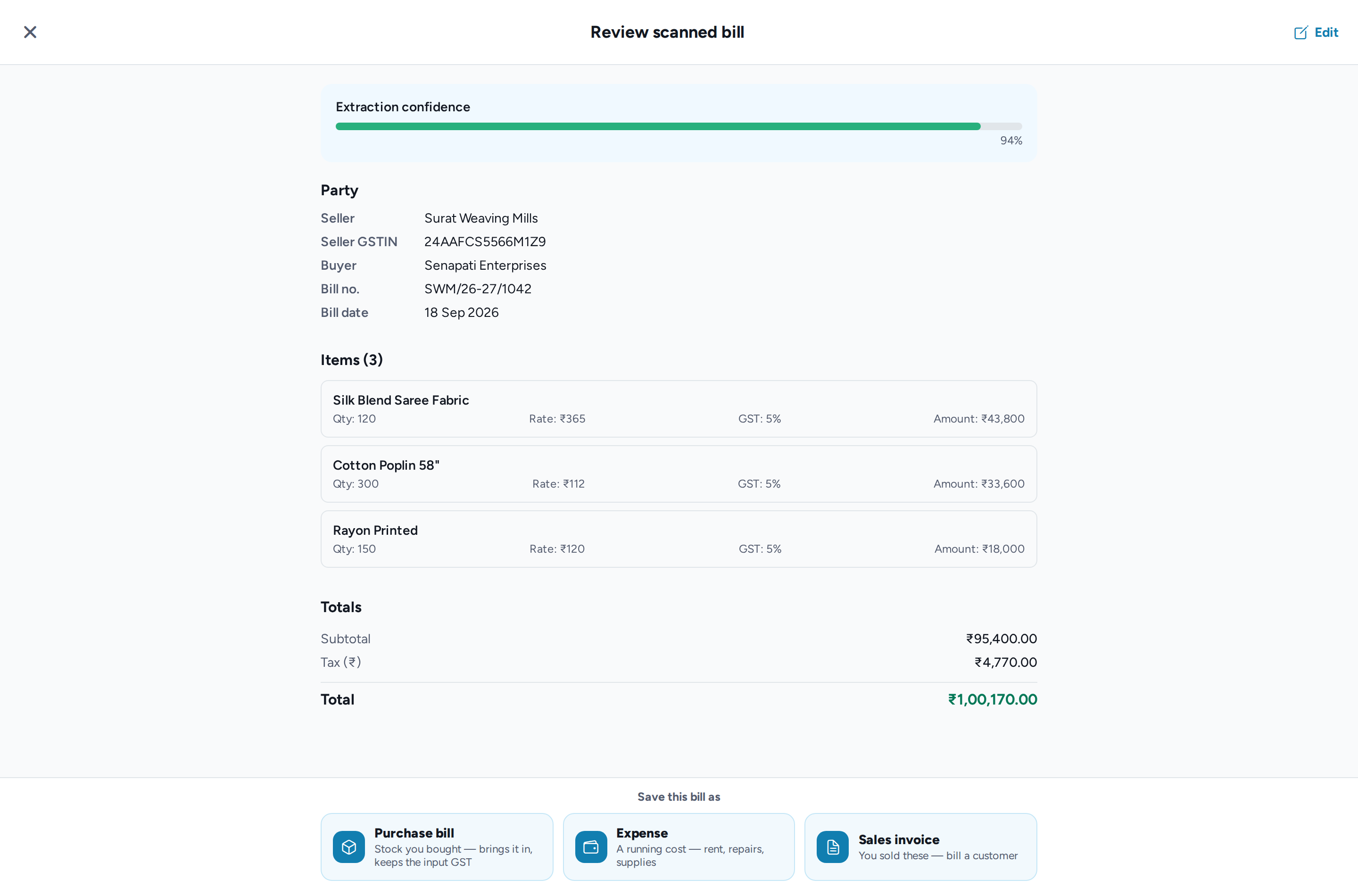
Purchase bill, expense or sales invoice?
| Save as | Use it for | What happens next |
|---|---|---|
| Purchase bill | Stock you bought to sell | Inventory → Purchases opens with the bill number, date and lines. Pick the supplier, check the lines and save. Lines linked to catalogue items bring stock in and update your average cost. |
| Expense | A running cost such as rent, repairs or supplies | Inventory → Expenses opens with the amount before GST, the GST paid, the date and the reference. |
| Sales invoice | Goods you sold, written on paper first | New invoice opens with the lines. If the buyer's name or phone matches a saved customer, they are picked for you. |
What to check before you save
The AI reads the photo, but you are responsible for the entry. Check these every time:
- GST rate on every line. The scan may not read tax rates, and a line without one starts at 18%. Change it to the rate printed on the bill.
- Quantities and units. A smudged 6 read as 8, or boxes read as pieces, throws off your stock.
- The total. Compare the form's total with the total printed on the paper bill. If they differ, a line is wrong.
- The supplier. For a purchase bill, pick the supplier yourself. If the name on the scan is not a saved supplier, it is kept in the bill's note.
- The bill number and date. These are the supplier's, so copy them exactly.
A worked example
Say you run a hardware shop and a supplier delivers five items. The paper bill shows goods of ₹20,000 plus ₹3,600 GST, a total of ₹23,600.
- You photograph the bill and tap Process bill.
- The review shows five lines, but on one line (a single unit at 18% GST) the rate reads ₹1,250 where the paper says ₹1,350, so the total comes to ₹23,482 instead of ₹23,600: ₹100 short, plus ₹18 of GST on it. You click Edit, correct the rate and the totals now match.
- You choose Purchase bill, pick the supplier, link each line to the catalogue item and check each GST rate.
- You click Save bill. Stock goes up by the quantities delivered and the average cost of each item updates.
Comparing the two totals took ten seconds and caught a ₹100 mistake on one rate, which would otherwise have stayed in that item's average cost and in the margin of every later sale of it.
Limits and tips
- Needs internet. Reading a bill uses AI, so it does not work offline.
- Uses your AI allowance. Each bill you process counts towards your plan's monthly AI limit. See the pricing page.
- Handwritten bills can be tried, but check every value with extra care.
- Roles matter. Purchase bill and Expense appear only for roles that can record them, and Scan Bill is hidden for roles without AI access.
- Photo tips: lay the bill flat, use daylight or a bright light, keep the whole page in the frame and avoid shadows across the numbers.
For the full screen reference, see the Scan Bill guide. To understand how purchase bills drive your stock and costs, read Purchases and our article on purchase bills.