
Projects: milestones, proof and client approval before you invoice
How to split client work into milestones, attach proof of delivery, get approval through a link, invoice each stage and schedule payment reminders.
In this article
You delivered the homepage design three weeks ago. The client said "looks good" on a call, and now says the scope was different and the invoice can wait. Most payment trouble for freelancers and contractors starts between "work delivered" and "money received". Projects in InvoiceKaro keeps a dated record across that gap: what you delivered, who approved it and when, and how you followed up.
Set up a project and its milestones
- 1Add the client in Customers first. Projects are for saved customers. Open Projects from the left menu, or from More in a Shop / Retail layout. On a phone it is a shortcut on Home for a Services or Both business, and in More otherwise.
- 2Click New project. Pick the Client, enter the Project name, an optional Scope summary and the Total value (₹), then click Create.
- 3Add milestones. Click + Milestone and enter a Title, the Amount (₹) and a Due date for each stage you bill for.
Say you are an interior designer with a ₹1,50,000 project for a shop fit-out. You split it into three milestones: design drawings ₹40,000 due 15 October, carpentry and fixtures ₹60,000 due 15 November, and final handover ₹50,000 due 30 November.
Each milestone moves through In progress, Delivered, Approved, Invoiced and Paid ✓. The What to do next card lists up to five suggestions, most urgent first.
Attach proof and ask for approval
- 1Attach proof with + Proof on the milestone card: Upload file (up to 20 MB each) or Add link / note.
- 2Mark delivered when you hand over the work.
- 3Click Copy approval link. The milestone must be Delivered and have at least one piece of proof. The link works for 14 days.
- 4Send the link to the client on WhatsApp or by email. They need no account. They enter Your name (email and notes optional) and tap I approve this delivery.
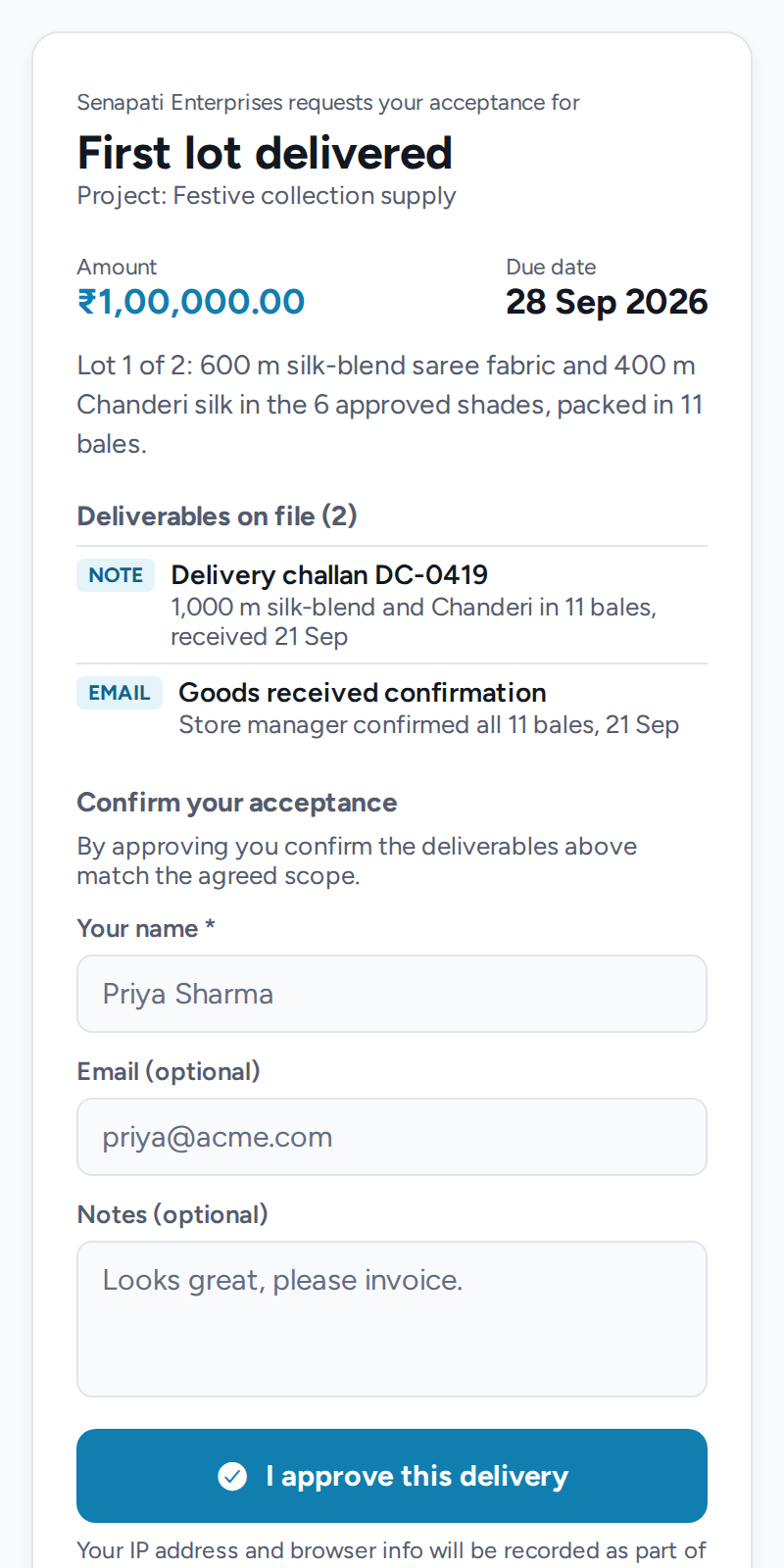
The page does not give the client your files, so deliver those as usual. If the client approved by email instead, attach that email as proof and use ⋯ More → Mark approved (manually). That records the approval, but no certificate is created.
What the approval records, and what it does not
When a client approves through the link, InvoiceKaro saves an acceptance certificate that cannot be edited afterwards. It holds:
| Recorded | What it tells you |
|---|---|
| Name and optional email | What the person typed in. These are not checked. |
| Their notes | Anything they wrote, such as "Please go ahead and invoice". |
| Date and time | Exactly when they approved. |
| IP address and browser | Technical details sent with the request. Not proof of identity or location. |
| SHA-256 bundle hash | A fingerprint of the stored proof files, links and labels at approval. It does not track external websites. |
Turn the milestone into an invoice
- 1On the approved milestone, click Create invoice. At any other stage, ⋯ More → Create invoice now does the same. Creating an invoice does not record approval.
- 2A draft invoice is created with one line for the milestone amount, in your normal number series.
- 3Add GST if you charge it. The draft is created without GST. Click Edit and set the GST rate, HSN/SAC and Place of supply. The edit form starts the line at 18%, so check the rate before you save. If your business has no GST number, the form shows no GST fields and the invoice stays without GST.
- 4Issue it with Send invoice, or Mark as sent if you share the PDF yourself. Each milestone gets one invoice.
When the money reaches your bank or UPI app, record it with Mark as paid or in Payments; InvoiceKaro does not see it arrive. The milestone then shows Paid ✓.
Scheduled reminders and AI follow-ups
Milestone reminders go out automatically only after you choose ⋯ More → Schedule default reminders (or + Default reminders on the What to do next card). That adds six reminders:
| When | Tone | Sent by |
|---|---|---|
| 3 days before the due date | Polite | |
| On the due date | Polite | |
| 7 days after | Polite | |
| 15 days after | Firm | |
| 30 days after | Firm | |
| 45 days after | Final |
A reminder is skipped if the invoice is still a draft, paid or cancelled, so issue the invoice before the first one is due. It fails if the client has no WhatsApp number or email saved. Ordinary invoices are never reminded automatically.
For a personal message, AI message drafts a Polite, Firm or Final notice in English or हिन्दी for you to copy and send yourself.
When payment stalls: the evidence pack
⋯ More → Evidence Pack (PDF) downloads a PDF with the summary, proof list, reminder log and acceptance certificate. Once the invoice is 30 or more days overdue, a Letter of Demand is added. The pack does not include the invoice PDF, so send that with it. Each pack counts towards your plan's monthly allowance.
The pack and letter are built from your records. They do not guarantee recovery or legal validity, so review a formal demand with an adviser. If you are a registered MSME, read about the MSME payment rule before you escalate. See the guides to Projects, proof and approvals and reminders.