
Projects (previously named Collect) is where you run project and milestone work, such as design phases, development sprints or consulting deliverables, from delivery to payment. For each milestone you attach proof of what you delivered, send the client a secure link to approve it, raise the invoice and let scheduled reminders follow up. If a payment stalls, one click gives you an evidence pack with the whole record.
Open Projects
- On a computer: open Projects in the left menu or More → Projects. Retail keeps Projects in More.
- On a phone: open More → Projects, whether or not a business type is selected.
The Projects list opens by default. Roles with analytics access also have Overview, and may return to a remembered Overview choice. Without analytics access, only Projects is shown, even if this browser previously opened Overview.
| Tab | What it's for |
|---|---|
| Overview | The money: what customers owe you, what's overdue and how risky each client is. It covers every invoice you've issued, not only project work. |
| Projects | The work: your client projects and their milestones, with proof, approvals, invoices, reminders and evidence packs. |
Why proof matters
For freelancers, agencies and contractors, disputes happen between “work delivered” and “money received”. A client forgets they signed off, says the scope was different, or just stalls. The Projects area ties three things to every milestone:
How a milestone moves
Every milestone shows a stage label, and its card always offers the one button that moves it forward:
| Stage | What it means | Main button |
|---|---|---|
| In progress | The work isn't delivered yet. | Mark delivered |
| Delivered | You've shipped it. Attach proof, then ask the client to approve it. | Copy approval link |
| Approved | The client accepted it, through the approval link or as recorded by you. | Create invoice |
| Invoiced | The milestone has an invoice. | The invoice number, which opens the invoice |
| Paid ✓ | The invoice is fully paid. | The invoice number, marked paid |
The Overview tab
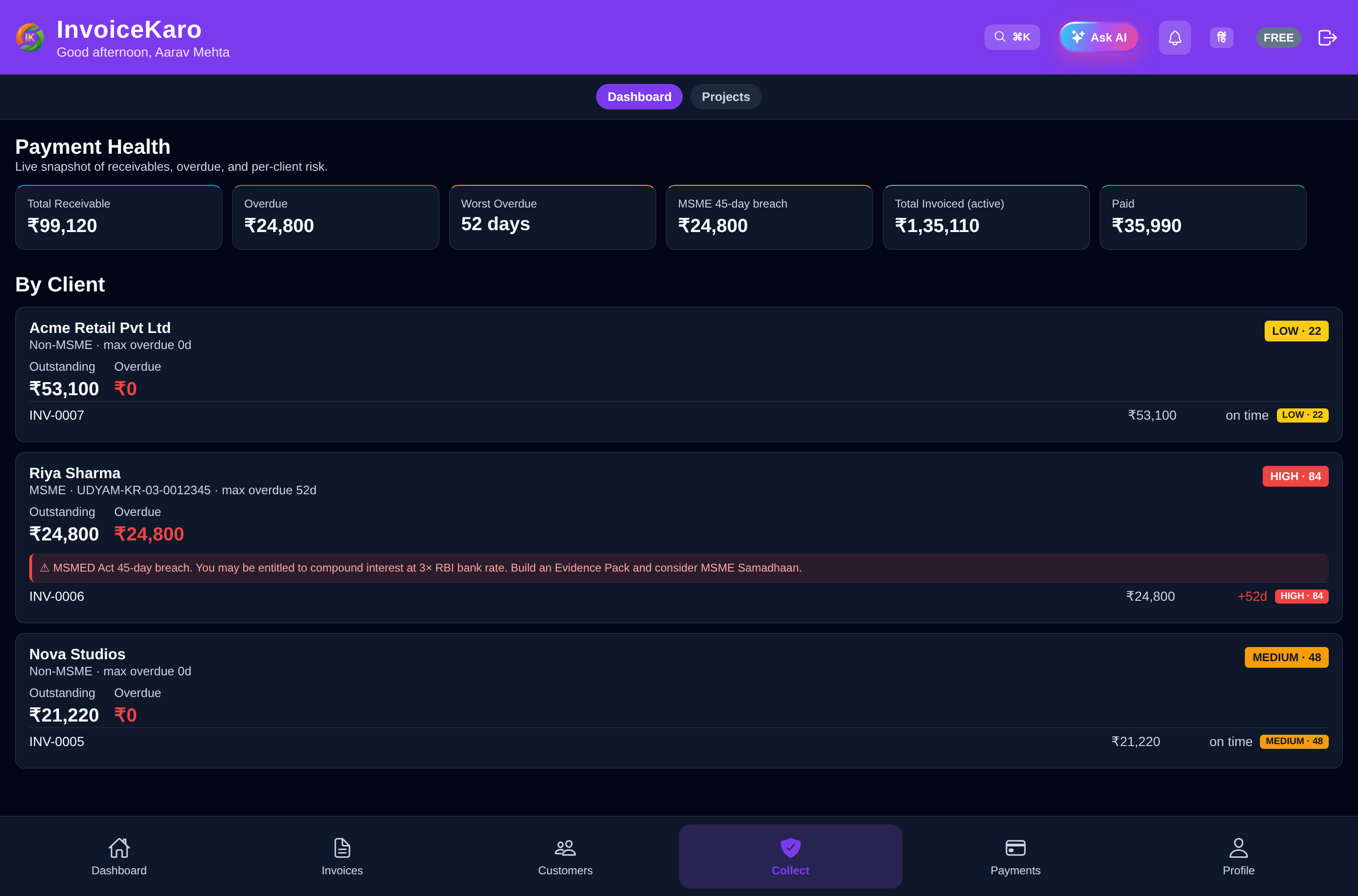
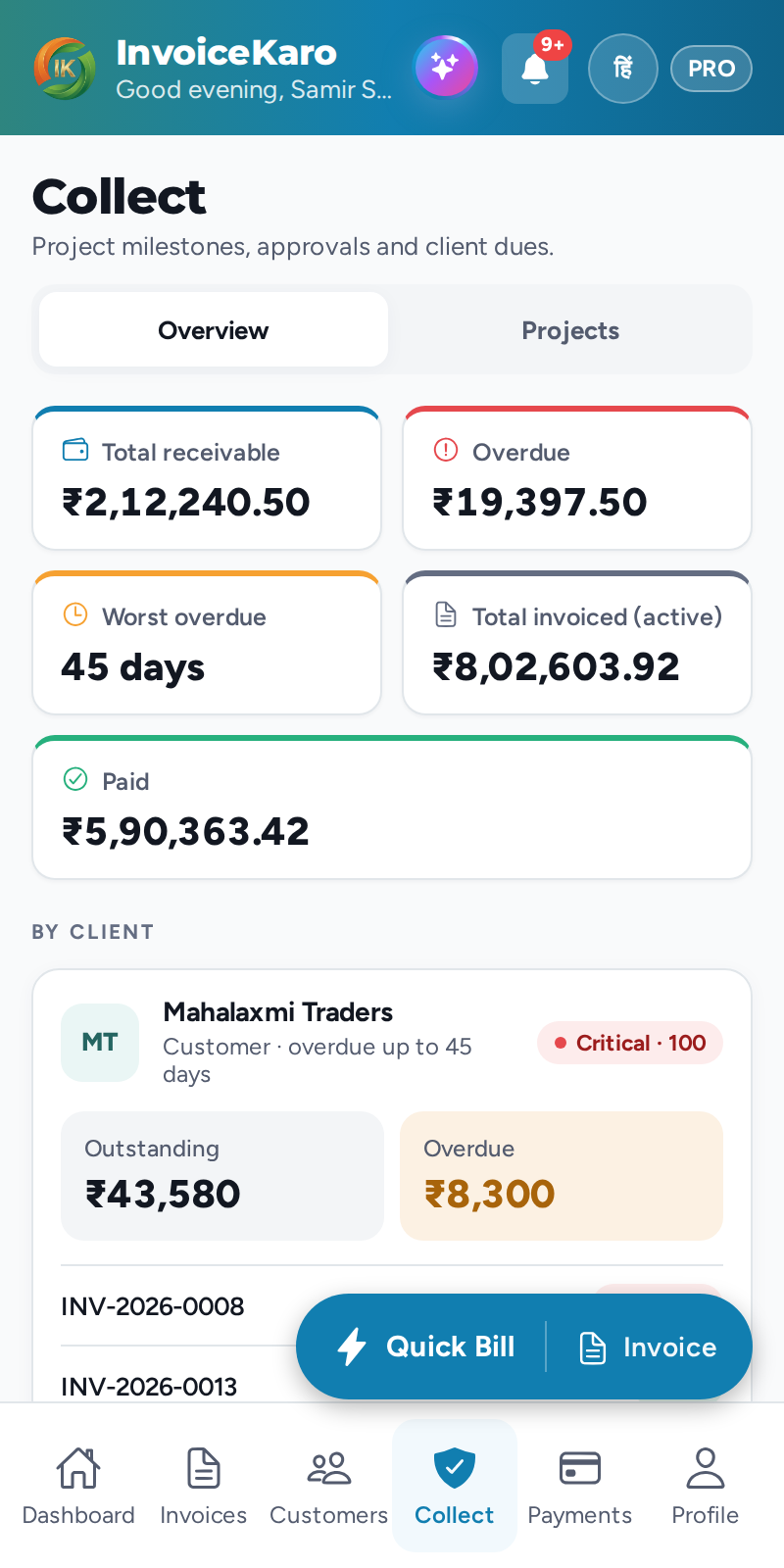
Five figures across the top sum up your receivables. They include every invoice you've issued and leave out drafts and cancelled invoices.
| Figure | What it shows |
|---|---|
| Total receivable | Everything customers still owe you. |
| Overdue | The part of that which is past its due date. |
| Worst overdue | The most days any unpaid invoice is past its due date. |
| Total invoiced (active) | The total of all issued invoices. |
| Paid | How much of that total has been paid. |
Under By Client, each customer who owes you money gets a card with their Outstanding and Overdue amounts and up to five of their unpaid invoices. Each invoice shows its amount and either on time or how many days late it is (for example +8d). Customers you've marked as a registered MSME show MSME customer with their Udyam number. This is customer information you entered; it doesn't verify registration or establish your own entitlement to a remedy. The most overdue clients come first.
Risk levels
Every client and invoice has a risk label based on how many days it's overdue. The number beside the label (for example Low · 40) is a risk score from 0 to 100.
| Label | Days overdue | Score |
|---|---|---|
| OK | Not overdue | 0 |
| Watch | 1 to 6 days | 25 |
| Low | 7 to 14 days | 40 |
| Medium | 15 to 29 days | 60 |
| High | 30 to 44 days | 80 |
| Critical | 45 days or more | 100 |
When to use Projects
- Milestone or retainer work that you bill in stages.
- High-value work, where approval records and dated proof help you explain what was delivered if a payment is disputed.
- Clients who pay late. Scheduled reminders, the evidence pack and its Letter of Demand bring your records together. See MSME details & payment follow-up for what the app's overdue labels do and do not establish.
Who can use Projects
Project access, changes, evidence downloads and AI messages follow your team permissions. Overview additionally needs analytics access. A read-only role cannot make project changes; choosing a Services business type does not grant extra access. See Team management.