
Your business profile is the identity behind every invoice. The name, GSTIN, address and state you save here print on your invoice PDFs, and your business name appears on your pay page. Your supplier details and the invoice's place of supply help the app choose CGST + SGST or IGST. Review the details and tax treatment on each invoice.
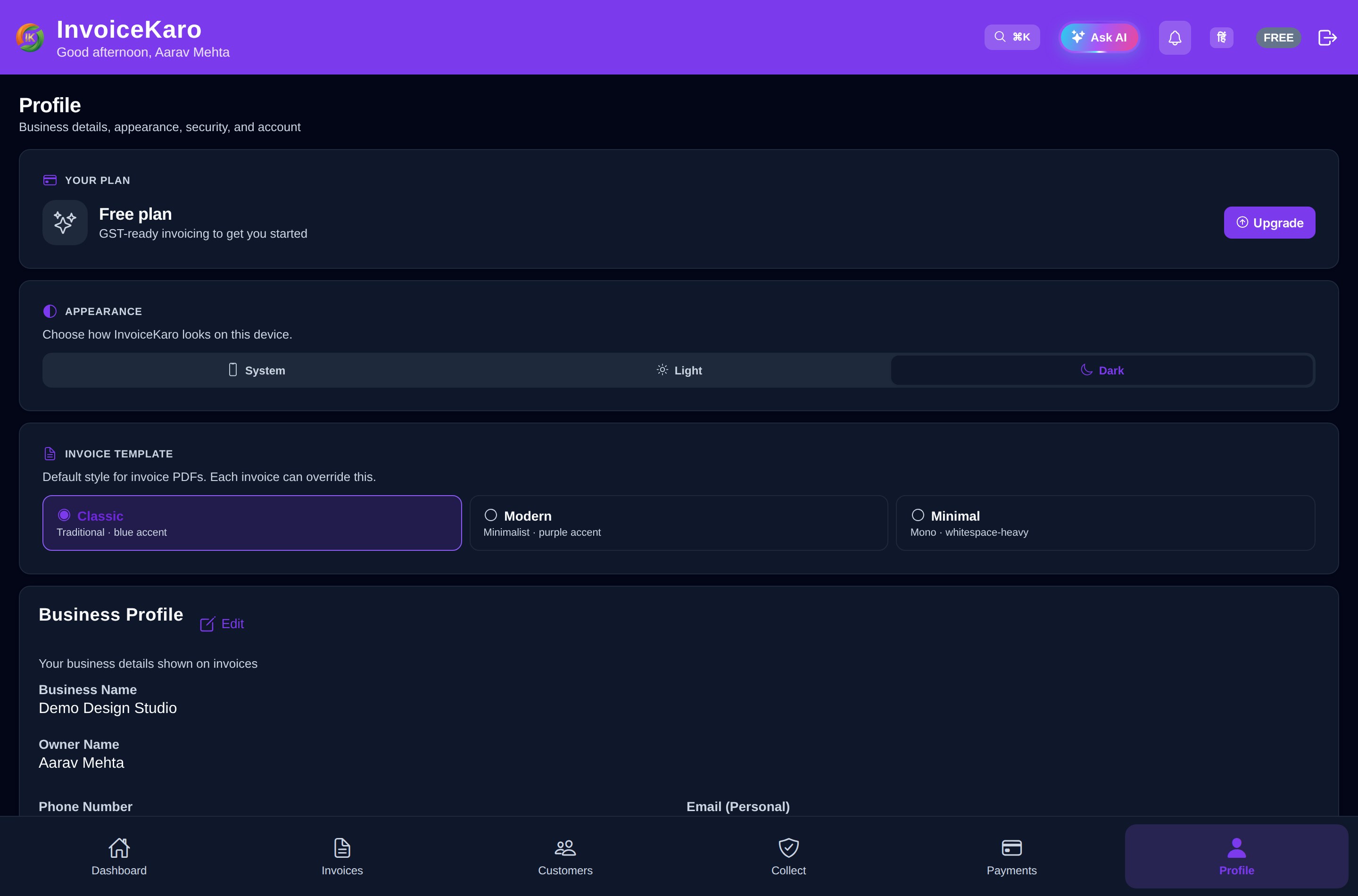
Find your business profile
- On a computer, click Settings in the left menu. Business profile is the first section.
- On a phone, open More → Settings and scroll to the Business profile card.
The card shows your Business name, GSTIN, Owner name, State, Phone number, City, Email (Personal) and Address. Anything you haven't filled in reads Not added.
Edit your business details
- 1Click Edit on the Business profile card. The Edit business profile screen opens.
- 2Under Business details, fill in Business name and Owner name (both required), GSTIN (optional), and your State, which you choose from the list. City and Address are optional here, but a tax invoice needs your address.
- 3Under Logo & signature, upload your Business logo and, if you like, a Signature image.
- 4Click Update profile.
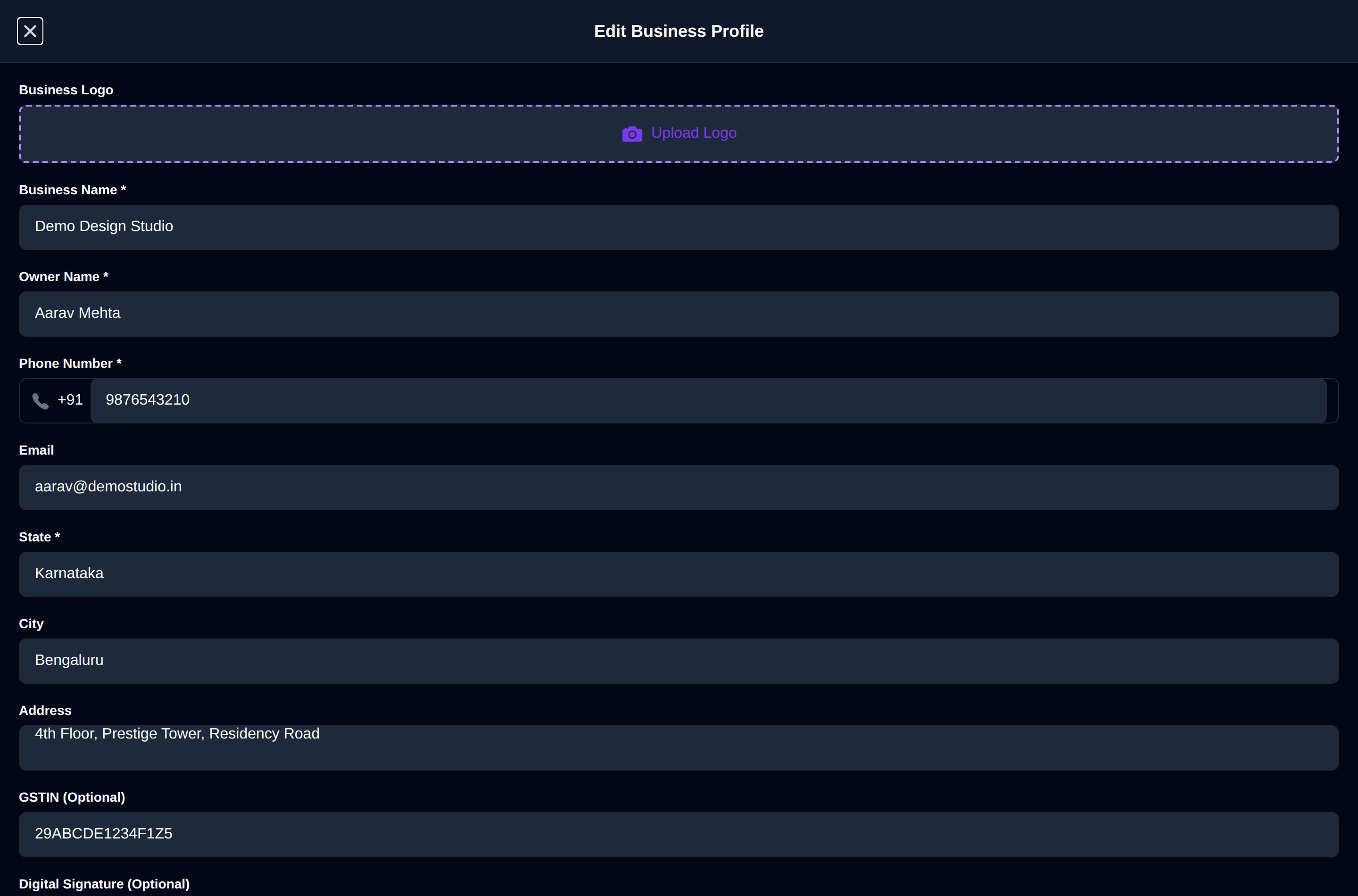
The State list helps you get it right. When you type a valid GSTIN, its state is picked for you (you can still change it). If your GSTIN belongs to a different state from the one you chose, the form warns you, and when they match it says Matches your GSTIN.
| Field | Where it shows up |
|---|---|
| Business name | The top of every invoice PDF, beside the signature line, and on your pay page. |
| GSTIN | Printed under your name on tax invoices. You need it to issue any invoice that charges GST. |
| Address, City & State | Your place of business on the PDF. The state also decides CGST + SGST or IGST. |
| Phone number & Email | The contact line on your invoices. |
| Owner name | Your account details. It isn't printed on invoices. |
Logo & signature
- Business logo: printed at the top of your invoices. It also replaces your initials on the Business profile card. With no logo yet, click Add logo on the card to open the edit screen.
- Signature (optional): an image of your signature, printed above Authorised Signatory at the foot of each invoice.
After you upload or change either image, click Update profile to keep it. If you use offline billing, reconnect and choose Refresh saved data in Offline billing after profile changes so your device has the latest details.
The Complete Your Profile banner
If you tapped Skip for Now when you signed up, a Complete Your Profile banner sits above the Business profile card. Click Complete to open the edit screen. The banner goes away once your business name, owner name and state are saved.