
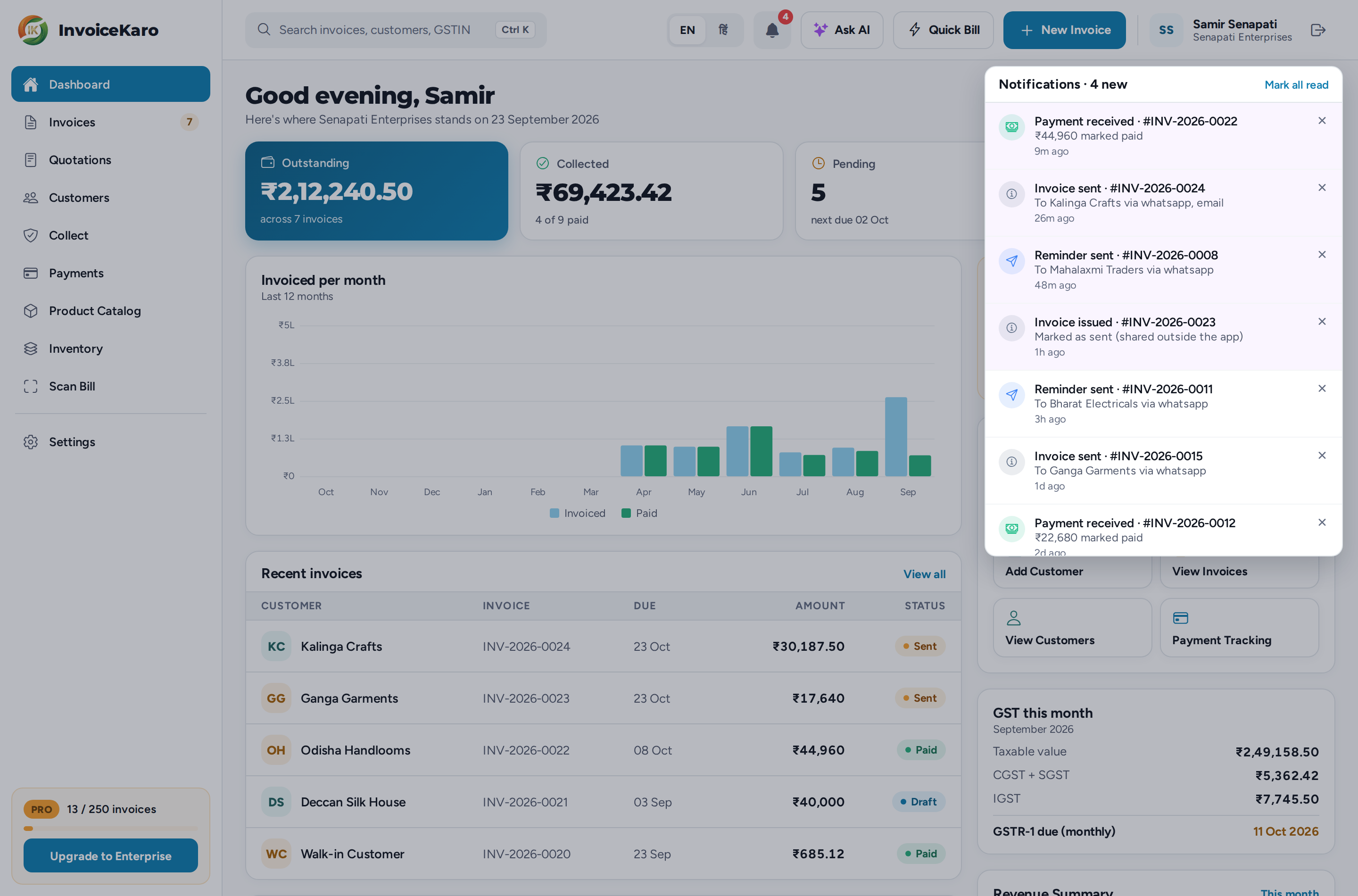
The bell keeps you up to date when an invoice goes out, a payment is marked received, a customer replies on WhatsApp, or your trial is about to end. A red badge shows how many you haven't read yet.
Open the bell
- On a computer, click the bell in the top bar, next to Ask AI.
- On a phone, tap the bell in the header at the top of the screen.
The panel lists your latest notifications, newest first, each with how long ago it happened. New ones are highlighted and counted in the title, for example Notifications · 3 new. The bell checks for new ones every 30 seconds while the app is open and connected. Offline bills appear in server records only after syncing; check Settings → Offline billing (on a phone, More → Settings → Offline billing) for pending work.
- Tap a notification to mark it read. If it's about an invoice, that invoice opens.
- Tap the × on a notification to dismiss it.
- Mark all read clears the badge in one go.
- When there's nothing left, the panel says You're all caught up.
What you're notified about
| Notification | When it appears |
|---|---|
| Invoice sent / Reminder sent | An invoice or a payment reminder went out, with the customer's name and the channels used. |
| Invoice issued | You used Mark as sent on an invoice you shared outside the app. |
| Payment received | An invoice was marked paid, with the amount. |
| WhatsApp reply | A customer replied to one of your WhatsApp messages. |
| Trial ends in N days / Your free trial has ended | Your trial is in its last three days, or has ended. An email may also be sent when delivery is available. |
Choosing how customers hear from you
There are no global notification switches. Settings → Account → About notifications sums it up: in-app alerts appear in the bell, and you choose how invoices and reminders reach each customer on that customer. When you add or edit a customer, turn Send SMS, Send WhatsApp and Send Email on or off under Notification preferences. See Customers.
Emails from InvoiceKaro
- Account emails, such as sign-in codes and trial reminders, come from
noreply@invoicekaro.com. - Invoice emails to your customers come from
billing@invoicekaro.com, in your business name. - Check your spam folder if an expected email is missing. Adding these addresses to your contacts may help, but does not guarantee delivery.