
Ask AI answers questions about your business in plain language. It's given a short summary of your recent invoices and customers and the screen you're on, so you can ask about your own numbers, and it suggests questions to start with.
invoicekaro.com/app
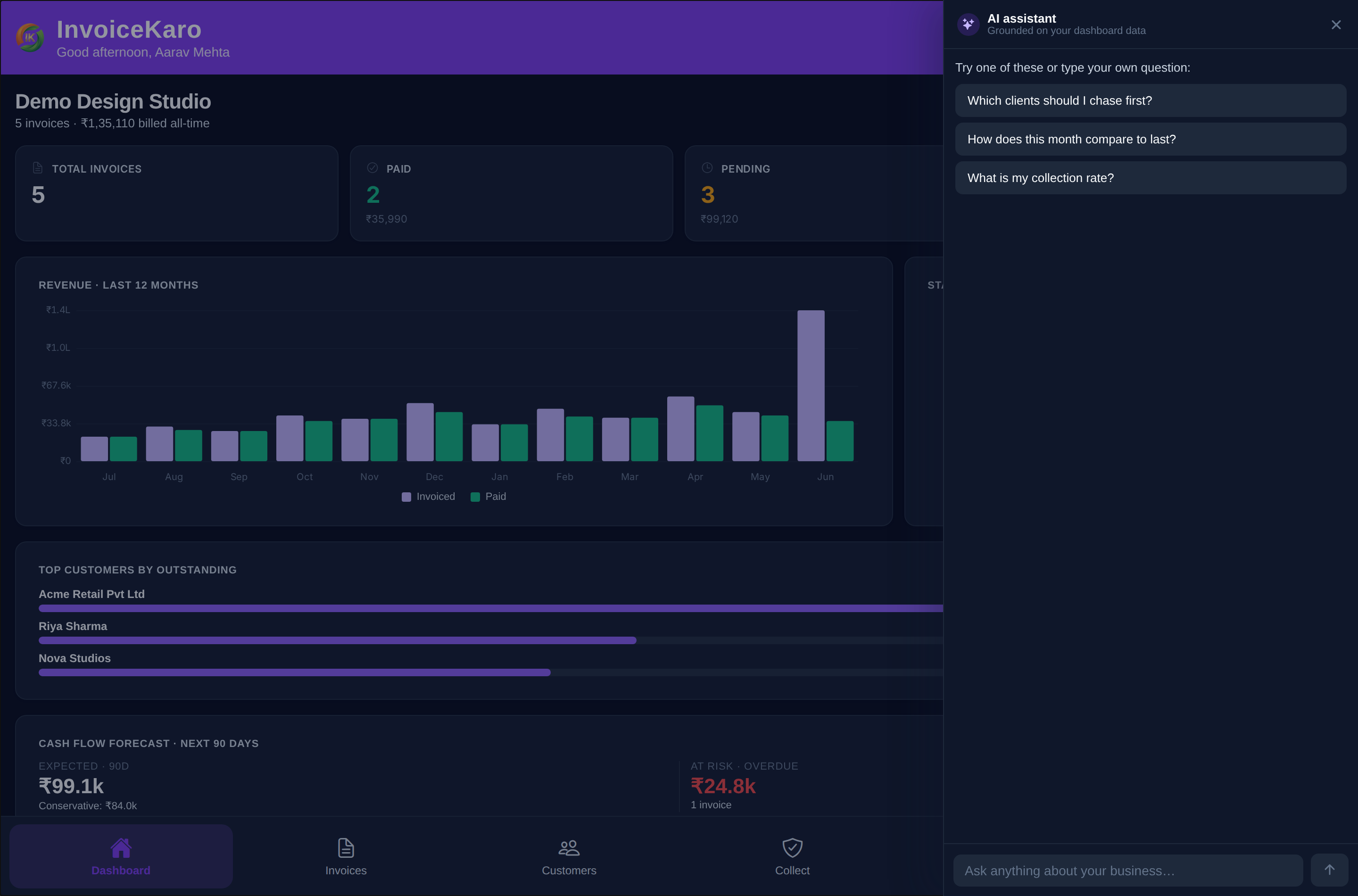
Open Ask AI
- 1On a computer, click Ask AI in the top bar. The panel docks on the right, so the menu, the top bar and your data stay usable while you chat. On a phone, tap the sparkle button in the header and the panel slides in over the screen.
- 2Pick a suggestion under Try one of these, or type your own question:, or type in Ask anything about your business… and press Enter.
- 3Answers are short, with bullet points where they help. Copy copies an answer. Ask a follow-up and it remembers the last few messages.
- 4Close it with the ✕, by pressing Esc, or (on a computer) by clicking Ask AI again.
What it knows
- The screen you're on. The panel's subtitle tells you, for example Using your Invoices data. On other screens it reads Using your recent invoices & customers.
- A summary of your latest invoices (number, customer, amount, status and due date) and customers.
What to ask
The suggestions change with the screen. For example:
| Screen | Suggested questions |
|---|---|
| Dashboard | Which clients should I chase first? · How does this month compare to last? · What is my collection rate? |
| Invoices | Draft a reminder for the oldest overdue invoice · Summarise unpaid invoices |
| Customers | Which customers are slowest to pay? · Suggest a payment-terms tweak for repeat customers |
| Payments | How much should I expect this month? · Group payments by channel |
| Quick Bill, Product Catalog, Inventory | When should I use a quick bill instead of a full invoice? · How do I find the right HSN code for a product? · How do I record a purchase bill with GST correctly? |
Where else AI shows up
Dashboard AI InsightsShort notes on what's overdue, awaiting payment or still a draft, right on the dashboard.
Scan BillReads a photo of a bill and fills in a purchase, an expense or an invoice for you to check.
Projects messagesAI-drafted chase messages for milestone work, in a Polite, Firm or Final tone.
Good to know
- Ask AI needs internet and an available AI service. If a request fails, read the error and retry after reconnecting; your invoices are unchanged. Questions use your plan's monthly AI allowance; see Plans & billing.
- Ask AI helps you read and act on your numbers, but it never sends anything or changes a status. You stay in control of every send and every payment.
Tip