
Every issued invoice has its own secure pay link. It opens a public pay page with the invoice and every way to pay you: UPI and bank transfer. The money goes directly into your own UPI or bank account.
How the link reaches your customer
- Email and SMS: invoice emails and text messages include the link, and so do reminder emails. In the email it reads View invoice and current outstanding balance.
- WhatsApp: InvoiceKaro's WhatsApp message gives the amount, your business name, the invoice number and the due date, but not the link. To give a WhatsApp customer the pay page, copy the link and send it yourself.
- Anywhere else: Copy pay link on the invoice puts the link on your clipboard. See Pay links: share & revoke.
What the pay page shows
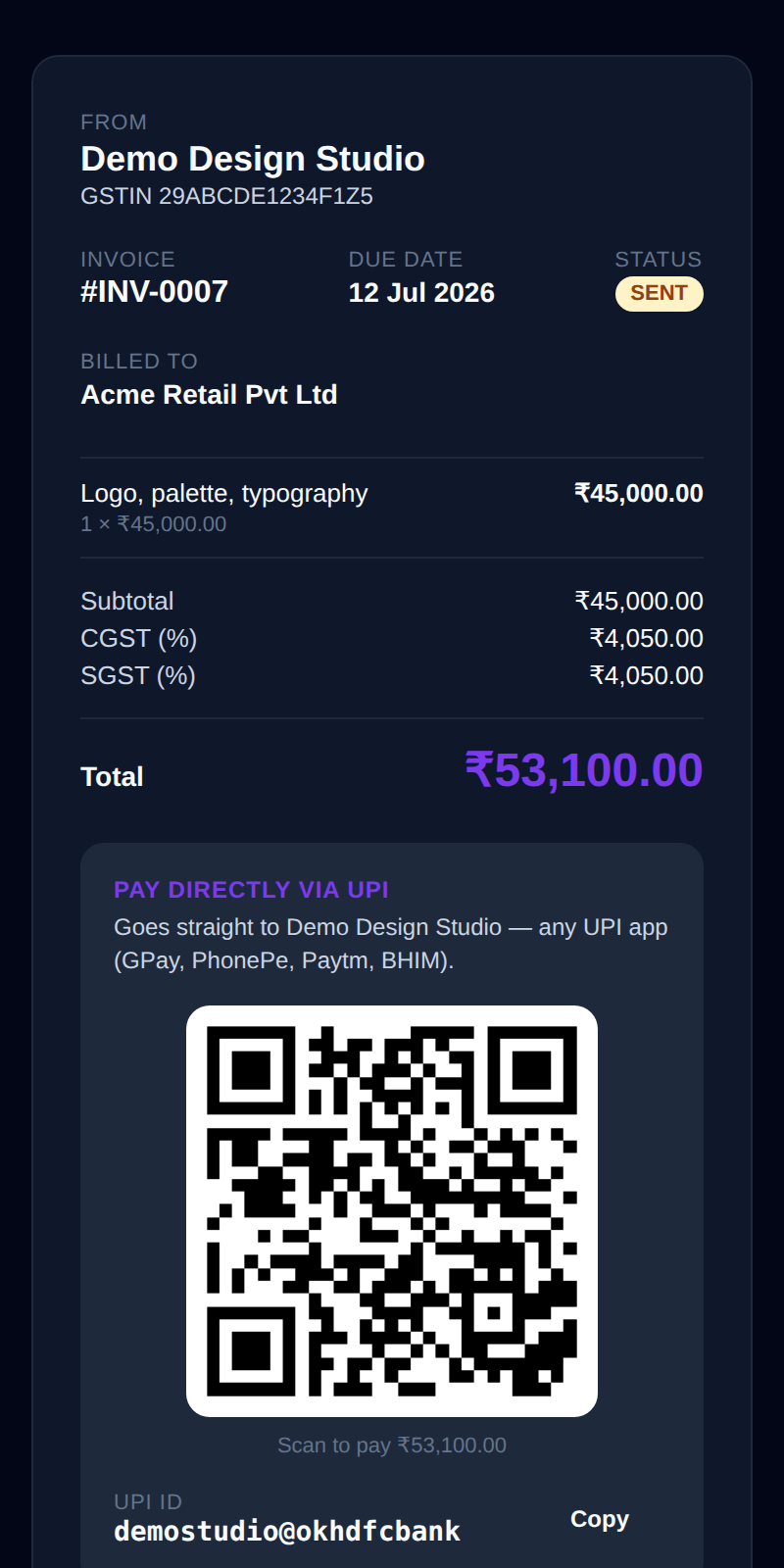
Your customer doesn't need an account: the link opens in any browser. At the top is your business name and GSTIN, the invoice number, the Due date and a Status pill, then Billed to with the customer's name and address. Below come the line items (quantity × rate), the Subtotal, CGST and SGST or IGST, and the Total.
If part of the invoice has already been paid, Already paid and Balance due appear under the total, and every way to pay asks for the balance, not the full amount. Which ways to pay appear depends on what you've saved in Payments & UPI.
Pay directly via UPI
With a UPI ID saved, the Pay directly via UPI box gives your customer three ways to pay, all for the exact balance due:
- Scan the QR: a QR code with the amount and the invoice number already filled in, captioned *Scan to pay ₹…*. Any UPI app can scan it.
- Pay ₹… via UPI app: a button that opens the customer's UPI app (GPay, PhonePe, Paytm, BHIM) on their phone with the payment ready to confirm.
- UPI ID: your UPI ID with a Copy button, for customers who'd rather type it in.
Pay by bank transfer
With a bank account saved, the page lists Account holder (your business name), Account number, IFSC and Bank, each with a Copy button, for NEFT, IMPS or RTGS. When UPI is shown too, this box is headed Or pay by bank transfer.
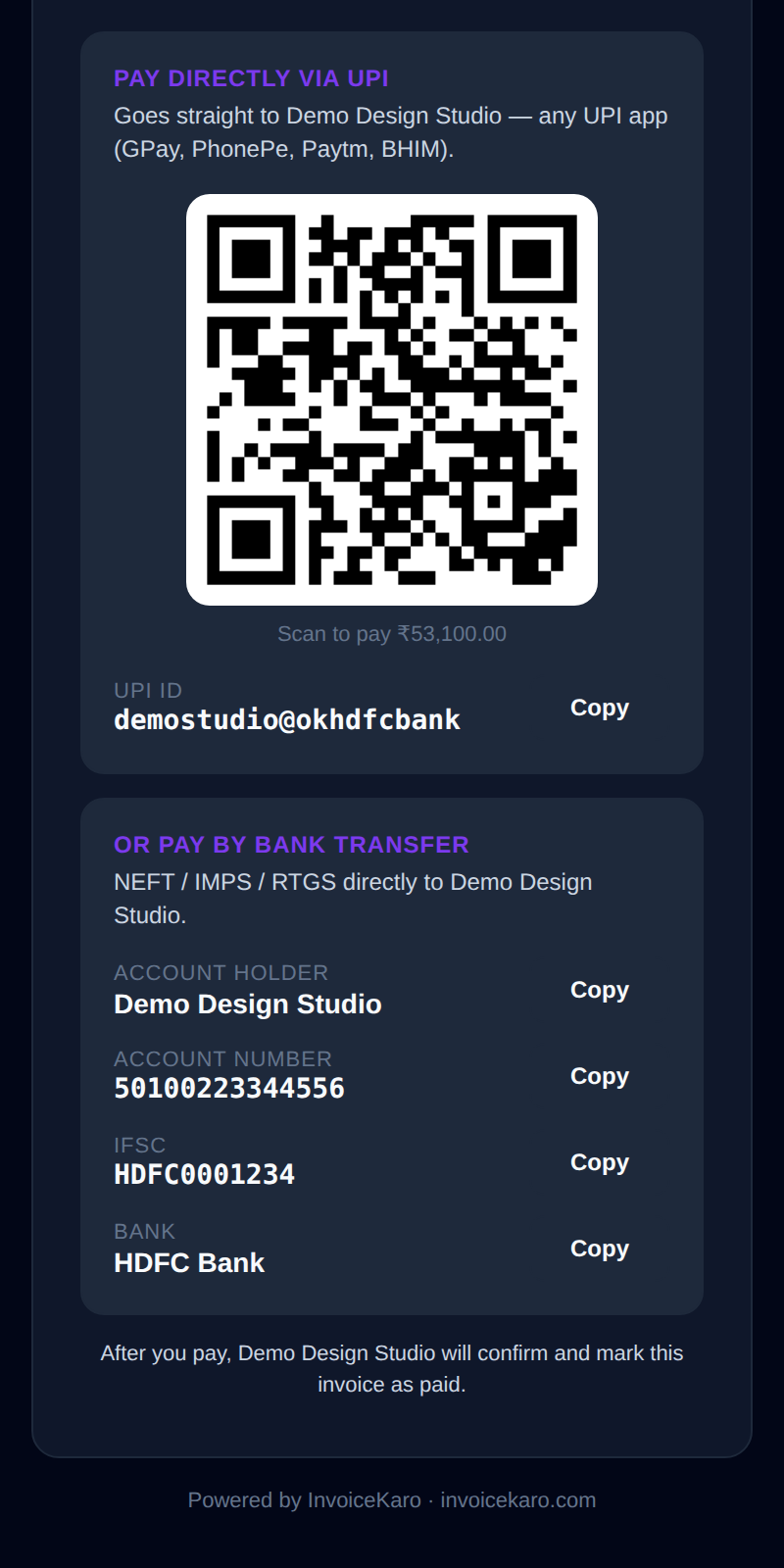
Under the ways to pay, the page tells your customer that you'll confirm the payment and mark the invoice paid. If you haven't saved any payment details, it asks them to contact you for payment details instead.
Paid, part-paid and closed links
| Invoice or link | What your customer sees |
|---|---|
| Unpaid (Sent, Pending or Overdue) | The invoice and every way to pay you. The status pill turns red once the invoice is overdue. |
| Part-paid | Already paid and Balance due under the total. The QR and the UPI button ask only for the balance. |
| Paid | Paid · Thank you, with a note that you've marked the invoice as paid. No payment details are shown. |
| Cancelled, revoked or expired | An InvoiceKaro page saying the link was turned off or has expired. None of your invoice or payment details are shown. See Pay links. |
Card and net-banking
InvoiceKaro doesn't take card or net-banking payments for you: new invoices offer UPI and bank transfer, both straight to you. Invoices made with an earlier card gateway may still show an Or pay by card / net-banking → link under the other options.
At the counter: Quick Bill
For a walk-in sale, Quick Bill has a Show UPI QR button. It makes a QR for the bill total from your UPI ID, and the customer scans it on the spot. Once the money has arrived, Paid · Save & print saves the bill and prints the receipt, or Paid · Save only saves it without printing. With only a custom QR saved, the customer types the amount in. See Quick Bill for counter sales.