
Want to connect InvoiceKaro to your own systems? API keys give a program read-only access to your business data, and you can revoke a key the moment it's no longer needed.
Phone navigation
The updated phone layout uses Home, Invoices, Customers and More, whether or not a business type is selected. Your role controls which areas you can open. Use More → Settings for settings and More for Payments, Projects and other permitted tools. Older installed releases may still show five or six tabs, including Profile; changing a business type does not update an installed app.
Important
API keys are part of the Professional plan (up to 5 keys) and the Enterprise plan (up to 50). On other plans the API keys row shows a PRO badge and a lock. See Plans, trial & upgrading.
invoicekaro.com/app
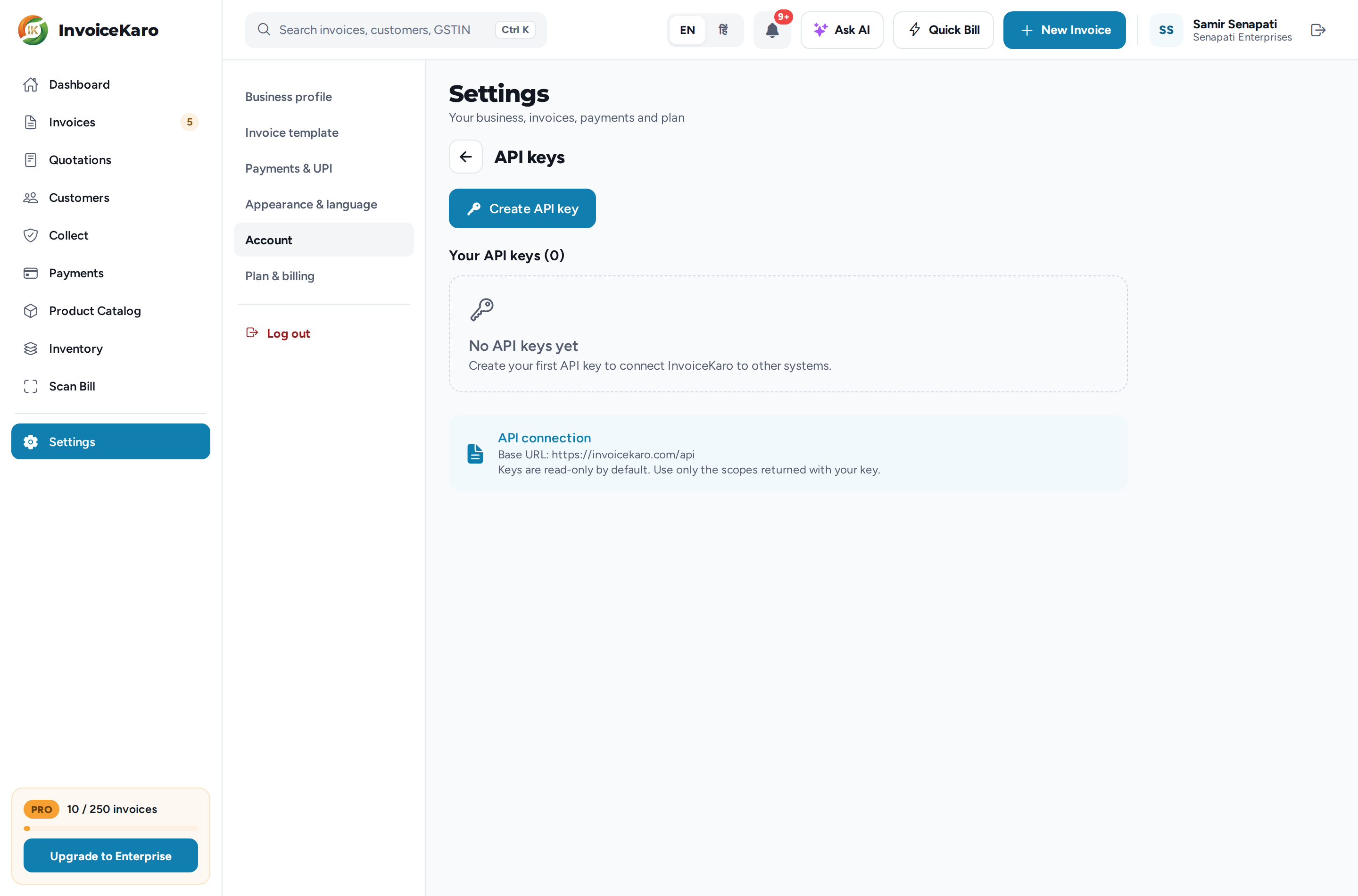
Create an API key
- 1Go to Settings → Account and click API keys. On a phone, open More → Settings and tap API keys in the Account card.
- 2Click Create API key and enter a Key name, for example
Production server. - 3Click Create key.
- 4Copy the key now. It's shown only once (This key will only be shown once. Copy it now.). Use the copy button, store the key somewhere safe, then click I've Copied the Key.
Warning
A key gives access to your business data. Never commit it to source control, paste it in chats or share it publicly. If a key may have leaked, revoke it and create a new one.
Use your key
The API connection card on the same screen shows the Base URL, https://invoicekaro.com/api. Send your key as a bearer token with every request:
curl https://invoicekaro.com/api/invoices \
-H "Authorization: Bearer ik_live_your_key_here"New keys are read-only. They can read customers, invoices, payments, Projects projects, the Product Catalog, stock and purchases, but they can't create or change anything. Each key's scopes are listed under Your API keys. For help with an integration, email support@invoicekaro.com.
Revoke a key
- 1Open Settings → Account → API keys and find the key by its name and the start of the key.
- 2Click Revoke and confirm. The key stops working immediately, and this can't be undone.
- 3If you still need access, create a new key and update your integration.
Revoked keys stay in the list marked Revoked, and they don't count towards your plan's limit.
Keep keys safe
- Store keys in a secrets manager or an environment variable, never in plain code.
- Use a separate key for each integration, so you can revoke one without breaking the rest.
- Revoke keys you no longer use. Fewer live keys means less to worry about.
Note
The account owner and teammates with the Admin role can manage API keys. Creating and revoking keys is recorded in the Activity Log. For how your data is protected, see Data, security & privacy.