
Money paid by UPI or bank transfer goes straight into your account, so InvoiceKaro doesn't see it arrive. When it lands, record it. It takes a few seconds and keeps your dashboard, the Payments page, your reminders and the customer's pay page right.
Pick the right way
| Use | When | Where |
|---|---|---|
| Mark as paid | The customer paid the whole balance. | On the invoice, or in its ⋯ menu. |
| Record payment | Only part arrived, or you want to note the method and a reference. | The Payments page. |
| Mark Paid | Several invoices were paid in full. | Select them in Invoices. |
Mark an invoice as paid
- 1In Invoices, click the invoice to open it. Or click ⋯ on its row (on a phone, press and hold the card).
- 2Click Mark as paid. On the open invoice it's the green button: at the top on a computer, at the bottom on a phone.
- 3The confirmation, for example Mark INV-2026-0002 as paid?, shows the amount it will record: the whole balance due. Click Mark as paid.
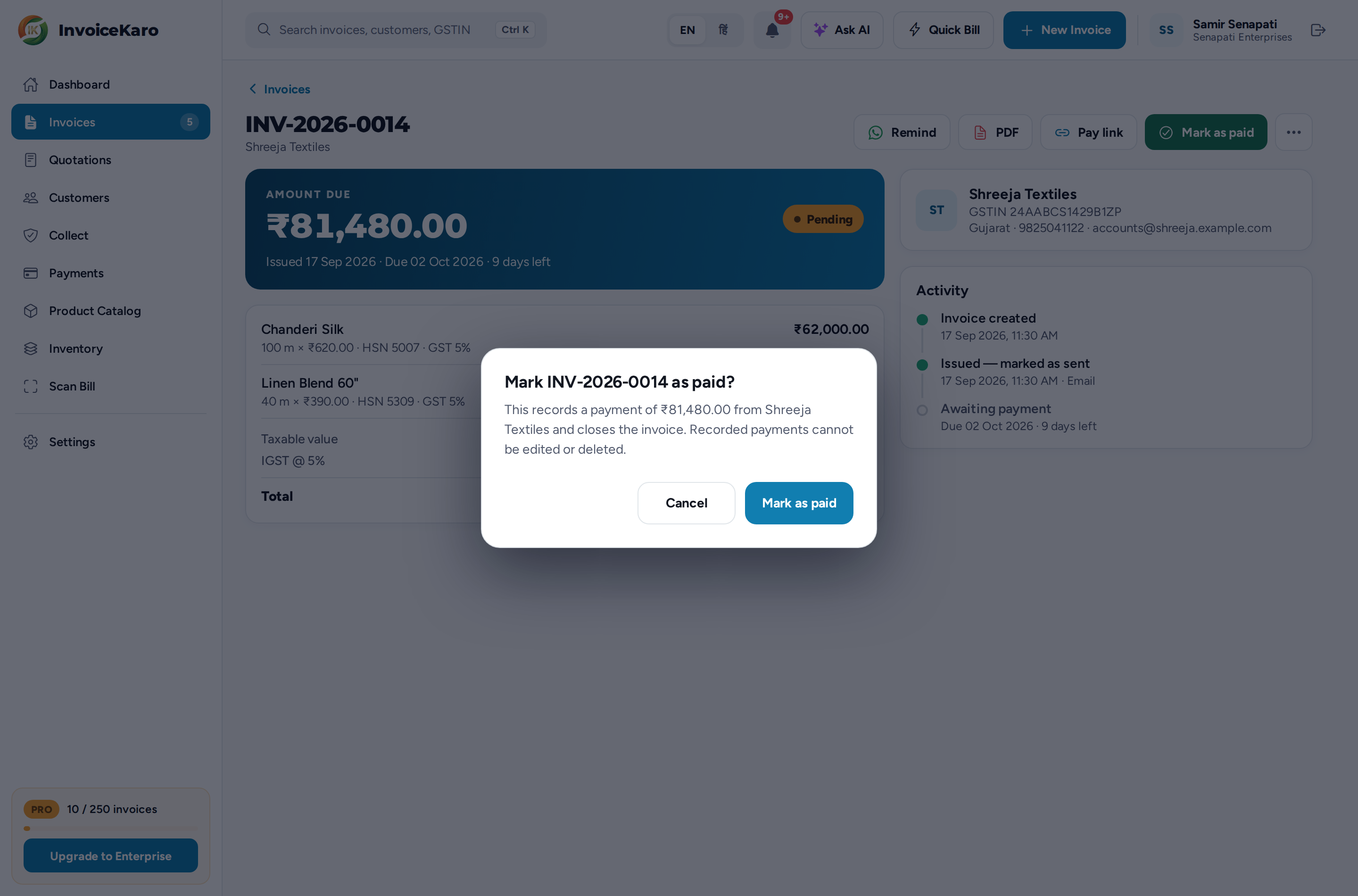
The invoice becomes Paid. On the Payments page, the payment is listed with the method Marked paid.
Record a part-payment, cash or card
- 1Open Payments and click Record payment (on a phone, + Record).
- 2Under Choose the invoice, click the invoice. Only issued invoices with a balance are listed, and the Amount fills in with the balance due.
- 3Change the Amount if only part arrived. It can't be more than the balance.
- 4Pick the Method: UPI, Cash, Bank or Card.
- 5Optionally, add the Transaction ID, such as the UPI reference or cheque number.
- 6Click Record, check the summary in Record this payment?, and confirm with Record payment.
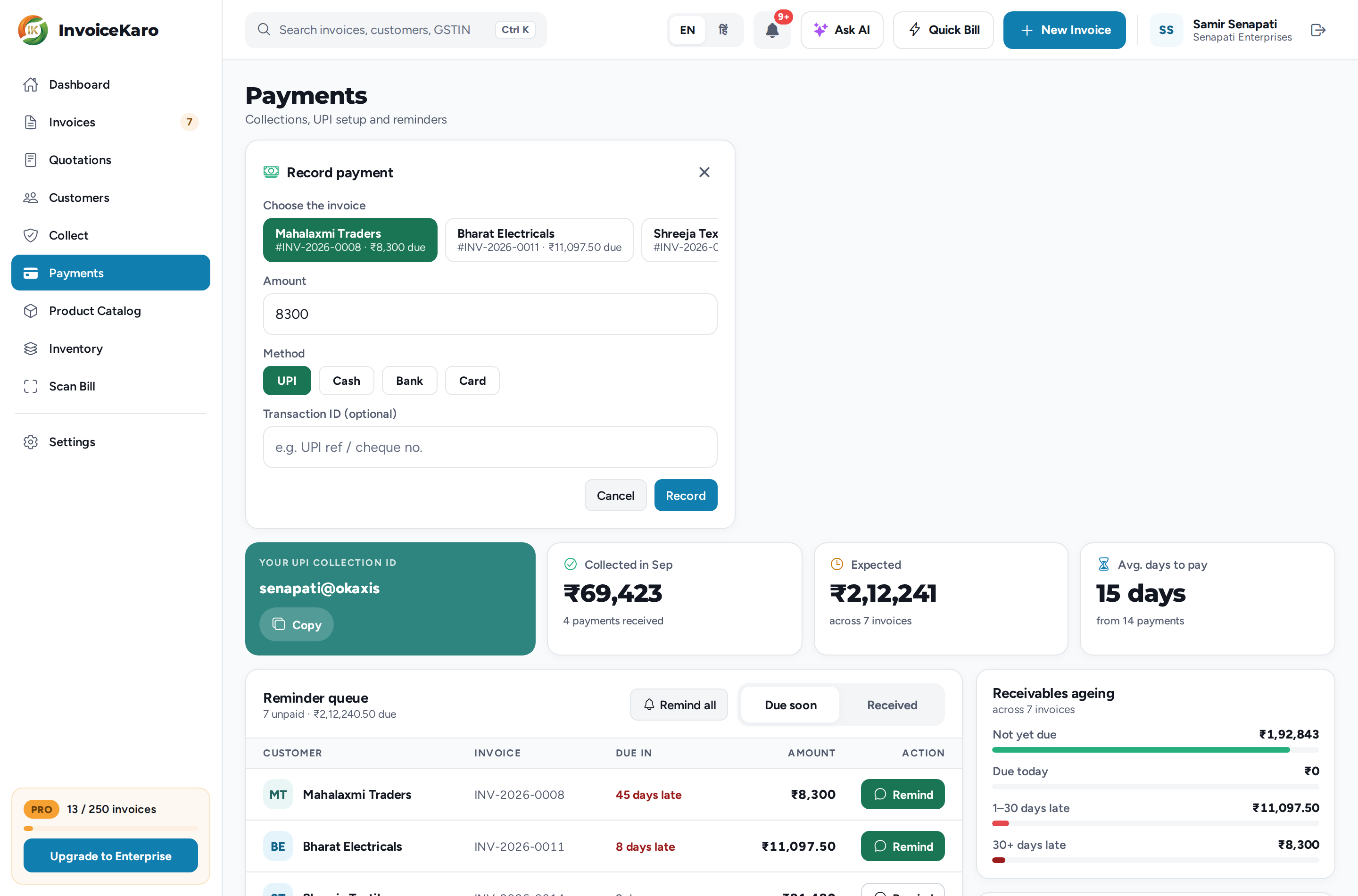
A part-payment leaves the invoice open for the rest. The invoice shows how much of the total is paid, its Activity lists Payment received, and the pay page shows Already paid and Balance due, with the UPI QR asking only for the balance. Once the payments add up to the total, the invoice becomes Paid by itself.
Mark several invoices paid at once
In Invoices, tick the boxes on the rows (on a phone, tap Select, then the cards) and click Mark Paid in the bar that appears. After you confirm, the full balance of each invoice is recorded. Drafts, paid and cancelled invoices are skipped, and the message tells you how many were done and how many were skipped. See Managing invoices.
Where a payment shows up
- The invoice: its status and balance, with the payment in its Activity.
- Dashboard: Outstanding goes down, Collected goes up for the period the money arrived in, and a paid invoice leaves Pending or Overdue. See Dashboard & KPIs.
- Payments: the payment is listed under Received, and Collected, Expected, Avg. days to pay and Receivables ageing update. See The Payments page.
- Reminders: a fully paid invoice leaves the Reminder queue, and any reminders scheduled for it are skipped.
- Pay page: shows Paid · Thank you instead of the ways to pay.
Cash sales saved offline
When offline billing is prepared, Quick Bill → Save cash sale offline saves a cash sale on this device. After sync finishes, the invoice is paid and its cash payment keeps the original transaction date. An interrupted sync can leave a draft visible in your account before its cash payment is recorded. Keep the saved bill and retry Sync now; do not create the sale or record the same cash payment again manually. Check Synced to your account and the final invoice before treating it as complete. UPI, bank payments and recording payments against existing invoices need an internet connection. See Offline billing.
For milestone and project work
If you bill in milestones, Projects adds proof, client approval and an Evidence Pack, which help when a client disputes whether the work was delivered. A milestone's invoice is recorded as paid in exactly the same way. See Projects: get paid with proof.