
You set the GST rate and HSN/SAC on each line and choose the place of supply. InvoiceKaro calculates CGST + SGST or IGST and checks required fields before saving. These checks help complete the document; they do not certify that your tax treatment is correct.
Before your first GST invoice
Your side of every invoice comes from your business profile, so fill it in first.
- 1On a computer, open Settings → Business profile and click Edit. On a phone, open More → Settings and tap Edit on the Business profile card.
- 2Enter your GSTIN and choose your State from the list. If they don't match, the form tells you which state your GSTIN is registered in.
- 3Add your Address, then click Update profile.
Set GST and HSN/SAC on each line
GST is charged per line item, not per invoice, because one bill can mix goods and services at different rates.
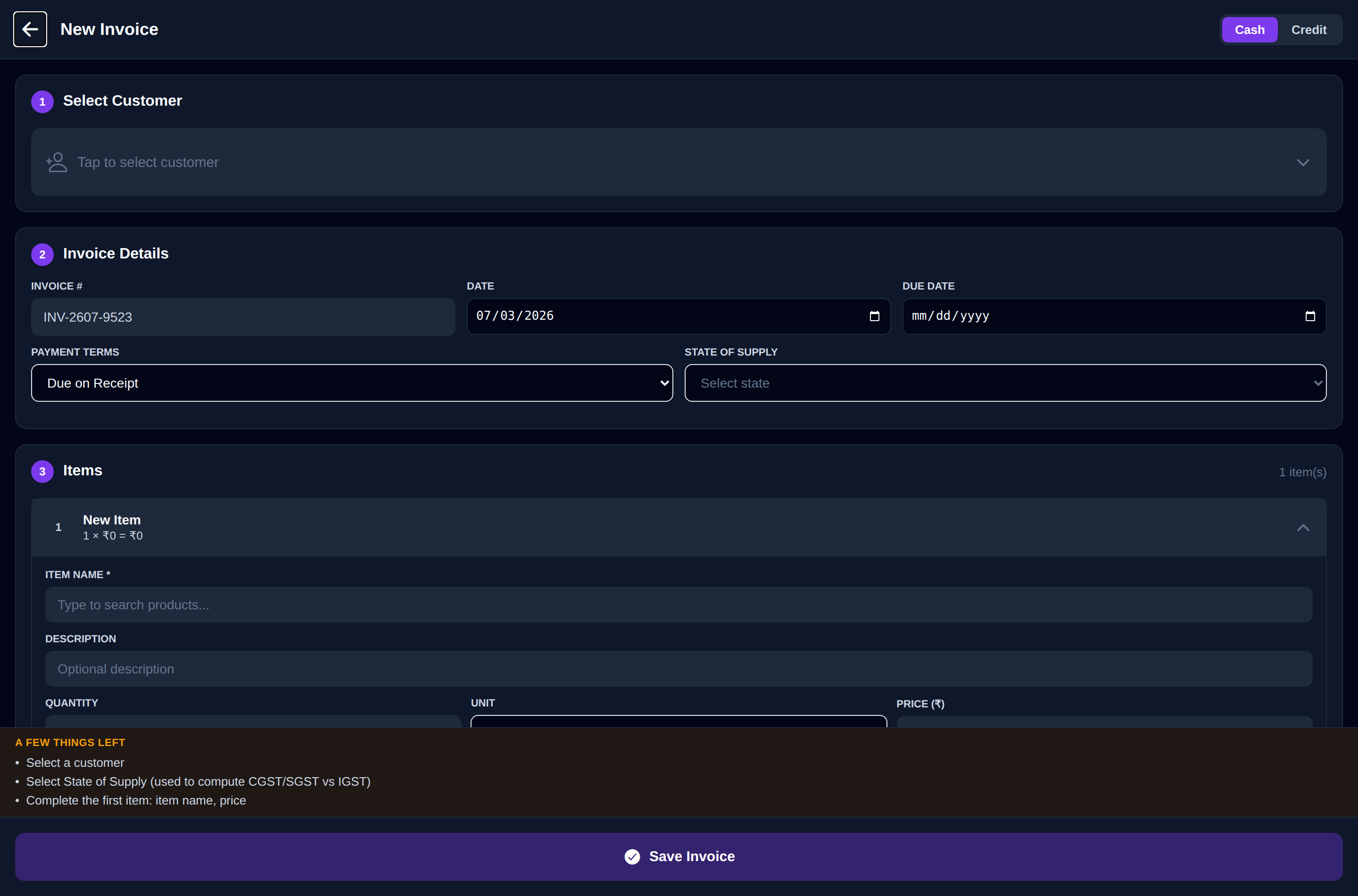
- 1Click New Invoice in the top bar. On a phone, tap Invoice on the floating Quick Bill | Invoice button.
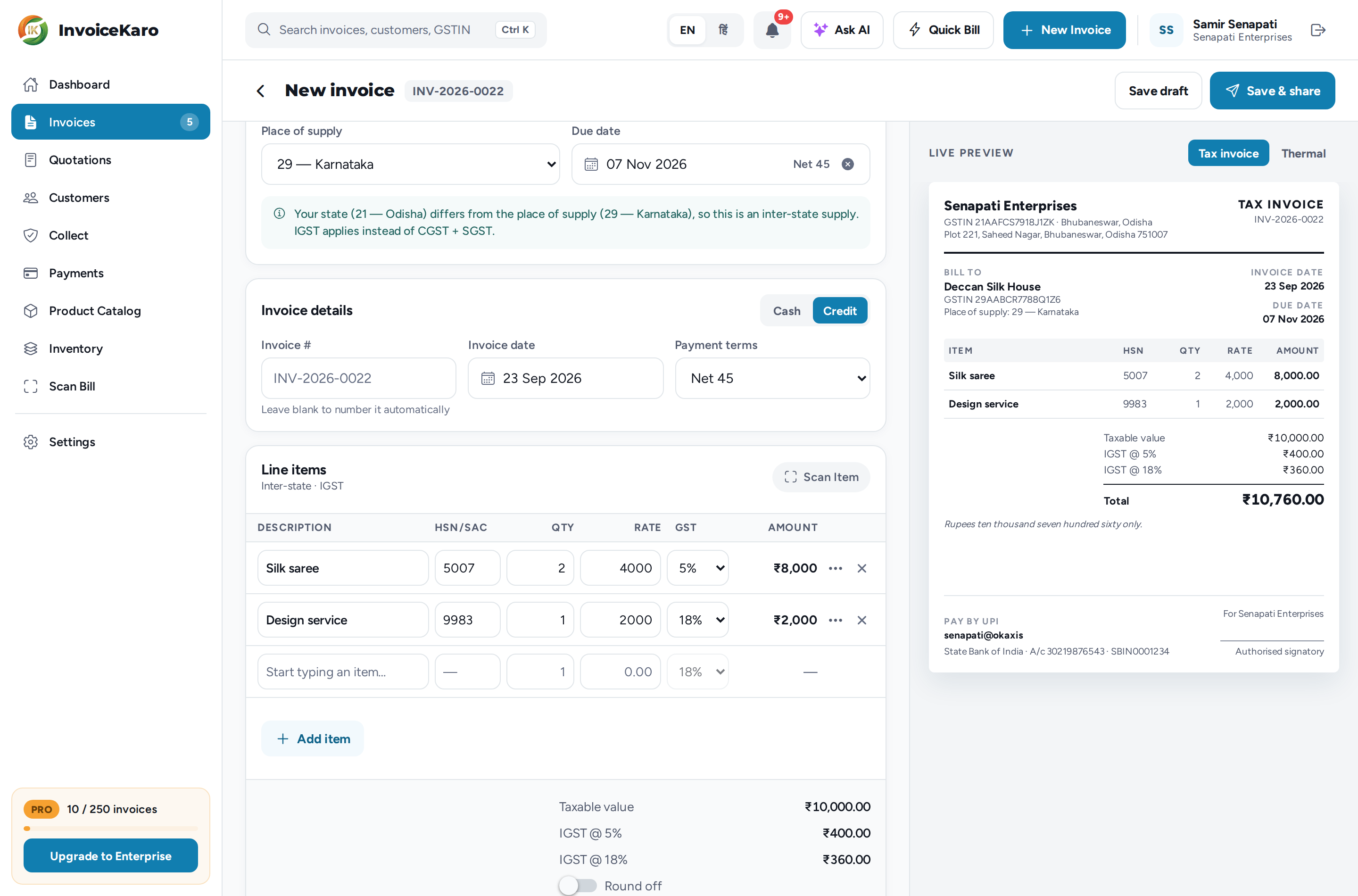
- 2In Line items, start typing in Description. Pick an item from your Product Catalog and its rate, HSN/SAC and GST fill in, or type a new item and fill them in yourself. On a phone, tap Add item and set them in the line's sheet.
- 3Choose the line's GST rate. The common rates come first: 0%, 5%, 12%, 18%, 28% and 40%. The special rates (0.1%, 0.25%, 1%, 1.5%, 3%, 6% and 7.5%) are under More rates.
- 4Enter the HSN/SAC code: HSN for goods, SAC for services. It must be 4, 6 or 8 digits.
The app allows HSN/SAC to be blank. That does not establish whether a code is required for your supply. Check the applicable code and reporting requirements with your accountant.
Place of supply: CGST + SGST or IGST
You never choose the tax type yourself. Choose the customer in Bill to and InvoiceKaro fills in the Place of supply from their saved state, or from their GSTIN. The note under it then says which tax applies:
| Supply | Place of supply | What the invoice charges |
|---|---|---|
| Intra-state | Your own state | CGST + SGST: the line's rate split in half |
| Inter-state | A different state | IGST at the full rate |
For example, an 18% line becomes CGST @ 9% plus SGST @ 9% within your state, or IGST @ 18% across states. If the lines have different rates, you get one CGST and SGST pair (or one IGST row) per rate. The Line items header shows Intra-state · CGST + SGST or Inter-state · IGST.
What the app checks before saving
When an invoice charges GST, InvoiceKaro checks these fields:
- Your GSTIN (a valid 15-character GSTIN), business name, address and state, from your business profile.
- A Place of supply.
- For an invoice of ₹50,000 or more to a customer with no GSTIN, the customer's address and state.
- An invoice number of at most 16 characters. Automatic numbers always are.
If something is missing, the invoice isn't saved, not even as a draft, and the message lists what to complete. In Invoice settings, Business Address, GSTIN Number and Tax breakdown (CGST/SGST/IGST) stay switched on with a lock and Required for GST, so they always print on a taxed invoice.
GSTIN on both sides
- Your GSTIN prints under your business name, from your business profile.
- Your customer's GSTIN prints under Bill to. Save it on the customer and a valid GSTIN fills in their state for you. When a customer has no GSTIN, Bill to shows Unregistered (B2C). See Customers.
Invoice numbers
Leave Invoice # blank and InvoiceKaro takes the next number for the financial year of the invoice date: INV-2026-0001, INV-2026-0002 and so on for FY 2026-27. Invoices, Quick Bill sales and invoices raised from Projects milestones share this series.
- A number is taken when the invoice is first saved, drafts included. Deleting a draft doesn't give its number back, so to avoid gaps, edit a draft rather than deleting it and starting again.
- An issued invoice can't be edited or deleted. If one is wrong and has no recorded payment or return, Cancel invoice keeps it as Cancelled with your reason, so its number remains in the record.
More in Invoice statuses & numbering.
What prints on the PDF
Whichever template you choose (Classic, Modern or Minimal, in Invoice settings on the invoice or as your default under Settings → Invoice template), the PDF of a taxed invoice carries:
- The title TAX INVOICE, the invoice number, date and due date, and a status stamp such as DRAFT, DUE or PAID.
- Your business name, address and GSTIN. Under Bill to: the customer's name, address and GSTIN, with the Place of Supply.
- Each item with its HSN/SAC, quantity, rate, taxable value, GST rate and amount.
- Taxable Value, the CGST and SGST (or IGST) rows for each rate, any Round Off, the Grand Total and the Amount in Words.
- Your bank details, UPI ID and UPI QR code, your notes and terms, and a signature, for whichever of these you've switched on.
While you fill in the form, the Live preview beside it (Preview on a phone) shows the Tax invoice as it will print. Its Thermal tab shows the short receipt for a roll printer.
The pay page behind an invoice's pay link shows your GSTIN and the same CGST, SGST or IGST totals, so your customer sees the same bill before they pay. See Pay links.