
The Dashboard opens first when you sign in. It rolls every invoice and payment into a few numbers and charts, so you can see in seconds what you've billed, what has come in and who still owes you. New to the layout? Start with Find your way around.
Choose the period
The period switch sits at the top right on a computer, and in the blue header on a phone. Pick This month, This quarter or the financial year, such as FY 2026-27 (1 April to 31 March).
- Changes with the period: Collected, the Revenue Summary, and on a phone the Total and Paid tiles.
- Always shows what's open right now: Outstanding, Pending, Overdue and AI Insights. An unpaid invoice from last quarter is still owed today, so these never shrink when you switch to a shorter period.
The headline cards
| Card | What it tells you |
|---|---|
| Outstanding | What customers owe you right now across every issued invoice that isn't fully paid, and how many invoices that is. Click it to open those invoices. |
| Collected | Money received in the chosen period, whichever invoice it paid, counted the same way as on the Payments page. Underneath: how many of the period's invoices are paid, for example 15 of 19 paid. |
| Pending | Issued invoices waiting for payment that aren't past their due date yet, with the next due date. |
| Overdue | Issued invoices past their due date, and the amount at risk. Click it to open the Overdue list. |
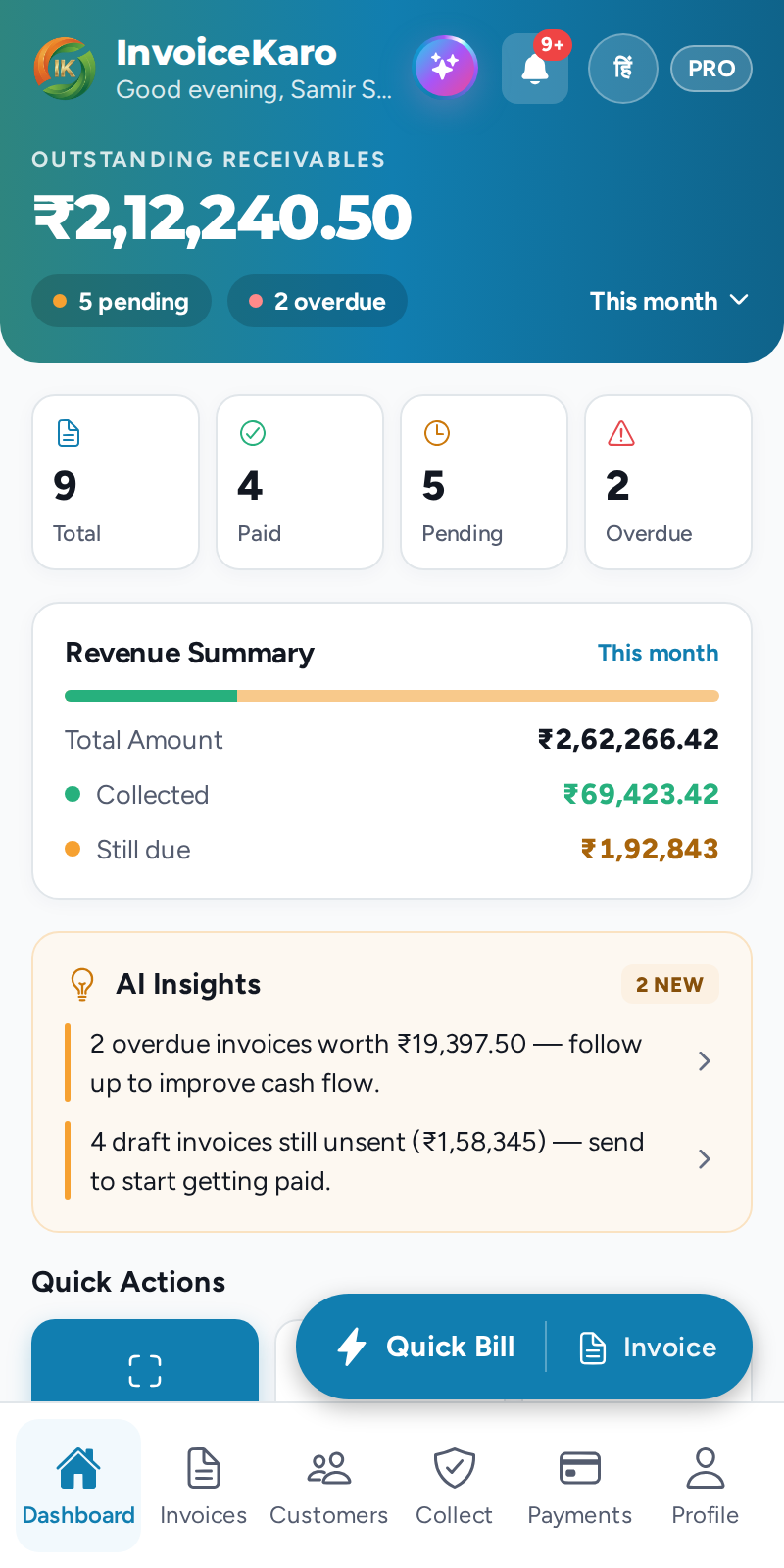
On a phone the blue header shows Outstanding receivables with a pending count and an overdue count. Below it are four tiles: Total and Paid (the invoices issued in the period), Pending and Overdue. Tap Pending or Overdue to open that list.
Charts and lists
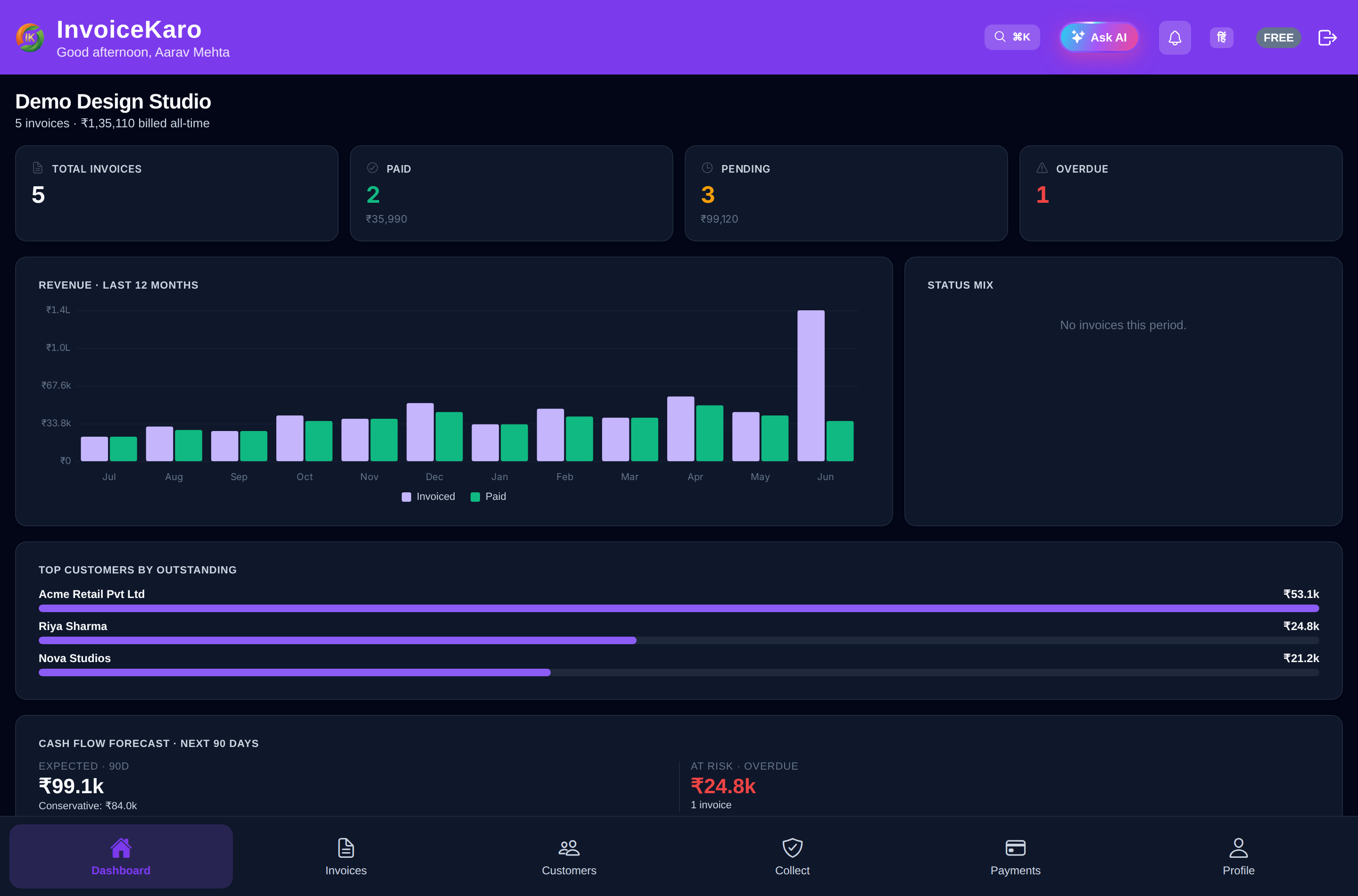
- Invoiced per month: the last 12 months, with what you invoiced and what was paid side by side.
- Recent invoices (on a computer): your latest five invoices. Click one to open it, or View all to go to Invoices.
- Top customers by outstanding: who owes you the most.
- Revenue Summary: for the chosen period, the Total Amount invoiced, what's Collected and what's Still due.
- Status mix: the last 12 months of invoices split into paid, sent, overdue, draft and cancelled.
- GST this month (on a computer, once your GSTIN is in your business profile): this month's taxable value, CGST + SGST and IGST, and the date your monthly GSTR-1 is due.
Cash flow forecast · next 90 days
The forecast estimates the money you can expect over the next 90 days from your unpaid, issued invoices. Each one is expected on its due date (or from today, if it's already late), pushed back by how long that customer usually takes to pay you.
- Expected · 90d: the total you can expect, with a Conservative figure that assumes part of the overdue money won't arrive.
- At risk · overdue: what is already late, and how many invoices that is.
- Next 30 days, 31–60 days and 61–90 days: when the money should land.
AI Insights
AI Insights gives short notes worked out from your open invoices, for example how much is overdue, how many invoices are waiting for payment, or how many drafts you haven't sent yet. Click a note to open that list in Invoices. To ask your own questions, open Ask AI; see The AI assistant.
Quick Actions
The Quick Actions tiles match your business type: Retail emphasizes Quick Bill, products and stock; Services emphasizes quotations and Projects; Both combines them. Every type includes a Payments shortcut when your role allows it. On a phone, all permitted tools remain available through the four tabs and More. A workspace without a choice keeps the existing Scan Bill, invoice, customer and payment shortcuts.