
Your invoices, customers and payment records are business data. This page covers how InvoiceKaro protects access to them, what's visible when you share a link, what you can take with you, and how to make a data request. The full policy is in the app under Settings → Account → Terms & privacy (on a phone, More → Settings → Terms & privacy).
How your account is protected
- No passwords. You sign in with a 6-digit one-time code sent to your WhatsApp or email, so there's no password to leak or reuse. See Create your account.
- Roles for your team. Each teammate signs in as themselves, with a role (Viewer, Staff, Manager or Admin) that limits what they can see and change. Your business profile, Payments & UPI, your plan and deleting the account stay with the owner. See Team management.
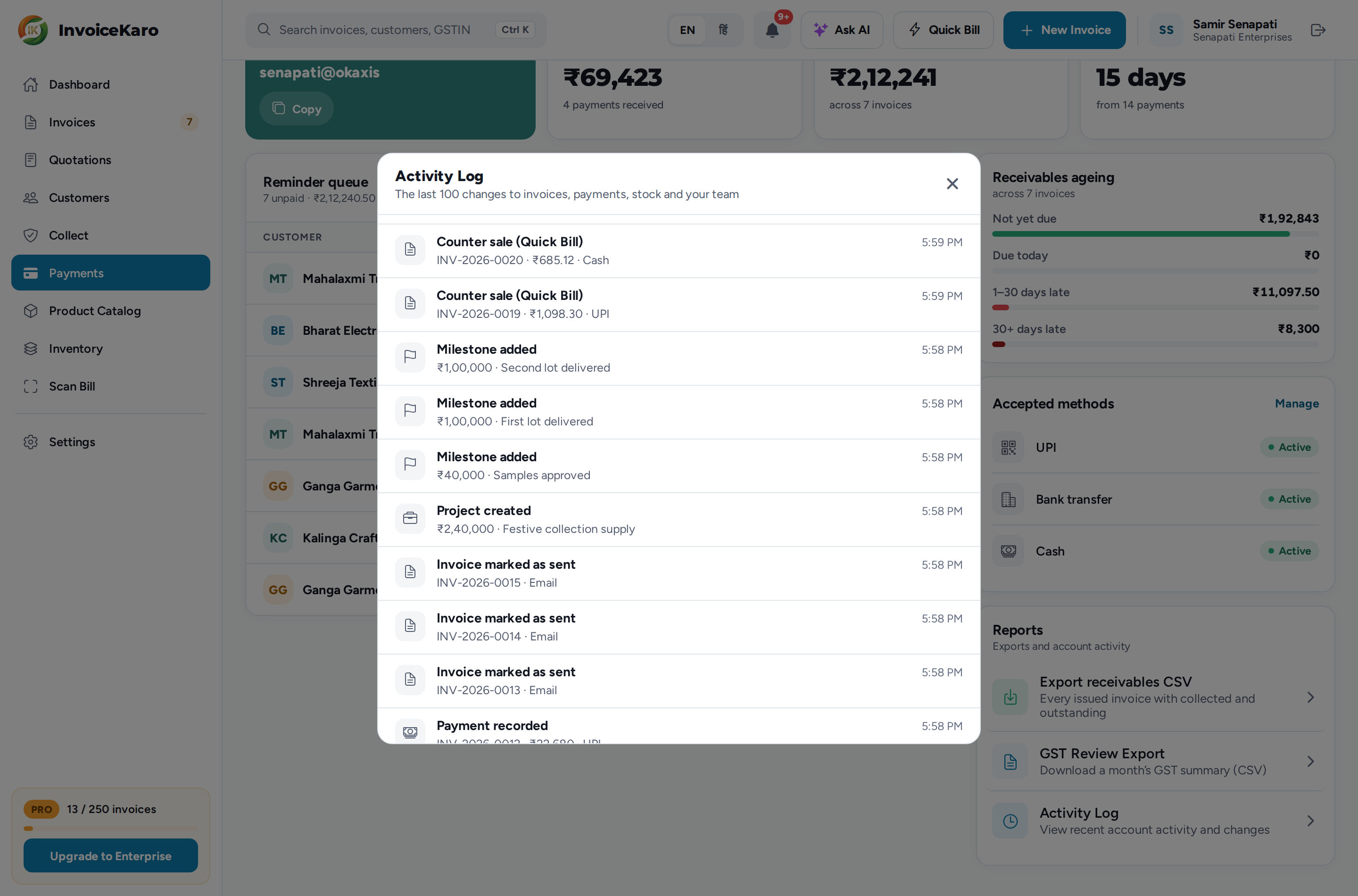
- An activity trail. The owner and Admins can open Payments → Reports → Activity Log to see the last 100 changes to invoices, payments, stock and your team, with the role of whoever made each one.
- Issued invoices are kept. An invoice that has been sent or marked as sent can't be edited or deleted. A wrong one is cancelled with a reason and stays in your records. See Invoice statuses & numbering.
- Proof fingerprints. Projects records a SHA-256 hash when a file is uploaded and a separate proof-reference hash for an approval. These provide values for comparison; they are not encryption, an identity check or a guarantee of legal acceptance. See Proof & client approval.
https://invoicekaro.com/.Who processes your data
Your account and business data are stored on InvoiceKaro's server and database. Files you upload as proof in Projects go to InvoiceKaro's file storage, and proof you add as a link stays wherever the link points. To do its job, InvoiceKaro passes what's needed to a few providers:
- Hosting and infrastructure.
- Delivery of sign-in codes, and of the WhatsApp, SMS and email messages you send to customers.
- Razorpay, when you buy a plan on the web.
- An AI provider, for anything you submit to AI features such as Ask AI and Scan Bill.
The web app doesn't add Google Analytics or advertising cookies. The privacy policy doesn't commit to hosting data in a particular country. If data location matters to you, ask at privacy@invoicekaro.com.
Offline data on your device
When you enable offline billing, the app saves account-specific customer and product data and queued bills on that device. The web app uses IndexedDB for these billing records. Bills waiting to sync are not yet server backups, and another device cannot recover them. Keep access to the device restricted and do not clear its site data while bills are waiting. See Offline billing.
Browser storage protection can reduce automatic eviction, but it cannot prevent deliberate site-data deletion or device loss. Account deletion on the server does not remotely erase offline copies on every device. Sync and review your queue, then remove local records you no longer need before clearing that device's site data.
Links you share
Pay links, customer portal links and Projects approval links open without signing in. Anyone who has one can see what's behind it until it expires or you revoke it, so share each one only with the person it's for.
| Link | Works for | To turn it off sooner |
|---|---|---|
| Pay link (one invoice) | 30 days | Revoke pay link in the invoice's ⋯ menu. Cancelling the invoice turns its pay links off too. |
| Portal link (a customer's account) | 60 days | Revoke portal links in the customer's details. |
| Approval link (a Projects milestone) | 14 days | ⋯ More → Revoke approval link on the milestone. |
These pages ask search engines not to index them. That can't stop someone who has the link, or an app that previews it, from keeping a copy. See Pay links.
Take your data with you
- Business archive and detailed CSVs: the owner can use Settings → Data & backup (on a phone, More → Settings → Data & backup) for a JSON archive and Customers, Products, Invoices and Payments CSVs. These exclude unsynced offline bills and account secrets. See Data, backups & migration.
- Invoice PDFs: View PDF or Print invoice on any invoice.
- Invoices CSV: Export CSV in Invoices saves the invoices on screen, with GSTIN, taxable value, CGST, SGST, IGST, paid and outstanding. See Managing invoices.
- Receivables CSV: Payments → Reports → Export receivables CSV lists every issued invoice with what's been collected and what's outstanding.
- GST review CSV: Payments → Reports → GST Review Export, for any of the last 12 months. See GST summary & review export.
- Evidence packs: a PDF for each milestone or project in Projects. See Evidence packs & escalation.
Your data rights
You can edit your business profile, customers and draft invoices in the app at any time. To ask what data InvoiceKaro holds about you, or to have it corrected or deleted, email privacy@invoicekaro.com. You may be asked to show that you control the account first. Complaints under the IT Rules, 2021 go to the grievance officer at grievance@invoicekaro.com.
Deleting your account
- 1Export anything you need to keep (see above).
- 2On a computer, open Settings → Account and click Delete account. On a phone, open More → Settings and tap Delete account in the Support & legal card.
- 3Enter the 6-digit code InvoiceKaro sends you, then type
DELETEto confirm.
This permanently deletes the account and its server records, including invoices, customers, payments, projects and evidence files. Only the account owner can do it. Existing shared links no longer have those records to display, but deletion cannot recall downloaded invoices, messages, exported files or offline copies stored on other devices.
Who to contact
| Topic | Contact |
|---|---|
| Data requests & privacy | privacy@invoicekaro.com |
| Grievances (IT Rules, 2021) | grievance@invoicekaro.com |
| Help with the app & bugs | support@invoicekaro.com |
| Phone | +91-8093712301 |
For billing, legal and other contacts, see Contact & support.