
As your business grows, share the work. Team management lets you invite colleagues, give each one the right level of access, and remove them when they move on. Everyone signs in with their own phone or email, so nobody shares a login.
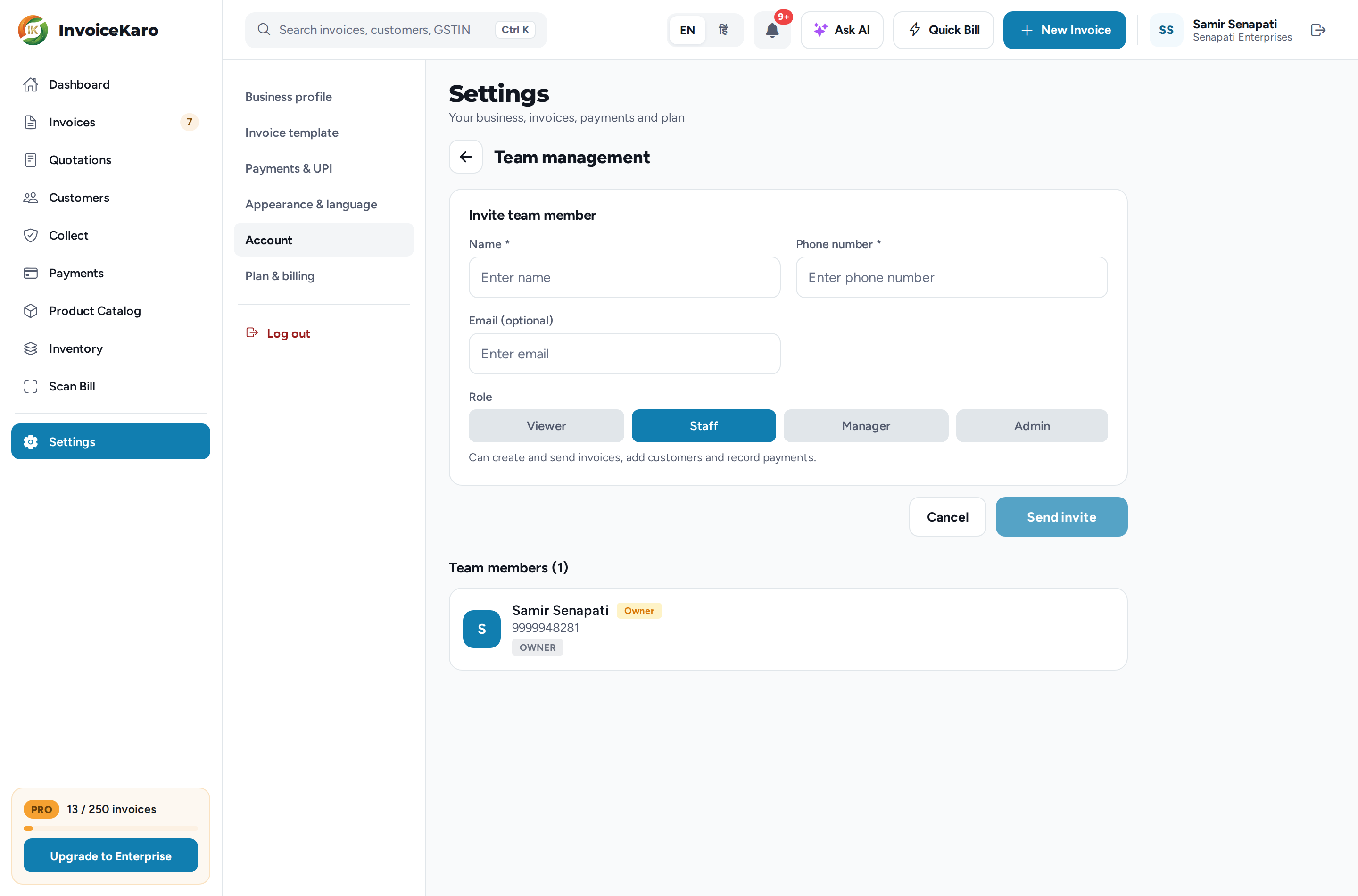
Invite a teammate
- 1Go to Settings → Account and click Team management. On a phone, open More → Settings and tap Team management in the Account card.
- 2Click Invite team member.
- 3Enter their Name and Phone number (both required), and an Email if you like.
- 4Choose a Role: Viewer, Staff, Manager or Admin. A line under the buttons explains what the role can do.
- 5Click Send invite. They appear under Team members with their role.
Then let your teammate know. They open invoicekaro.com/app, tap Login, and sign in with the phone number (or email) you entered, using a one-time code. There's no password, and they land straight in your business.
Roles
Give each person the least access they need to do their job.
| Role | What they can do |
|---|---|
| Viewer | Can view invoices, customers, payments, dashboards, Projects, products, stock and purchases. Can mark or dismiss notifications, but cannot create or edit business records. |
| Staff | Can create, edit and send invoices, add and edit customers, record payments and purchases, and work with Projects. Can view products, stock and returns. |
| Manager | Everything Staff can do, plus analytics, editing the Product Catalog and stock, and creating returns. |
| Admin | Everything Manager can do, plus recording expenses, deleting eligible customers and draft invoices, managing team members and API keys, and viewing the Activity Log. Owner-only controls remain restricted. |
Change a role
Click a member's role badge (for example STAFF) to move them to the next role, in the order Viewer, Staff, Manager, Admin. Confirm with Change. The owner's role can't be changed. The owner also chooses the workspace Business type; that choice never expands a teammate's permissions.
Remove a member
When someone leaves, click the bin icon next to their name and confirm Remove. Their server access is revoked. The invoices and records they already synced stay with your business. Sync any pending offline bills before removing a teammate: unsynced work on their device cannot upload after access is revoked. Removing access does not remotely erase browser copies.
See who billed what
- On each invoice: the invoice's activity shows who created it, for example Invoice created · by Rahul Das · Staff.
- In the Invoices list: once more than one person has billed, a Created by button appears next to the period. Pick a person to see only their invoices; the total at the top becomes what they billed. On a phone, it's the person icon at the top of the Invoices tab.
- On the Dashboard: roles with analytics access (the owner, Admins, Managers and Viewers) see Sales by staff once more than one person has billed, with each person's bills and total for Today or This month. Tap a name to open their invoices.
See who did what
The owner and Admins can open Payments → Reports → Activity Log to see the last 100 changes to invoices, payments, stock and your team, each with the role of the person who made it. See The Payments page.