
Most issues have a quick, self-serve fix. Find your symptom below and follow the steps. If you're still stuck, head to Contact & Support.
Signing in
I didn't receive my OTP
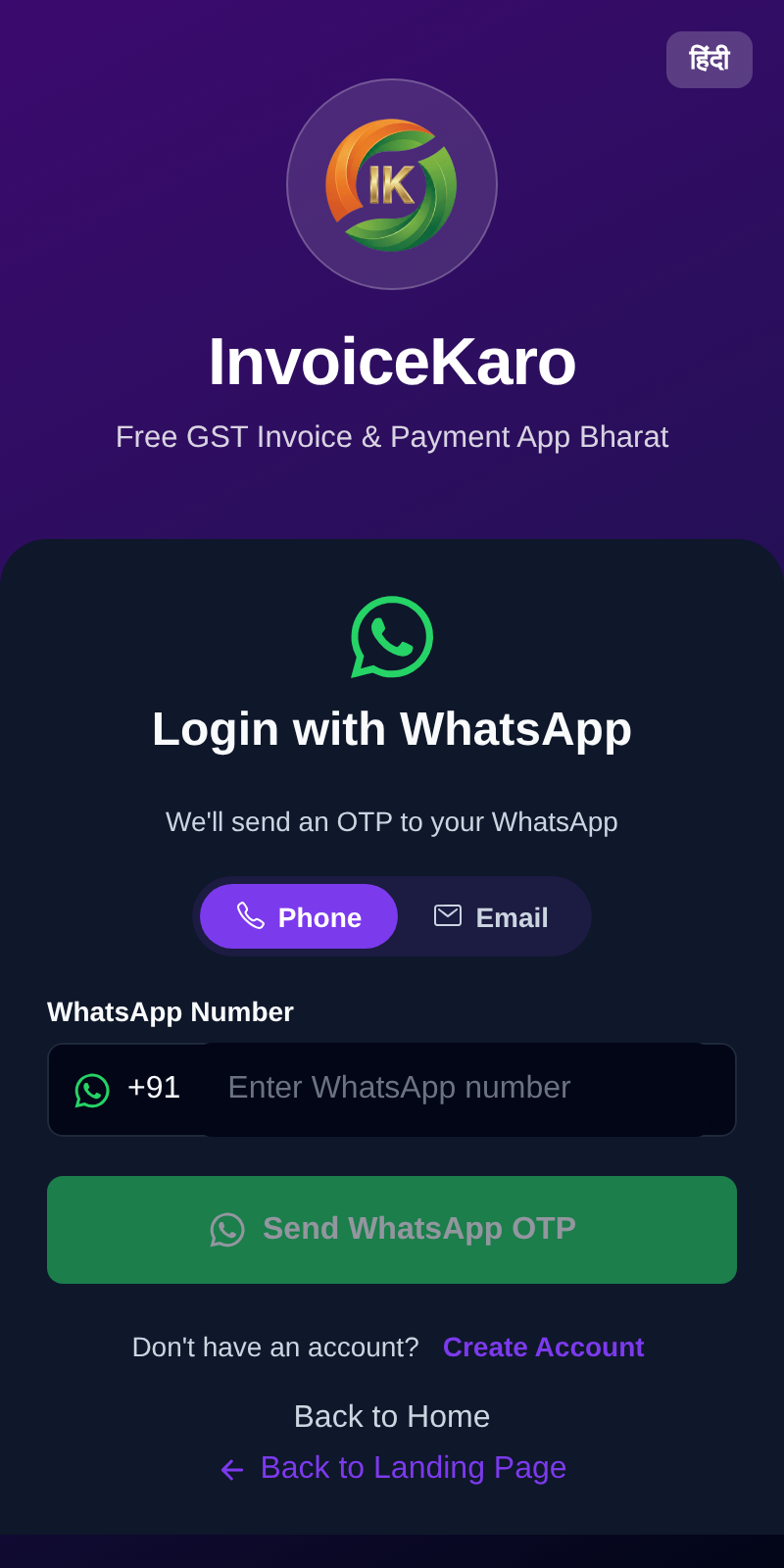
Sign-in codes are 6 digits and valid for 5 minutes, and the screen shows how long yours has left. There's no password: you always sign in with a code.
- 1Phone: the code comes on WhatsApp, not SMS. Check that the number is on WhatsApp and that you typed the 10 digits after +91 correctly.
- 2Email: codes come from noreply@invoicekaro.com. Look in spam and promotions, and add the address to your contacts.
- 3After about 30 seconds, tap Resend WhatsApp OTP or Resend Email OTP for a fresh code.
- 4If you see Too many OTP requests. Please wait 10 minutes., you've asked for three codes in ten minutes. Wait, then try again.
- 5If you see Too many failed attempts. Please request a new OTP., a code was typed wrongly three times. Request a new one.
It says "Session expired"
For your security, a sign-in lasts up to 7 days. When it ends you'll see Session expired and Sign in again to continue. Reconnect and sign in with a new code. For offline bills, use the same business and staff account in the original browser profile and app address. Keep its site data so the saved bills can be recovered and synced.
Offline billing
The app was not prepared before the connection failed
You need one successful online preparation in this browser before relying on offline billing. When connected, sign in and choose Settings → Offline billing → Enable offline billing (on a phone, More → Settings → Offline billing). Wait for Offline billing ready inside that Settings section. If you prepared another browser or device, use that original one; saved data is not shared between browsers. See Offline billing.
My bill is waiting to sync or needs review
- 1Open Settings → Offline billing (on a phone, More → Settings → Offline billing) in the original browser and check the bill's status and message. If it is already there, do not enter the same sale again.
- 2Reconnect and leave InvoiceKaro open. Sign in online again if asked, using the same business and staff account.
- 3For Needs review, resolve the issue named in the message, such as plan access, account permissions or product details. Choose Sync now to retry the saved bill.
- 4After Synced to your account, choose Open invoice and check the final record. A saved invoice draft still needs to be sent or marked as sent; a cash sale is paid after its sync completes.
- 5If it still fails, contact support with the local reference and exact message. A failed confirmation may leave an invoice already in your account, so check before removing any device copy.
Storage is full, unavailable, or the bill did not save
Keep the form or cart open if you see Could not save on this device. Check Device storage, free space elsewhere on the device if needed and retry. At 200 unsynced bills, reconnect and sync before adding more. An unavailable estimate or declined Protect saved data request does not by itself mean the bill failed to save: check for the saved confirmation and the bill in the panel.
The customer, price or stock looks out of date
Offline billing uses the last saved customer and product list. Check Last prepared, then choose Refresh saved data while online. Add new customers online first. Stock and other account checks run again during sync; cached totals are not a live view of sales on another device.
Creating invoices
My invoice won't save
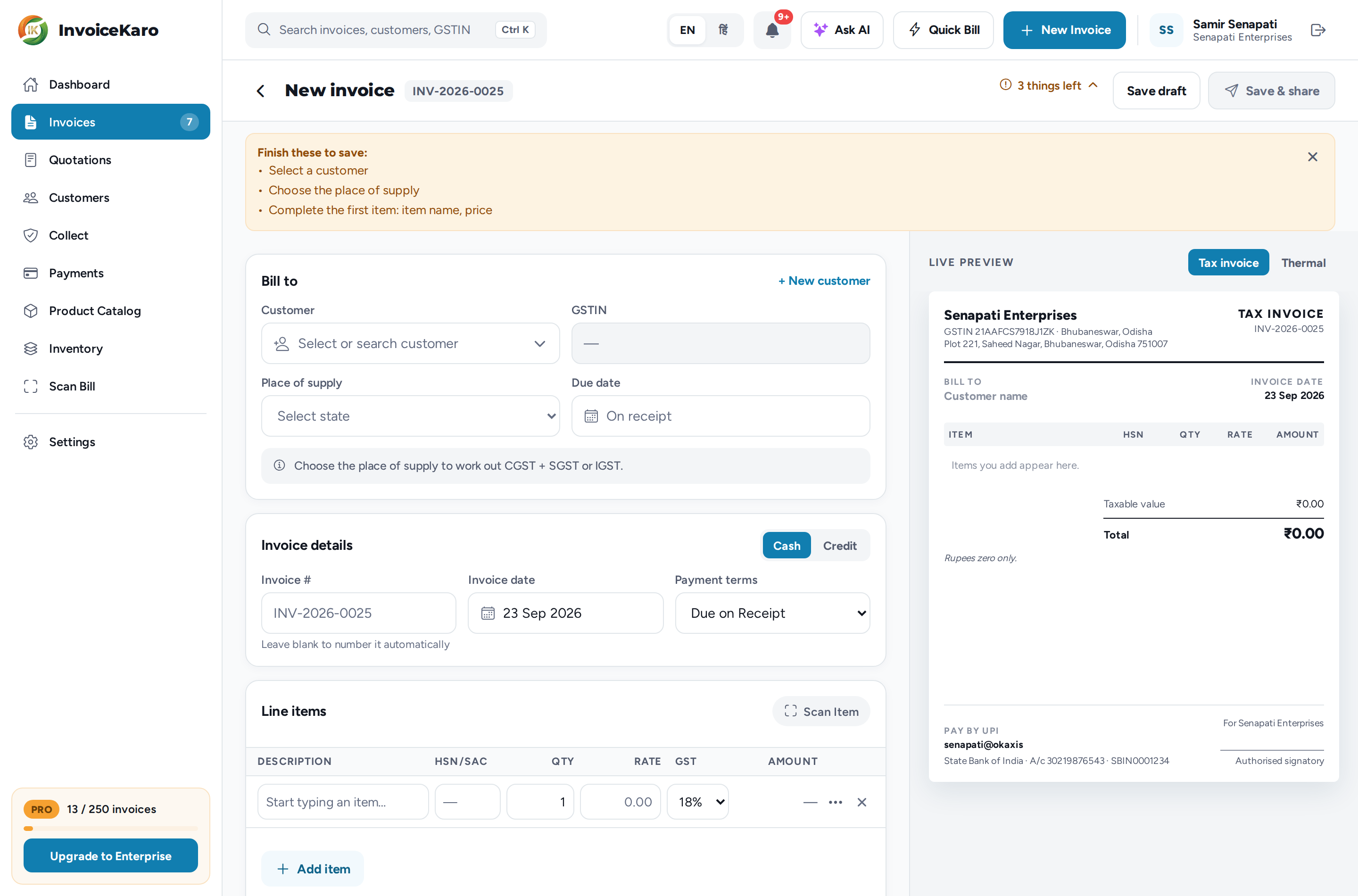
While something required is missing, the top of the form shows a pill such as 3 things left. Click it, or click Save draft or Save & share, to see a Finish these to save: list.
- Select a customer: pick one under Bill to, or add one with + New customer.
- Choose the place of supply: pick the state under Bill to. It decides CGST + SGST or IGST.
- Complete the first item: give the first line an item name, a quantity and a price.
- Fix the HSN/SAC code on line …: an HSN/SAC code must be 4, 6 or 8 digits.
It says "Complete tax details first"
An invoice that charges GST needs your GSTIN, business address and business state. The message lists the ones missing.
- 1Click Settings in the message (on a phone, Open Profile).
- 2Open Business profile (on a computer, in the Settings menu), click Edit, fill in what's missing and click Update profile.
- 3Go back to the invoice and save it again. If you're not GST-registered, set every line's GST rate to 0% instead to make a non-tax document.
The GST split looks wrong
InvoiceKaro charges CGST + SGST when the place of supply is your own state, and IGST when it's another state. A wrong split almost always means one of those two states is wrong.
- 1Open the invoice form (for a draft, open it and click Edit). Under Bill to, check Place of supply. The form says which applies, for example Inter-state · IGST.
- 2The place of supply fills in from the first customer you pick. If you then switched to a different customer, it keeps the first one's state, so change it by hand.
- 3Check your own state in Settings → Business profile. When you have a GSTIN, InvoiceKaro goes by the state in it (its first two digits), and the profile warns you if the State you picked doesn't match.
- 4Check the GST rate on each line.
- 5If the invoice is already issued, cancel it (see below) and create a corrected one.
I can't edit an issued invoice
This is by design. Drafts are editable; issued invoices are locked so your records stay the same as your customer's.
- 1Open the invoice's ⋯ menu in Invoices, or open the invoice itself.
- 2If it's a draft, choose Edit, make your changes and click Save changes.
- 3If it's issued and no payment has been recorded, choose Cancel invoice. In Cancel issued invoice?, type a Cancellation reason and click Cancel invoice. It stays in your records as Cancelled, stops taking payments and reminders, and returns any stock.
- 4Create a corrected invoice. It gets the next number in your series.
Sending and getting paid
My invoice won't send
An invoice goes out only on the channels switched on for that customer, and only if they have the contact details for them. If none works, you'll see Invoice not sent.
- 1In Customers, open the customer and click the pencil (Edit customer).
- 2Check their Phone number (for WhatsApp and SMS) and Email (for email).
- 3Under Notification preferences, switch on Send WhatsApp, Send Email or Send SMS, and click Save changes.
- 4Send the invoice again. See Sending invoices & reminders.
My invoice isn't counted in Outstanding or GST
It's still a draft. Drafts don't count in your receivables, GST figures or reminders, and they don't move stock. Send the invoice or choose Mark as sent to issue it. The Drafts chip in Invoices shows every draft waiting to go.
Pay link problems
- Pay link unavailable: a draft has no pay link. Send the invoice (or mark it as sent) first.
- Add a UPI ID or bank details in Profile: you have no way to be paid on file, so the pay page asks your customer to contact you for payment details. Add a UPI ID or bank account in Settings → Payments & UPI. See Set up how you get paid.
- Your customer says the link doesn't work: pay links last 30 days, stop when you revoke them, and stop when the invoice is cancelled. Choose Copy pay link again for a fresh one. See Pay links.
Printing, Quick Bill and Scan Bill
Print doesn't open the print window
- In Chrome or Edge on a computer, Print invoice opens the print window straight away.
- In Firefox, Safari and on phones, the PDF opens in a new tab. Print it from there.
- If your browser blocks the new tab, you'll see Your PDF is ready. Click Open PDF and print from that tab.
- For a thermal receipt, choose Print receipt (roll) and pick your paper: 80mm (standard) or 58mm (small). See Printing & thermal receipts.
Quick Bill problems
- Payment method is wrong: Save only and Save & print record cash. For UPI, confirm that the money arrived, then choose Paid · Save & print or Paid · Save only inside Show UPI QR. If an existing sale asks you to check its payment, open that invoice instead of creating the sale again.
- No connection: after preparing Offline billing, use Save cash sale offline for cash already received. UPI and the normal receipt need a connection; a saved bill can use Print offline copy from Settings → Offline billing (on a phone, More → Settings → Offline billing).
- Add your UPI ID first: Show UPI QR makes a QR with the amount filled in from your UPI ID. Click Add UPI ID, or add it in Settings → Payments & UPI.
- The QR doesn't show the amount: you've uploaded a UPI QR image but haven't saved a UPI ID, so Quick Bill shows your image and the customer types the amount. Add your UPI ID to get a QR with the amount filled in.
- Not in your catalogue: Quick Bill only bills items from your Product Catalog. Add the item there first. See Quick Bill for counter sales.
Scan Bill can't read my bill
- Use a JPG, PNG or WebP image of 5 MB or less. A screenshot or a cropped photo works well.
- Keep the whole bill in frame and readable. Reading takes about 10 to 20 seconds.
- If you see Could not process this bill. Try again., try again or use a clearer image.
- Check the GST rate on every line before you save: a line the scan couldn't read a rate for starts at 18%.
- Each bill you process counts towards your plan's monthly AI allowance. See Scan Bill.
Plans and access
A trial-ended or plan-limit message
When your trial or paid access has ended, a red banner appears at the top of the app, and creating, sending and AI are paused. When you reach a monthly limit, the message says which one, for example Starter plan allows 50 invoices per calendar month. Upgrade or wait for next month. Your data is never deleted.
- 1Account owner: click View plans on the banner, or the button on the plan card at the bottom of the left menu, or open Settings → Plan & billing.
- 2Pick 30 days or 365 days, then Choose plan. New limits apply as soon as the payment goes through.
- 3Monthly limits for invoices and AI start again at the start of the next month. See Plans, trial & upgrading.
A teammate can't do something
Team members see and do only what their role allows. A Read-only access notice, such as Your role cannot send invoices., means the role doesn't include that action, and bank, UPI and billing settings show as Owner-managed payment settings. The account owner can change the role in Settings → Account → Team management. See Team management.
Not solved here? Ask AI can often help on the spot, or reach a person through Contact & Support.