
Invoices lists everything you've billed: a table on a computer, and cards grouped by month on a phone. Filter it, search it, export it, and open any invoice to see its full detail and act on it.
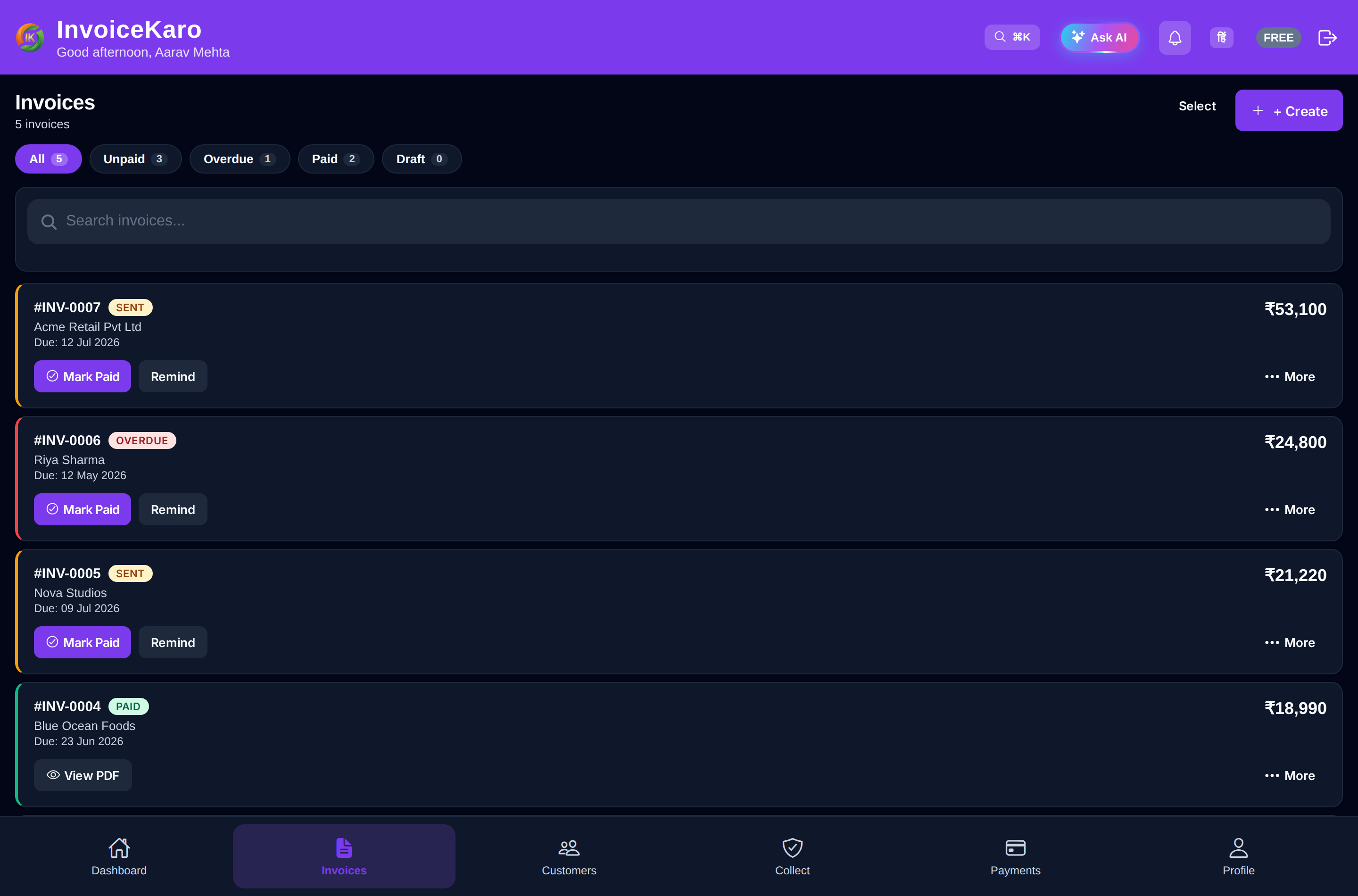
Find an invoice
| Chip | Shows |
|---|---|
| All | Every invoice, whatever its status. |
| Pending | Every issued invoice that isn't paid yet, including overdue ones. |
| Paid | Invoices that are paid in full. |
| Overdue | Issued, unpaid invoices past their due date. Chase these first. |
| Drafts | Invoices you've saved but not issued yet. |
- Period: the calendar button offers All time, This month, Last month, This quarter and the financial year (FY 2026-27), by invoice date.
- Search invoices...: find an invoice by its number, the customer's name or phone.
- Sort (on a computer): click the Issued or Amount column header, and click again to flip the order.
The line under the title shows how many invoices there are and what you billed, for example 28 invoices · ₹1,10,497.72 billed this financial year. Drafts and cancelled invoices aren't counted as billed. The number next to Invoices in the menu is how many invoices are waiting to be paid.
Actions on each invoice
On a computer, each row has shortcuts: the paper plane (Send invoice) on a draft, the WhatsApp button (Send Reminder) on an unpaid invoice, the PDF button (View PDF), and ⋯ for everything else. On a phone, tap a card to open the invoice, or press and hold it for the same menu.
| In the ⋯ menu | When you see it |
|---|---|
| Open details | Always, from the list. |
| Send invoice, Edit, Mark as sent | On a draft. |
| Mark as paid | On an issued invoice with a balance. It records the balance as paid and closes the invoice. |
| Send Reminder | On an issued invoice with a balance. |
| View PDF, Print invoice, Print receipt (roll) | Always, drafts included. |
| Copy pay link | On an issued invoice with a balance. |
| Delete draft | On a draft only. |
| Revoke pay link | On an issued invoice that isn't paid or cancelled. Every link for it stops working at once. |
| Cancel invoice | On an issued invoice with no payment recorded. You give a reason. |
The invoice detail view
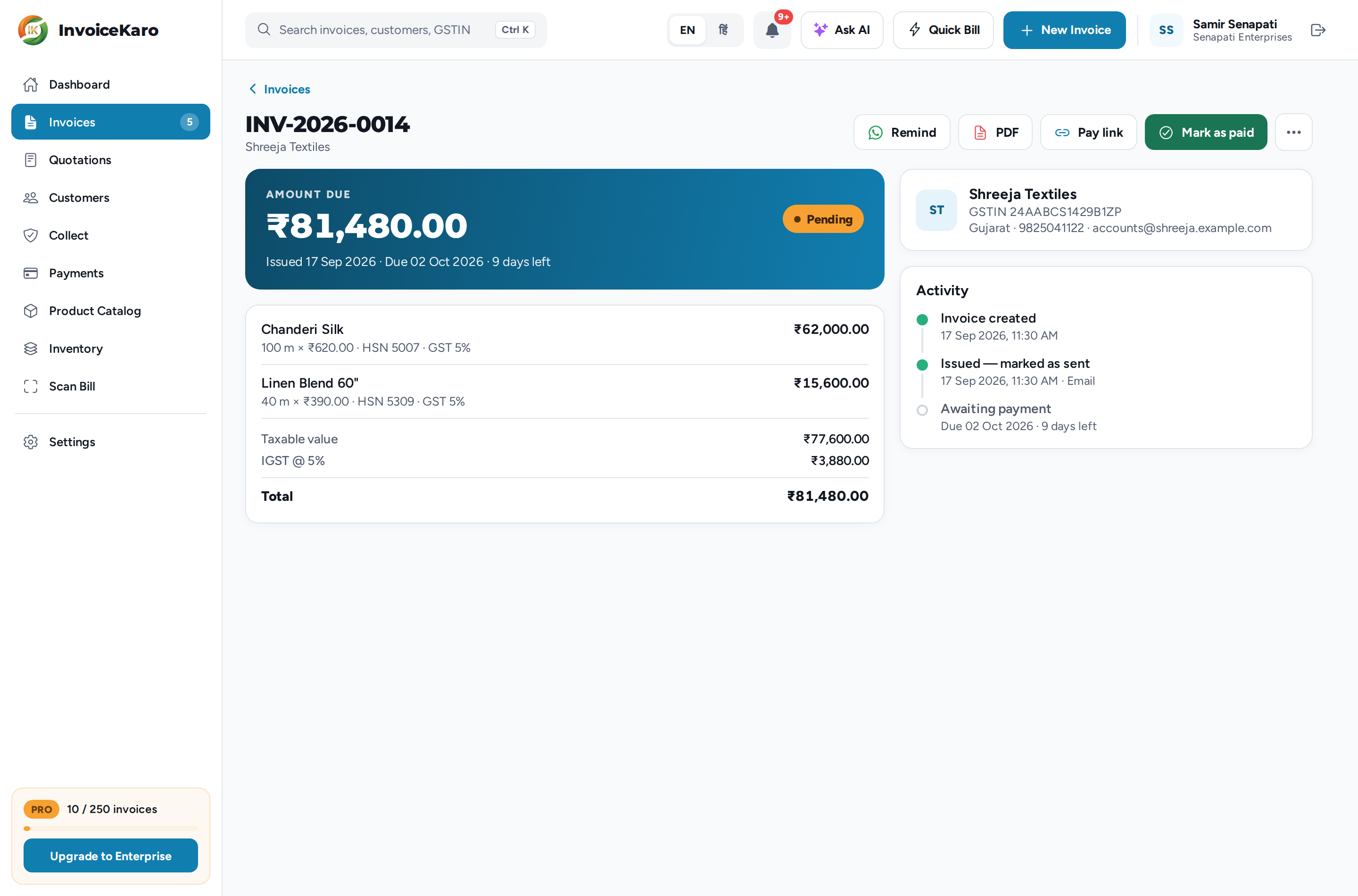
Click a row (on a phone, tap a card) to open the invoice. On a computer it opens beside the menu; click ‹ Invoices or press Esc to go back. On a phone it fills the screen, with its buttons at the bottom.
- Buttons: the main action for its status (Send invoice on a draft, Mark as paid on an unpaid invoice), up to three shortcuts such as Remind, PDF, Pay link, Edit, Print or Receipt, and ⋯ for the full menu.
- Amount: Amount due on an unpaid invoice (or Amount paid, Draft total or Invoice total), with the issue and due dates.
- Items: every line with its HSN, quantity, rate and any discount, then the taxable value, CGST and SGST or IGST, round off, total, and what's been paid.
- Customer: name, GSTIN (or No GSTIN (unregistered buyer)), place of supply and phone.
- Activity: a timeline from the invoice's own record (created, sent and on which channels, reminders, payments, marked paid, cancelled) and what's next: Awaiting payment, or Not sent yet on a draft.
- Notes, if the invoice has any.
Bulk actions
On a computer, tick the boxes on the left of the rows (the box in the header selects every row). On a phone, tap Select, then tap the cards. A bar shows how many are selected, with:
- Mark Paid: only issued invoices that still have a balance are included.
- Send Reminder: only issued, unpaid invoices are included.
- Delete: drafts only. Issued and cancelled invoices are always kept.
You confirm before anything happens, and invoices that don't qualify are left alone. Select all or Select none changes the selection; Clear selection (on a computer) or Done (on a phone) ends it.
Export CSV
In a web browser, Export CSV (the download button on a narrow screen) saves exactly the invoices on screen, after your chip, period and search, as a spreadsheet that opens in Excel. It has one row per invoice with the invoice no., dates, customer and GSTIN, state, status, taxable value, CGST, SGST, IGST, total GST, total, paid and outstanding.
This is a summary with one row per invoice. For item-level invoice CSVs or the business archive, the owner can use Settings → Data & backup (on a phone, More → Settings → Data & backup). See Data, backups & migration.
Drafts vs issued invoices
Drafts can be edited and deleted. Issued invoices are locked, so your copy and your customer's always match. To correct an issued invoice that nobody has paid yet, Cancel invoice (the record is kept, its pay links stop working and any stock comes back) and create a new one. See Invoice statuses & numbering.