
Successfully sending an invoice or its pay link issues it. Email and SMS include the link; the current WhatsApp option sends an alert without it, and that alert alone does not issue a draft. Handing the PDF over yourself instead? Mark as sent issues it without sending a message.
After Save & share
When you click Save & share in the invoice form, the invoice is saved as a draft and a Draft saved window opens:
- Send via WhatsApp: sends an alert with the amount, business name, invoice number and due date. The current template has no pay link. A WhatsApp-only alert leaves a draft unissued; use email or SMS, or share the PDF yourself and Mark as sent.
- Send via Email: emails the invoice with the PDF attached and a link to view it and see what's outstanding.
- Download PDF: saves a copy.
- Print: prints the A4 invoice.
- Print receipt (roll): prints a thermal receipt. See Printing & thermal receipts.
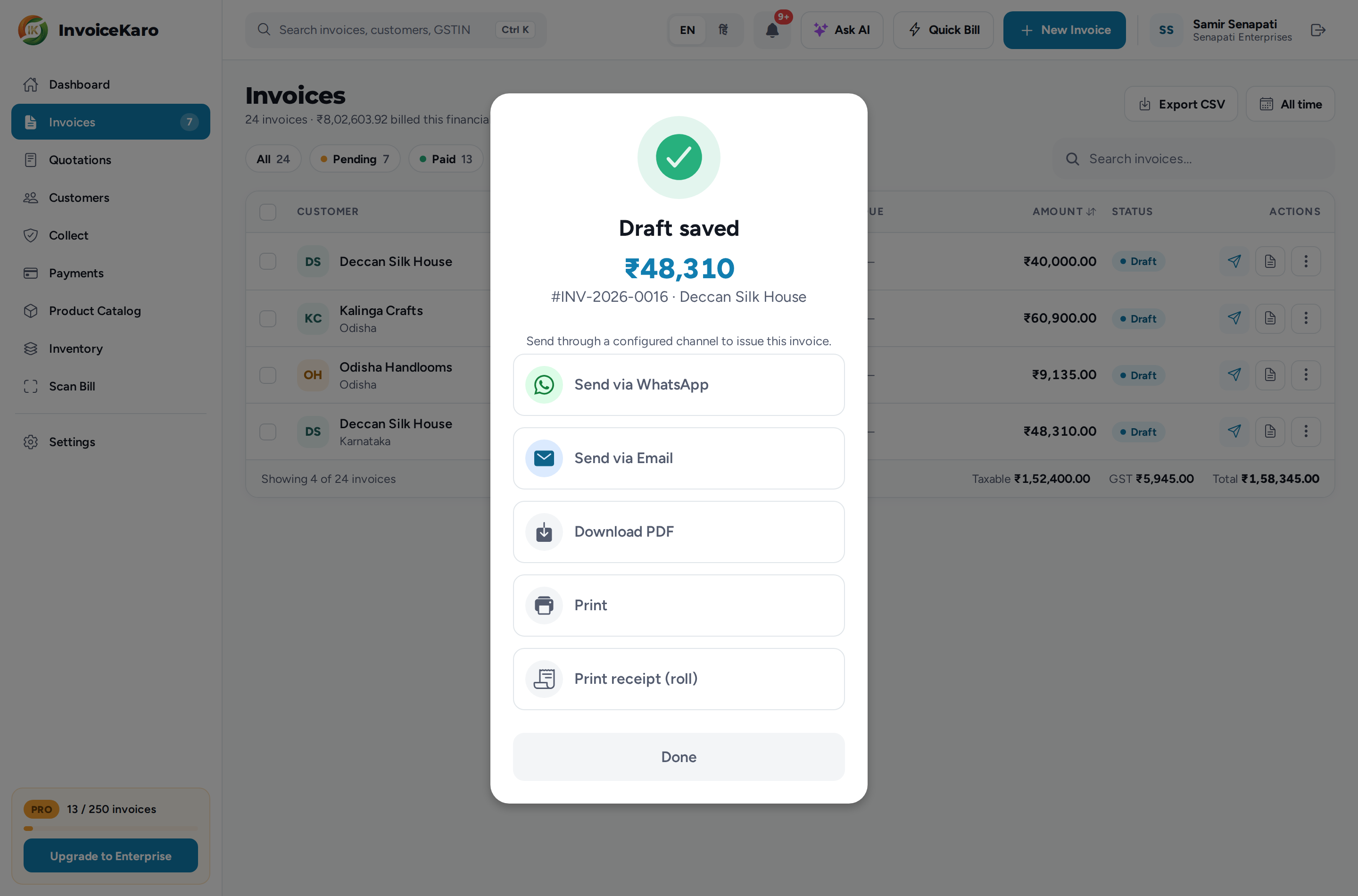
When the invoice or its link is shared successfully, InvoiceKaro reports the result and the invoice moves from Drafts to Pending. If it says an alert was accepted but the invoice or link was not shared, the draft is still unissued. Done closes the window without issuing it.
Send from the list or the invoice
For a draft you saved earlier, click the paper-plane button on its row in Invoices, or Send invoice on the invoice itself or in its ⋯ menu. This sends on every channel the customer has switched on.
Your customer's channels
Each customer has Notification preferences: Send SMS, Send WhatsApp and Send Email. InvoiceKaro only uses the channels that are switched on, and it needs a phone number for WhatsApp and SMS and an email address for email.
Handed it over yourself? Mark as sent
If you printed the invoice, shared the PDF from your own phone or handed it over in person, click Mark as sent. It issues the invoice (so it counts in receivables, GST and reminders) without sending anything to the customer. After you download or print from the Draft saved window, a Handing it over yourself? box offers Mark as sent right there. It's also in a draft's ⋯ menu and on the invoice itself. More in Invoice statuses & numbering.
Sending reminders
A reminder goes to the customer on WhatsApp and email (whichever they have switched on), for an issued invoice that still has a balance due. You can send one from several places:
- One invoice: the WhatsApp button on its row in Invoices, Remind on the invoice, or Send Reminder in its ⋯ menu. You see the outstanding amount and the days since it was sent before you confirm.
- Several invoices: select them in Invoices and use Send Reminder in the bar that appears. See Managing invoices.
- One customer: Remind (2) (or however many are unpaid) on the customer's details reminds them about all their unpaid invoices at once.
- Everyone who owes you: the Reminder queue on Payments lists issued invoices with a balance, soonest due first, with Send reminder on each row and Remind all.