
A project holds one client engagement, and its milestones are the stages you bill for. Each milestone has its own amount and due date, its own proof and reminders, and in the end its own invoice.
Create a project
- 1Open Projects from the left menu or More → Projects. The project list opens by default; select Projects if you are viewing Overview.
- 2Click New project. On a phone it's the full-width button under the tabs.
- 3Pick the Client. Projects use your saved customers, so add a new client there first. If you have no customers yet, the Projects tab offers Go to Customers.
- 4Enter the Project name (for example “Website redesign”), an optional Scope summary and the Total value (₹), then click Create.
1,50,000, ₹40,000 and 150000 all work.List or board
Projects show as a List at first. Each row has the project name, the client, the scope summary, the total value and a status label. Switch to Board to see projects in columns by status. Projects remembers which view you picked.
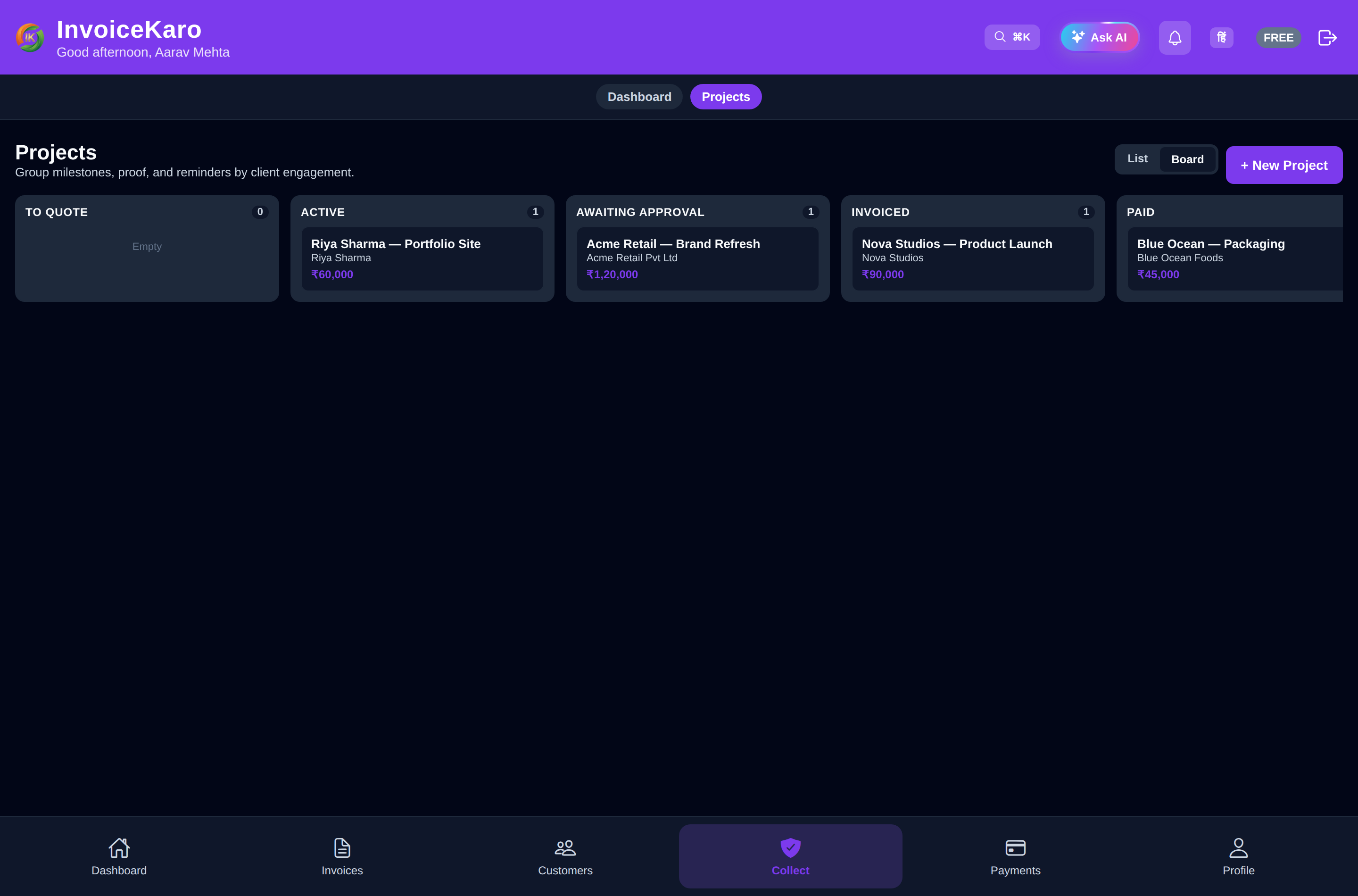
| Status | Meaning |
|---|---|
| Active | Work in progress. Every new project starts here. |
| Completed | The engagement is finished. |
| Cancelled | The engagement was called off. |
| Archived | Kept for your records and out of the way. |
To change a project's status, open it, click ⋯ beside the Evidence pack button and choose Change status…. Delete project is available only while its milestones have no delivery, approval, invoice, proof or reminder history.
Inside a project
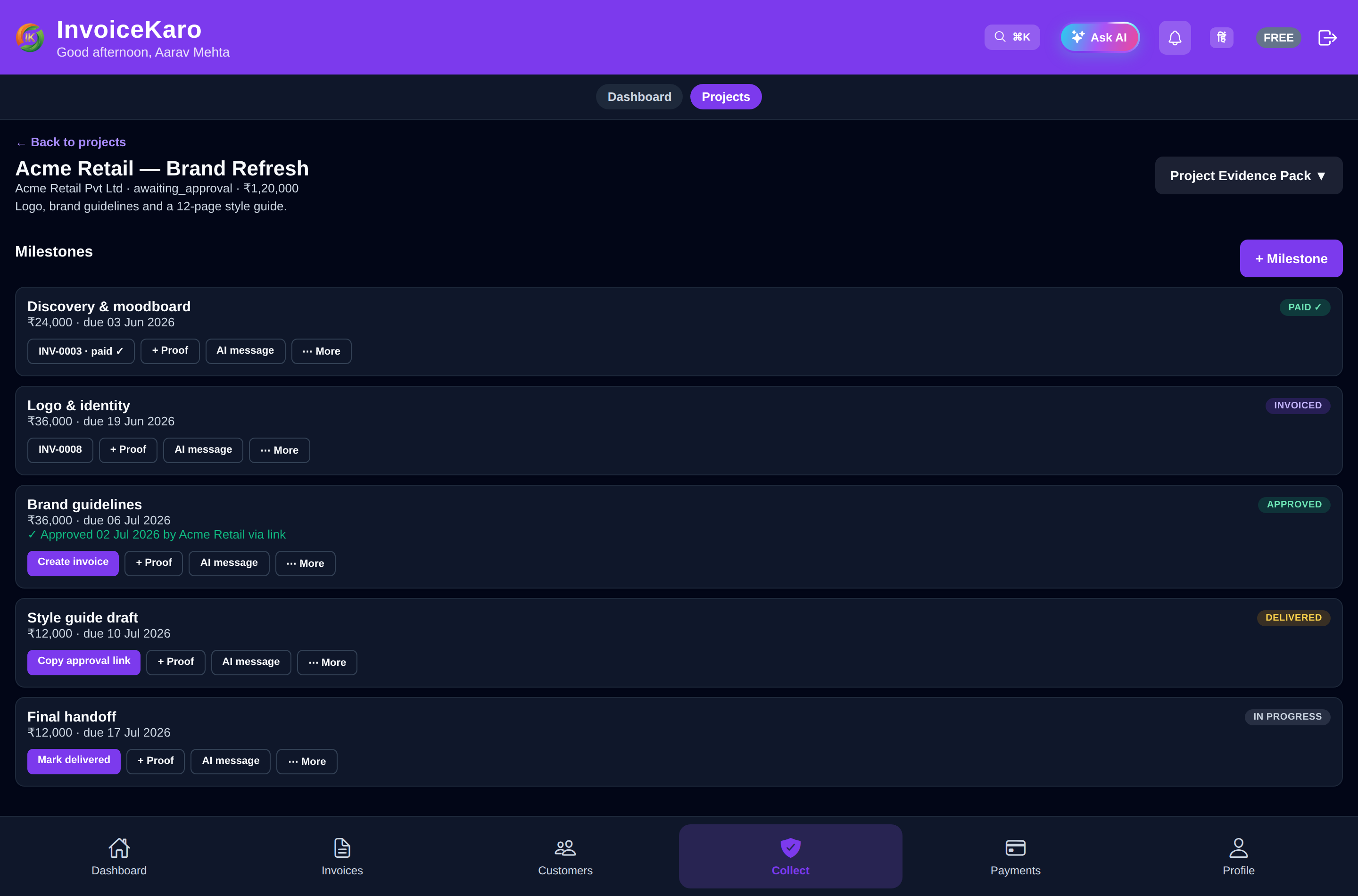
Click a project to open it. The top shows the client, the total value, the status and the scope summary, with an Evidence pack button for the whole project. Click Back to projects to return to the list.
What to do next
The What to do next card lists up to five suggestions for the project, most urgent first. Each is marked Critical, Warning or Info, and most come with a button that does the job in one click:
| When a milestone… | Suggested button |
|---|---|
| has no proof yet | + Proof |
| has proof but isn't marked delivered | Mark delivered |
| is delivered but not approved | Approval link |
| is approved but has no invoice | Create invoice |
| has an invoice but no reminders | + Default reminders |
| has an invoice 1 to 6, 7 to 14 or 15 to 29 days overdue | Send a polite reminder, Send a firm reminder or Send a final notice |
| has an invoice 30 days or more overdue | Evidence Pack |
If your role can't do something, that suggestion shows as plain text instead of a button. A paid milestone drops off the card.
Add milestones
- 1In the project, click + Milestone.
- 2Enter a Title (for example “Homepage design”), an optional Description, the Amount (₹) and a Due date in
YYYY-MM-DDformat, such as2026-10-15. - 3Click Create. Repeat for each stage you bill for.
The milestone card
Each card shows the milestone's title, amount, due date and stage label (In progress, Delivered, Approved, Invoiced or Paid ✓). Below that is one main button for the current stage, then the rest:
- Main button: Mark delivered while the work is in progress, Copy approval link once it's delivered, Create invoice once it's approved, and the invoice number once it's invoiced. Click the invoice number to open the invoice.
- + Proof: attach a file, link or note. See Proof & client approval.
- AI message: have AI draft a payment reminder. See Reminders & AI messages.
- ⋯ More: whichever of these fit the stage: Mark approved (manually), Create invoice now, Schedule default reminders, Evidence Pack (PDF), Revoke approval link, and Delete milestone for a milestone with nothing attached yet.
Proof and reminders appear on the card as you add them. Once a milestone is approved, the card shows who approved it, when, and how, for example “via portal” for the approval link.
Delivered, approved, paid
Mark delivered records that you've handed over the work. Attach proof before asking for approval: a milestone needs at least one piece of proof before it can be approved. Approved records acceptance through the approval link or a manual entry by your team. Link approval creates an acceptance certificate with the submitted details. Paid ✓ follows the invoice: when the milestone's invoice is fully paid, the milestone is paid too.