
Make InvoiceKaro feel like yours. Choose how the app looks with a System, Light or Dark theme, use it in English or हिन्दी, and set the default invoice template so every new invoice starts in the style you like.
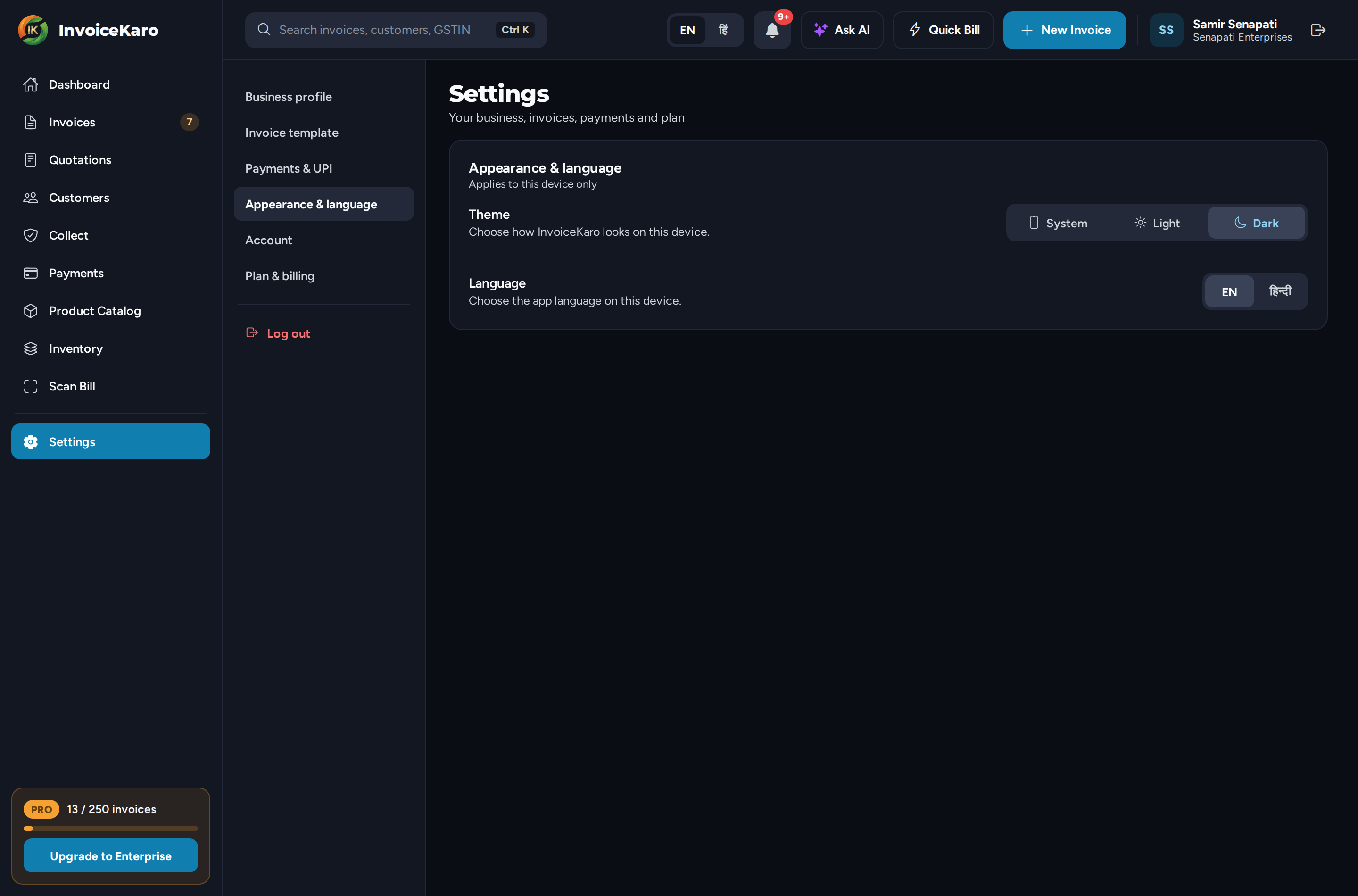
Theme: System, Light or Dark
Go to Settings → Appearance & language (on a phone, the Appearance & language card on More → Settings) and pick a Theme.
| Theme | What it does |
|---|---|
| System | Follows your device's setting and switches automatically. |
| Light | A bright look, best in well-lit places. |
| Dark | A darker look that's easier on the eyes at night. |
Language: English or हिन्दी
Under Language in the same section, choose EN or हिन्दी. You can also switch at any time from the top of the screen: the EN / हिं switch in the top bar on a computer, or the language button in the header on a phone. Like the theme, the language applies to the device you're using.
Default invoice template
InvoiceKaro has three PDF templates. Pick your default under Settings → Invoice template (on a phone, the Invoice template card). Your choice is saved straight away, and every new invoice starts with it.
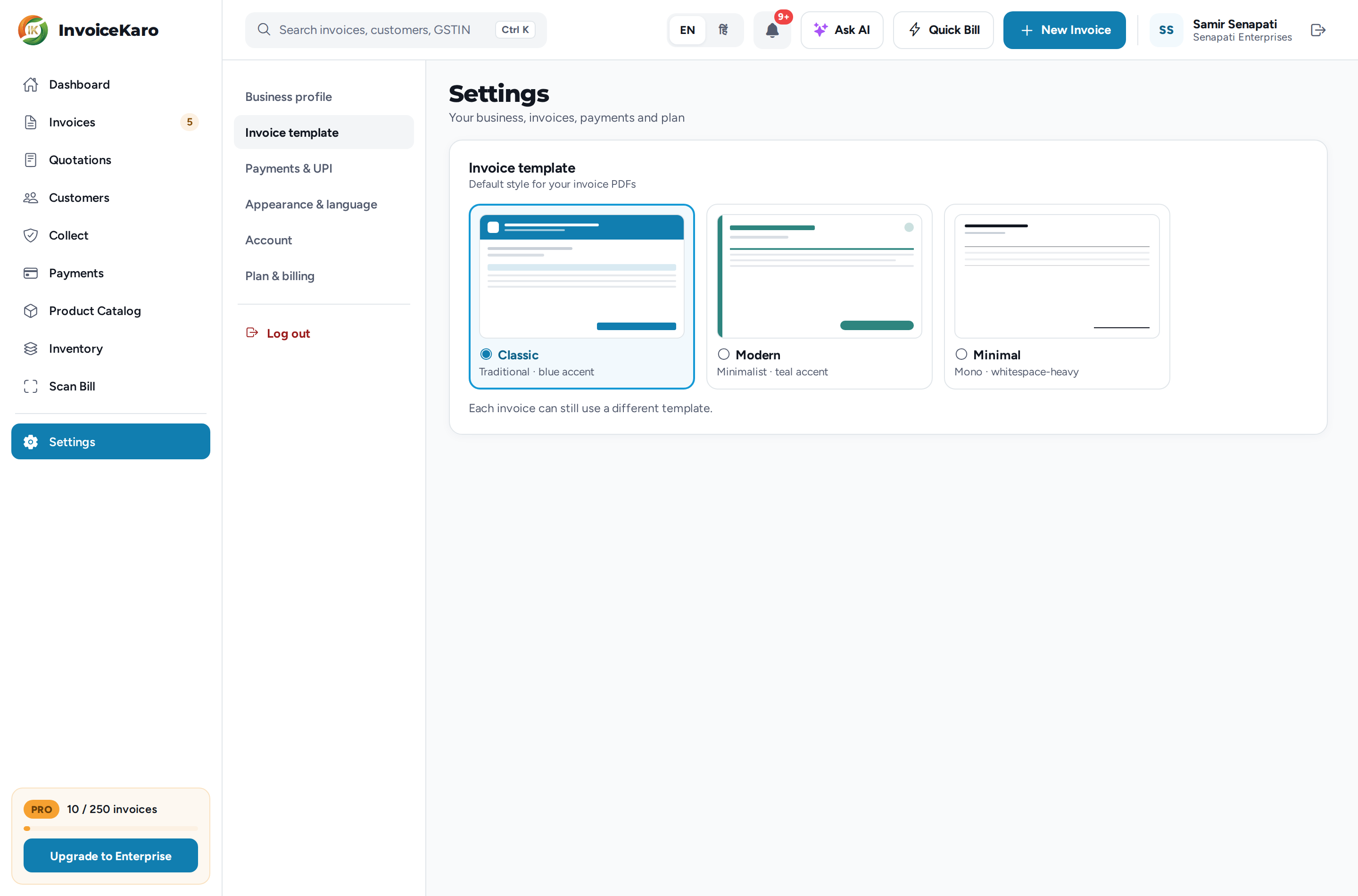
- Classic: traditional, with a blue accent.
- Modern: minimalist, with a teal accent.
- Minimal: mono, with plenty of white space.
Change the template on one invoice
Each invoice can still use a different template. While you create an invoice, open Invoice settings:
- Invoice Theme: switch between Classic, Modern and Minimal for this invoice.
- Accent Color: keep the template's own colour, or pick another to match your brand.
- Display Options: choose what prints, such as the logo, GSTIN, signature and terms.
The steps are in Creating a GST invoice.