
Everything about your business and your account lives in one place. On a computer it's Settings in the left menu. On a phone it's More → Settings. The sections are the same on both; only the layout changes.
Open Settings
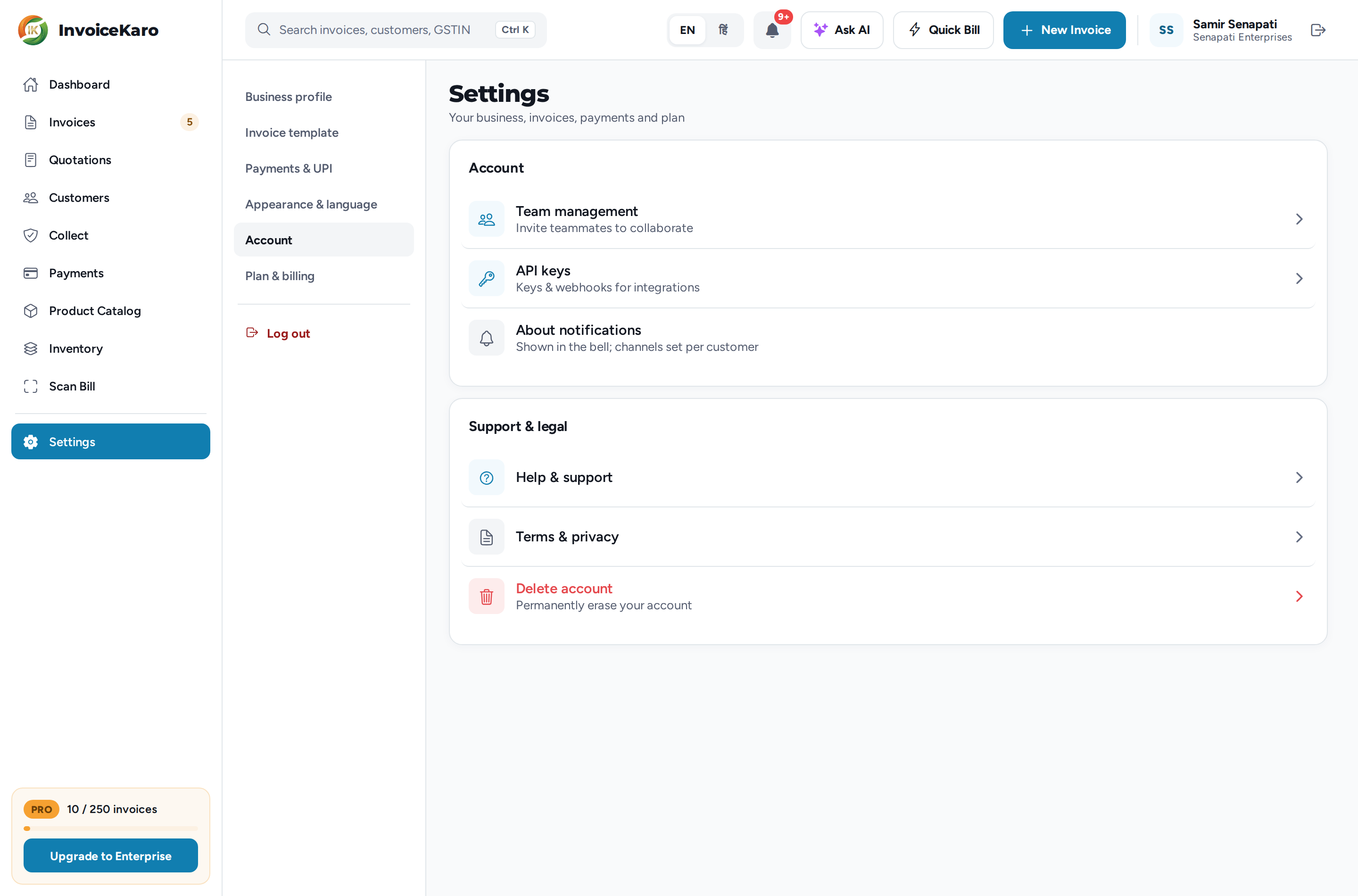
- On a computer, click Settings at the bottom of the left menu, or click your name at the right end of the top bar. A second menu opens beside the left menu with Business profile, Business type, Invoice template, Payments & UPI, Appearance & language, Offline billing, Data & backup (owner only), Account and Plan & billing, with Log out underneath. In a narrower window the same items appear as a row of buttons above the page.
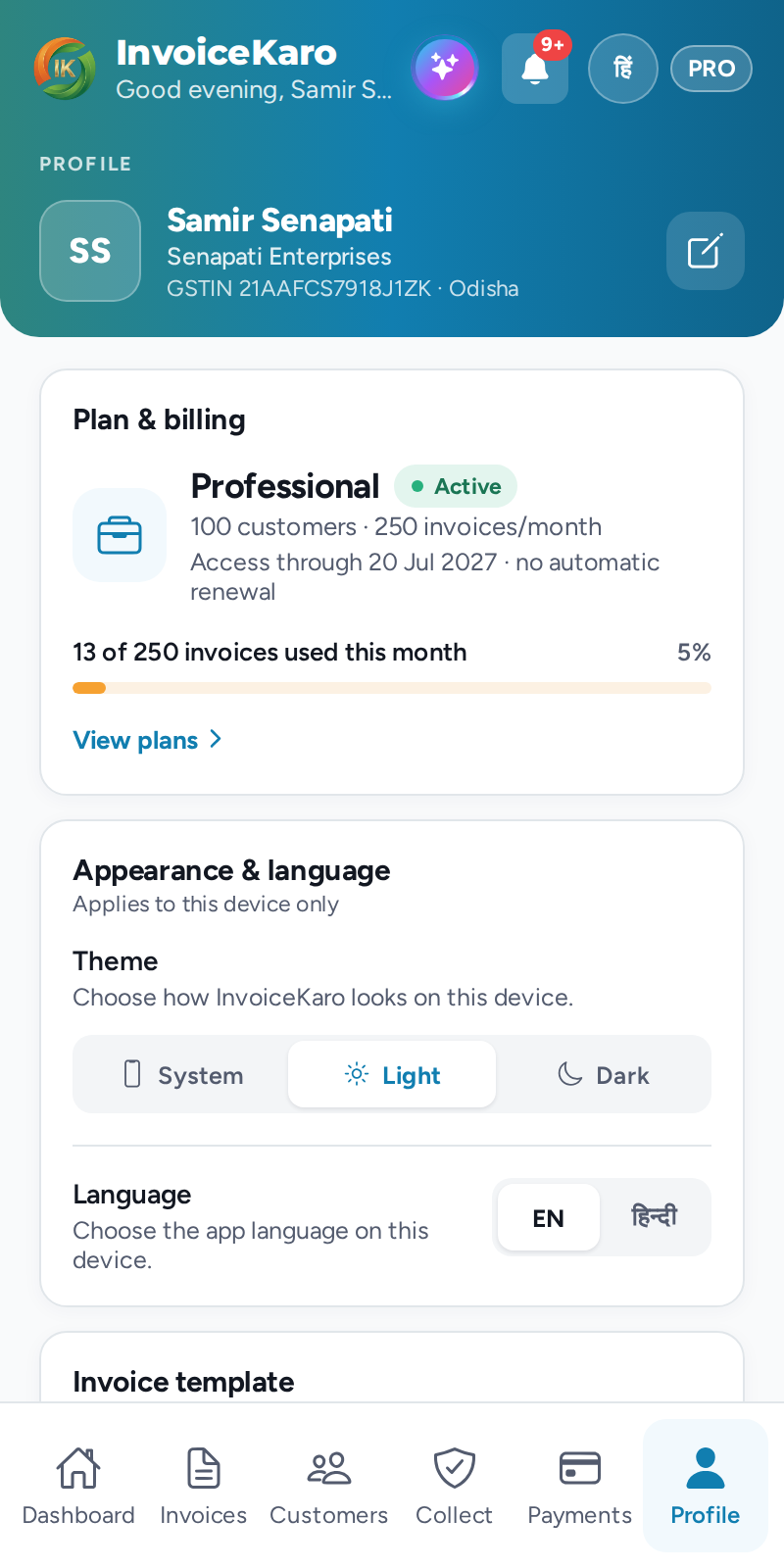
- On a phone, tap More → Settings. Your name, business, GSTIN and state sit at the top, and the sections follow as cards on one page: Business type, Plan & billing, Appearance & language, Invoice template, Business profile, Payments & UPI, Offline billing, Data & backup (owner only), Account and Support & legal. The Log out button is at the bottom.
What each section holds
| Section | What you do there |
|---|---|
| Business profile | Business name, owner, GSTIN, state, city, address, logo and signature. See Business profile & branding. |
| Business type | Choose Shop / Retail, Services / Projects or Both. The owner saves the team layout; records and permissions stay in place. See Business type. |
| Invoice template | The default look of your invoice PDFs: Classic, Modern or Minimal. See Appearance, language & templates. |
| Payments & UPI | Your bank account, UPI ID and an optional UPI QR, so customers can pay you. See Set up how you get paid. |
| Offline billing | Prepare this device, check readiness and saved bills, refresh customers and products, sync, print local copies and manage device storage. On a phone, use More → Settings → Offline billing. See Offline billing. |
| Data & backup | Owner-only business archive, four CSV exports and reviewed imports for customers, products, invoices and payments. See Data, backups & migration. |
| Appearance & language | Theme (System, Light or Dark) and Language (EN or हिन्दी) for the device you're using. |
| Account | Team management, API keys and About notifications, then Help & support, Terms & privacy and Delete account. |
| Plan & billing | Your plan, when access ends and how many invoices you've used this month. See Plans, trial & upgrading. |
Who can change what
Settings look a little different for teammates, because some things belong to the account owner alone.
- Only the account owner can edit the business profile, choose Business type, change Payments & UPI, pick the default Invoice template, use Data & backup, buy or renew a plan, and delete the account. Teammates see the business profile read-only, without your sign-in phone number and email, and the Invoice template section is hidden for them.
- Team management and API keys appear for the owner and for teammates with the Admin role. See Team management.
- Offline billing is available to roles that can create invoices. Preparation and saved bills belong to the current account on this device and browser. Its readiness and storage details stay in Settings; connection notices outside Settings appear only while offline or briefly after reconnecting.
- Appearance & language is personal: everyone sets it for their own device.
Help, terms and support
Settings → Account → Help & support lists every way to reach the team: Call support (+91 80937 12301), Email support (support@invoicekaro.com) and WhatsApp support. It also has answers to frequently asked questions, the User guide and the Offline billing guide. Response times depend on availability. Terms & privacy opens the terms of service and privacy policy. More in Contact & support.
Log out
- On a computer, click Log out under the Settings menu, or the log-out icon at the right end of the top bar.
- On a phone, open More → Settings and tap Log out at the bottom.
Delete your account
The account owner can permanently delete the account from Settings → Account → Delete account (on a phone, the Support & legal card on More → Settings). InvoiceKaro checks it's really you before anything is removed.
- 1Click Delete account, read the warning and click Verify identity.
- 2A 6-digit verification code is sent to your sign-in phone on WhatsApp, or to your email if you signed up with email. Enter it and click Verify code.
- 3Type
DELETEand click Delete forever.