
Invoices made in the full invoice form start as drafts. They become issued records when you send them or mark them as sent. Quick Bill records a paid counter sale when its payment is successfully saved. Its status decides what you can still change, and whether it counts in your receivables, GST figures and stock.
The statuses
| Status | What it means | What you can do |
|---|---|---|
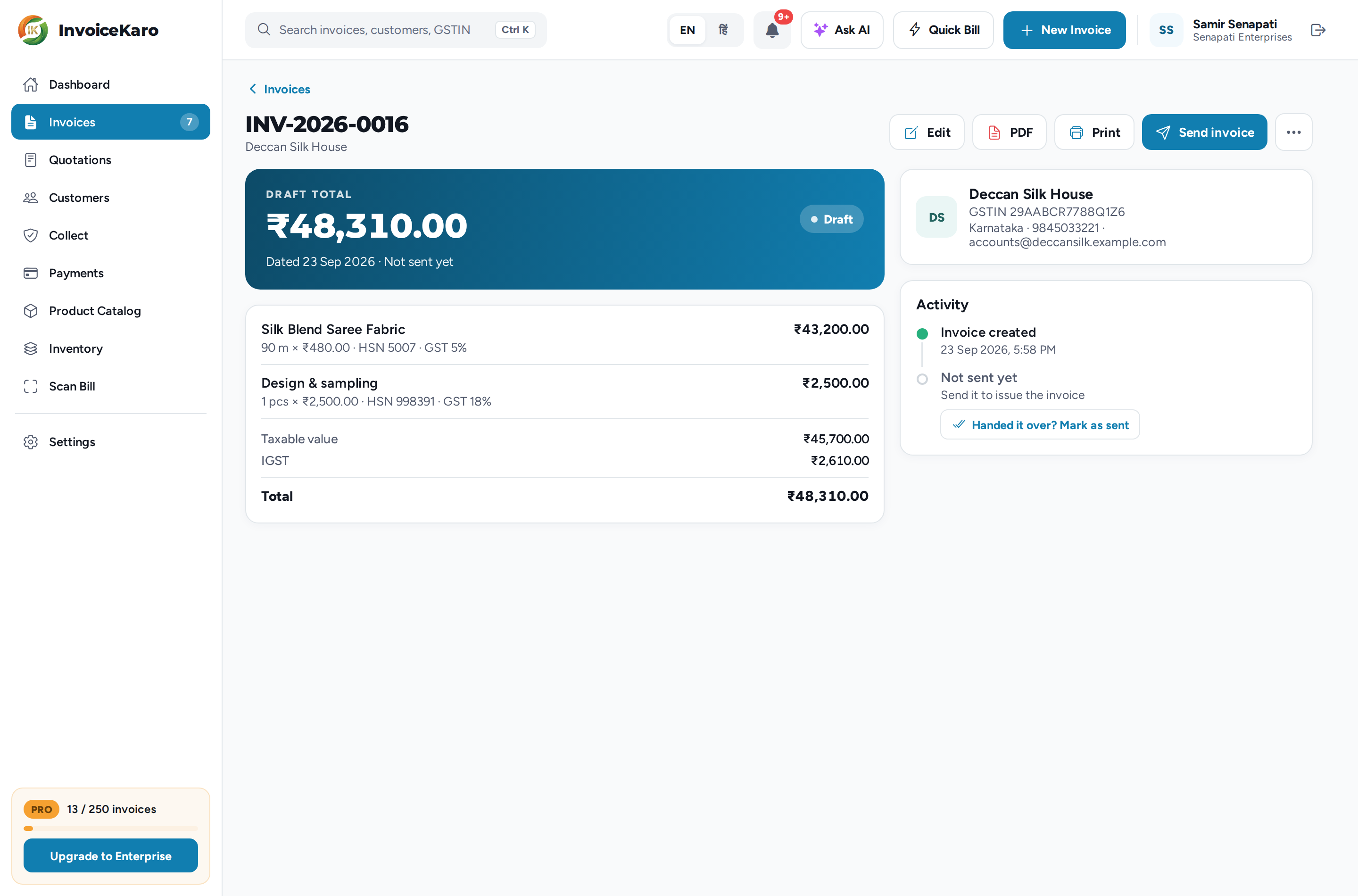
| Draft | Saved but not issued. It doesn't count as money owed, in GST figures or in stock. | Edit, send, Mark as sent, print or delete it. |
| Pending | Issued and waiting for payment, not yet past its due date. The PDF shows DUE. | Remind, copy the pay link, record payment, or cancel it. |
| Overdue | Issued, unpaid and past its due date. It turns overdue the day after the due date. | The same as Pending. Chase these first. |
| Paid | Paid in full. | View, download and print it. |
| Cancelled | Voided after it was issued, and kept in your records with the reason. The amount is struck through. | View and print it. |
What issuing changes
An invoice is issued when its invoice or pay link is sent successfully, or you click Mark as sent. A WhatsApp alert without the link does not issue a draft; see Sending invoices. From then on:
- It can't be edited, so your copy and your customer's stay the same.
- It counts in your receivables, your GST figures and your reminders.
- Stock goes down for the catalogue items on it. See Selling from stock.
- You can copy its pay link.
Mark as sent
Use Mark as sent when you've handed the invoice over yourself: printed, as a PDF, or on your own WhatsApp. It issues the invoice without sending anything to the customer. You'll find it in three places:
- The ⋯ menu of a draft in Invoices.
- The invoice itself: under Activity, Not sent yet has a Handed it over? Mark as sent button.
- The Draft saved window, after you download or print from it.
Cancelling an issued invoice
Issued invoices can't be deleted: they're part of your GST records. If one is wrong and no payment has been recorded on it, choose Cancel invoice from its ⋯ menu and give a reason. InvoiceKaro keeps it as Cancelled with that reason, stops its pay links, returns any stock, and you create a corrected invoice. Once a payment is recorded, it can't be cancelled.
Invoice numbers
Each financial year (1 April to 31 March) has its own series of consecutive numbers. For FY 2026-27 they run INV-2026-0001, INV-2026-0002 and so on.
- The year in the number is the year the financial year starts, so an invoice dated January to March 2027 is still
INV-2026-…. A new series starts on 1 April. - The invoice date decides which year's series an invoice joins.
- The number is taken when the invoice is first saved, drafts included. The form previews the next number; another bill saved first may take that number.
- To use your own number, type it in Invoice #: up to 16 characters (letters, digits,
-,/,.and_), and unique in your account. Automatic numbers skip any number you've typed from the series, so none is ever repeated. - Deleting a draft doesn't give its number back to the series. The next invoice takes the next number.
LOCAL-… reference, not a final invoice number. Its number is confirmed during sync and its original invoice date is retained. See Offline billing.