
InvoiceKaro
Skip to documentation content

GST & Compliance

GST Summary & Review Export

See this month's GST on the dashboard, and download any month's GSTR-1 and GSTR-3B review figures as a CSV: B2B, B2C, B2CS, the HSN summary and 3B totals.

On this page

InvoiceKaro adds up the GST on your sales as you go. The dashboard shows this month's running total, and GST Review Export turns any month's invoices into a CSV laid out like GSTR-1 and GSTR-3B, for you or your accountant to check before filing.

Phone navigation
The updated phone layout uses Home, Invoices, Customers and More, whether or not a business type is selected. Your role controls which areas you can open. Use More → Settings for settings and More for Payments, Projects and other permitted tools. Older installed releases may still show five or six tabs, including Profile; changing a business type does not update an installed app.

GST this month on the dashboard

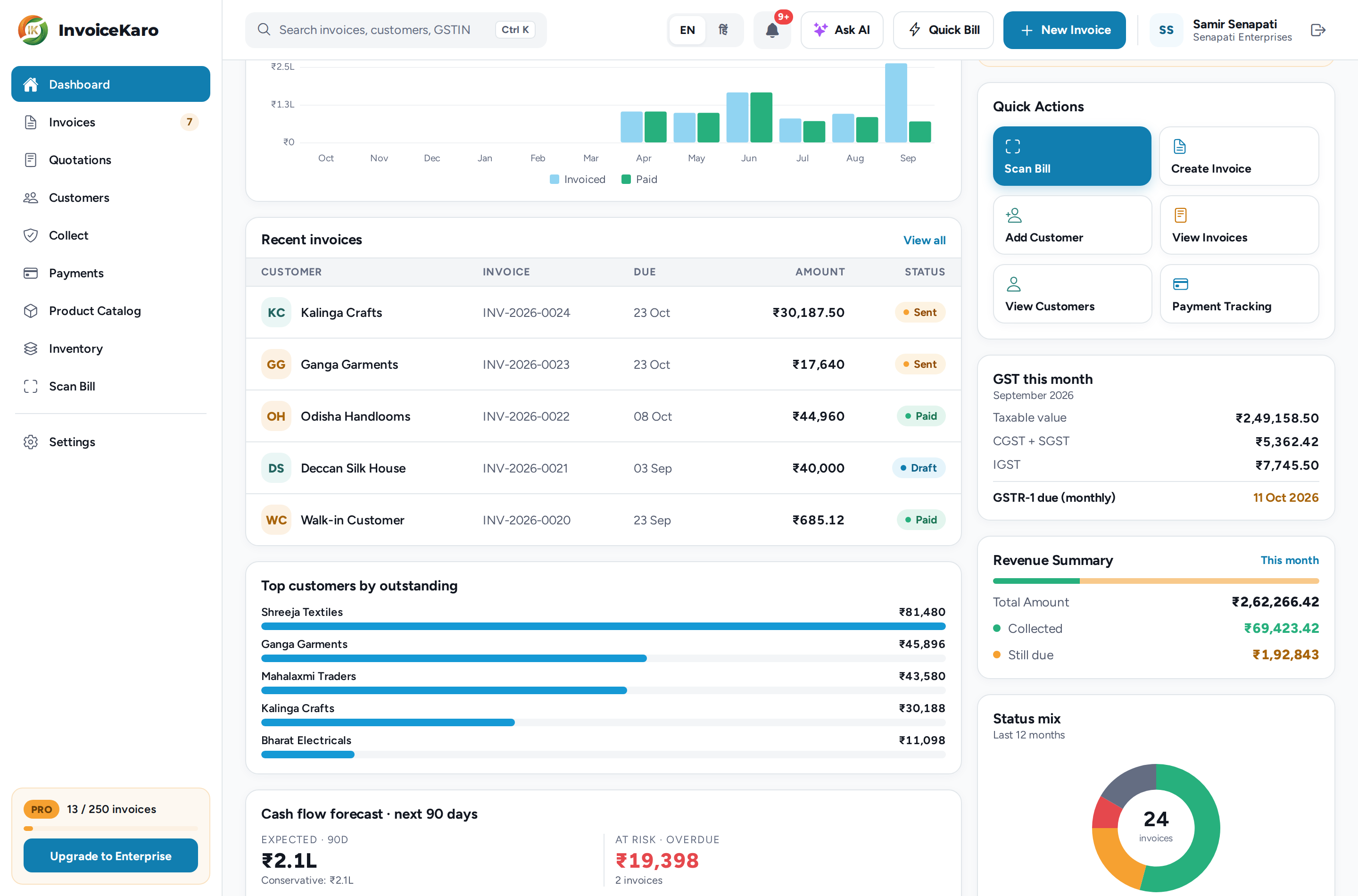
On a computer, once your GSTIN is in your business profile, the dashboard has a GST this month card. It shows the month's Taxable value, CGST + SGST and IGST from issued invoices, with an estimated monthly filing date of the 11th of next month under GSTR-1 due (monthly).
invoicekaro.com/app
The GST this month card on the dashboard: taxable value, CGST + SGST, IGST and the GSTR-1 due date. Earlier layout shown; use the current navigation steps in this guide.
The GST this month card on the dashboard: taxable value, CGST + SGST, IGST and the GSTR-1 due date. Earlier layout shown; use the current navigation steps in this guide.View full size
Note
The app's date assumes monthly filing and does not track extensions or your filing scheme. Confirm your deadline on the GST portal; the official GSTR-1 guide distinguishes monthly and quarterly dates and government extensions.

Download a month's GST summary

  1. 1Open Payments from the left menu on a computer, or More → Payments on a phone.
  2. 2In the Reports card, click GST Review Export.
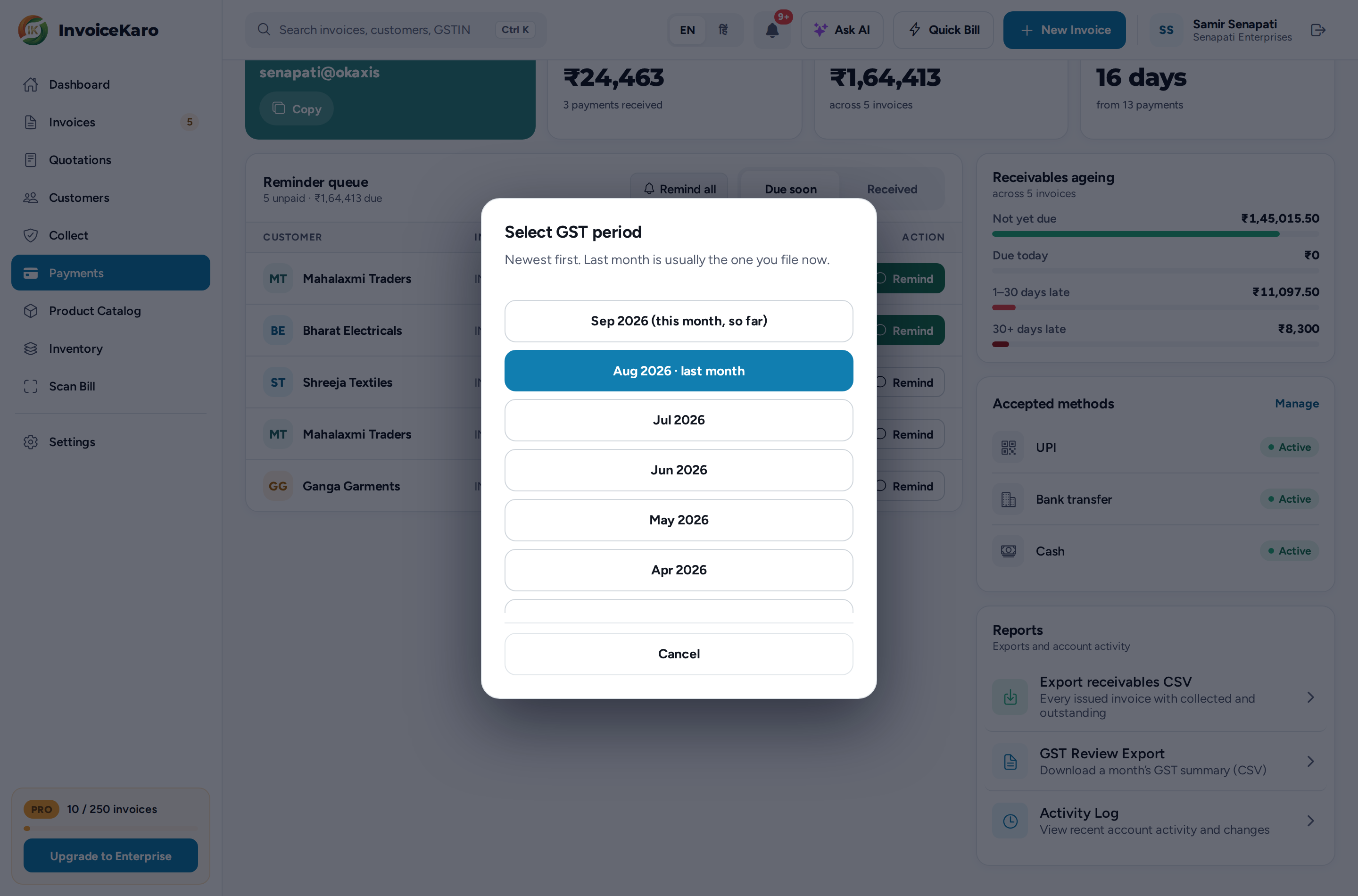
  3. 3In Select GST period, pick the month. The newest months come first, and last month, usually the one you're filing, is marked last month. The current month is marked this month, so far.
  4. 4A CSV file named like gst-2026-08.csv downloads. Open it in Excel or Google Sheets.
invoicekaro.com/app
Payments → Reports → GST Review Export: choose the month to download. Earlier layout shown; use the current navigation steps in this guide.
Payments → Reports → GST Review Export: choose the month to download. Earlier layout shown; use the current navigation steps in this guide.View full size

What's in the CSV

It covers every issued invoice dated in that month, Quick Bill sales included. Drafts and cancelled invoices are left out. Each invoice appears once per GST rate, so a bill with lines at 5% and 18% has two rows.

SectionWhat it lists
GSTR-1 B2BInvoices to customers with a GSTIN: invoice, date, customer, GSTIN, state, place of supply, invoice value, rate, taxable value, CGST, SGST and IGST.
GSTR-1 B2CInvoices to customers without a GSTIN, one row per rate. The app marks inter-state invoices above ₹1 lakh in the B2CL column; review that classification before filing.
GSTR-1 B2CS summaryThe rest of your unregistered sales, totalled by place of supply, supply type (intra- or inter-state) and rate.
HSN SummaryQuantity, taxable value and tax for each HSN/SAC code and rate. Lines with no code are grouped under —.
GSTR-3BThe month's totals: number of invoices, outward taxable supplies, CGST, SGST, IGST, total tax and gross total.
Tip
Put an HSN/SAC code on every line (saving it on your catalogue items does this for you). Otherwise the HSN summary has a large — row to sort out at filing time.
Review it before you file
This is a review summary, not a file you can upload to the GST portal, and it only covers the sales you invoiced in InvoiceKaro. Check it against your records and the portal, with your accountant, before you file.
Note
Bills still saved only on a device are absent from these server reports. Sync offline cash sales before reviewing the period. Normal offline invoices must also be issued after syncing. See Offline billing.

Input GST on your purchases

The export covers your sales (outward supplies). The GST you paid is in Inventory (on a phone, More → Inventory). Purchases shows the Input GST on the supplier bills you've recorded, and Expenses shows the GST paid on running costs. Scan Bill can read a supplier's bill and save it as a Purchase bill or an Expense with its GST. See Purchases, Expenses & profit and Scan Bill.

Who can see it

The account owner and team members with the Admin, Manager or Viewer role see the GST this month card and GST Review Export. The Staff role doesn't. See Team management.

Which date decides the month?+
The invoice date. An invoice dated 31 August is in August's summary even if you send it in September.
Why is an invoice missing from the summary?+
It's still a draft, it's been cancelled, or its date falls in another month. Send it or use Mark as sent to issue it.
Does InvoiceKaro file my GST returns?+
No. It prepares the figures. You or your accountant file GSTR-1 and GSTR-3B on the GST portal.
Need help with these steps? Contact support