
Payments is where you chase and record money. Open it from the left menu on a computer or More → Payments on a phone. The Payments shortcut on Home also opens it when your role allows access.
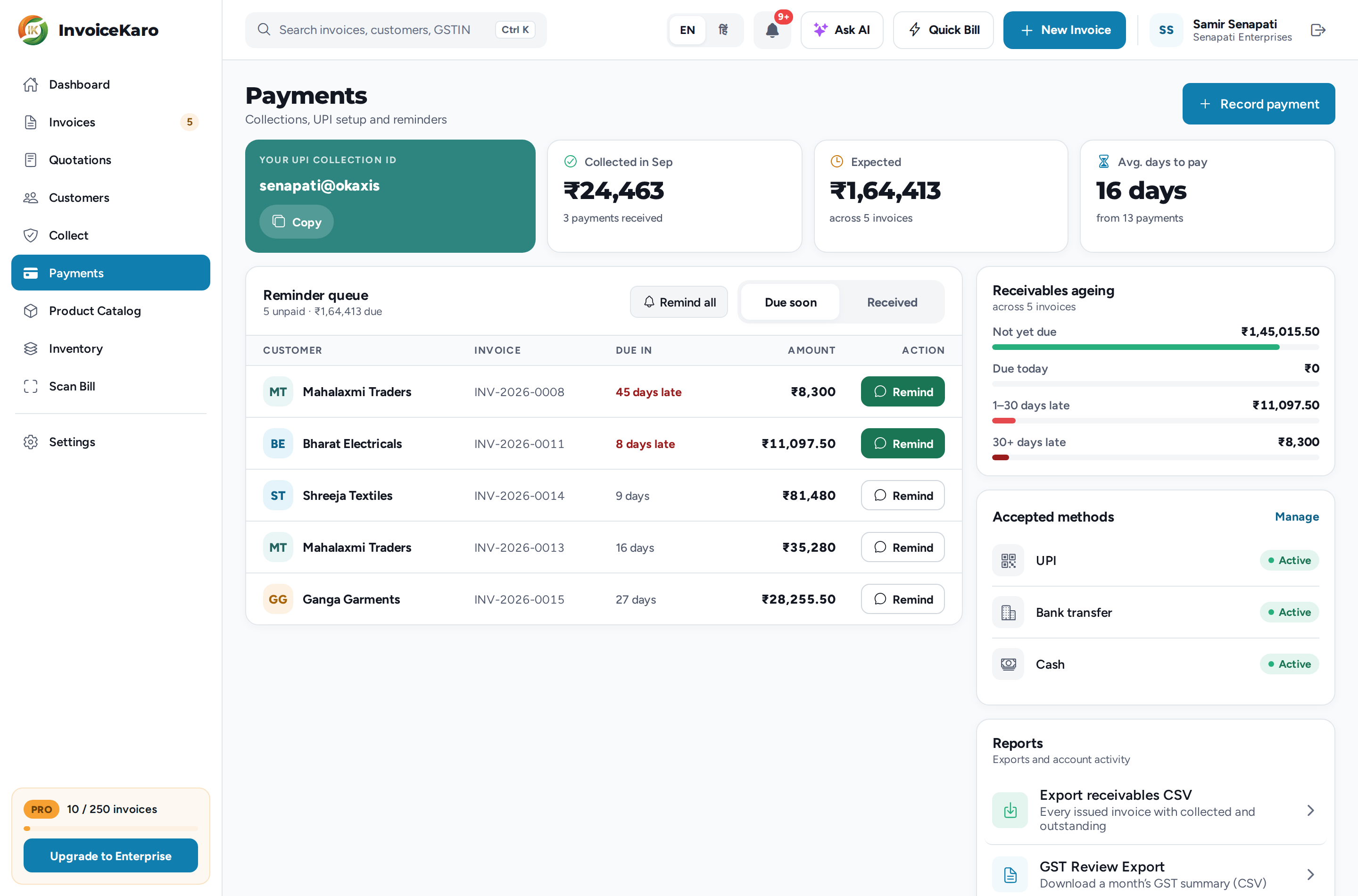
At the top
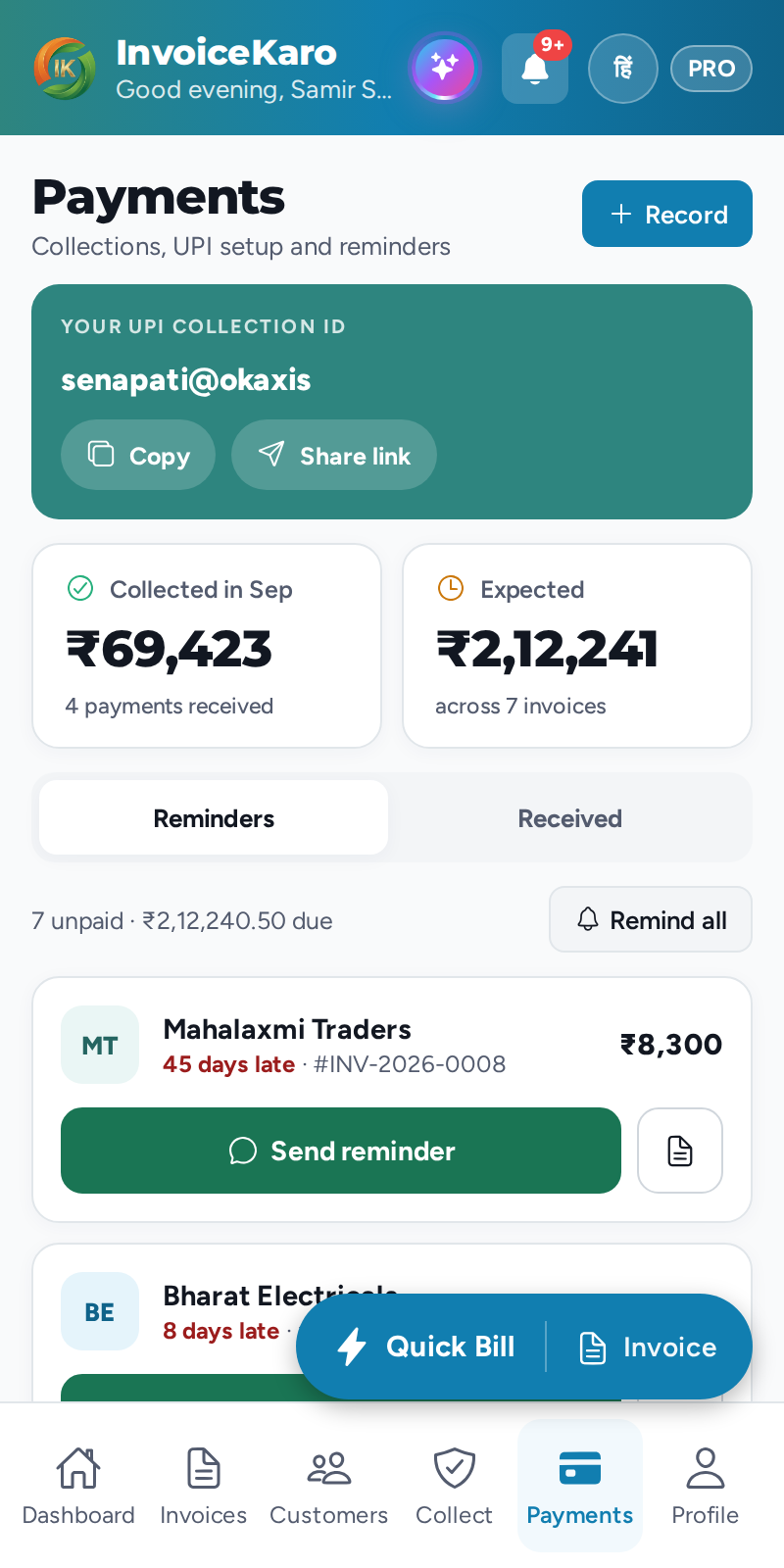
- Your UPI collection ID: your UPI ID with Copy. On a computer, Download QR saves your custom UPI QR, if you've uploaded one. On a phone, Share link sends your UPI ID and a UPI payment link through your phone's share options. No UPI ID yet? The box reads Get paid instantly by UPI, with Set up UPI.
- Collected in (this month): the money received this calendar month, and how many payments that was.
- Expected: every open balance on your issued invoices, however old. Click it to see those invoices.
- Avg. days to pay (on a computer): how many days after the invoice date your payments arrive, on average.
Record payment (on a phone, + Record) is at the top right. See Recording payments.
Reminder queue
The queue lists every issued invoice with a balance, soonest due first, and shows late ones in red (for example 8 days late). Switch between Due soon and Received (on a phone, Reminders and Received).
- Click a row to open the invoice.
- Remind on a row (on a phone, Send reminder) sends that customer a reminder on WhatsApp and email, whichever they have switched on. On a computer, the button turns solid green once the invoice is due today or late.
- Remind all reminds everyone in the queue. Remind every unpaid customer? tells you how many invoices it covers; click Send Reminders to start, or Stop to halt after the current invoice.
Received lists payments newest first, with the customer, the invoice number, the method (UPI, Cash, Bank transfer, Card, or Marked paid), the date and any reference you typed. It shows the latest 10; Show all payments shows the rest.
Receivables ageing
Receivables ageing splits everything in the queue into Not yet due, Due today, 1–30 days late and 30+ days late, so you can see how much of what you're owed is getting old.
Accepted methods
UPI and Bank transfer show Active once they're saved, and Off until then. Cash is always Active, because it needs no setup. Manage opens Payments & UPI (account owner only).
Reports
- Export receivables CSV: one row per issued invoice with the customer, phone, email, subtotal, discount, GST, round off, invoice total, collected, outstanding, status, due date and invoice date. It opens in Excel. Drafts and cancelled invoices are left out.
- GST Review Export: pick a month and download its GST summary as a CSV to check before you file. See GST invoicing.
- Activity Log: the last 100 changes to invoices, payments, stock and your team. Only the account owner or an admin can open it.