
InvoiceKaro has a new look. On a computer you get a full-height menu on the left and a top bar. On a phone you get bottom tabs and billing shortcuts matched to your business type. Everything you had is still there: this page shows where to find it, and what's new.
The new layout
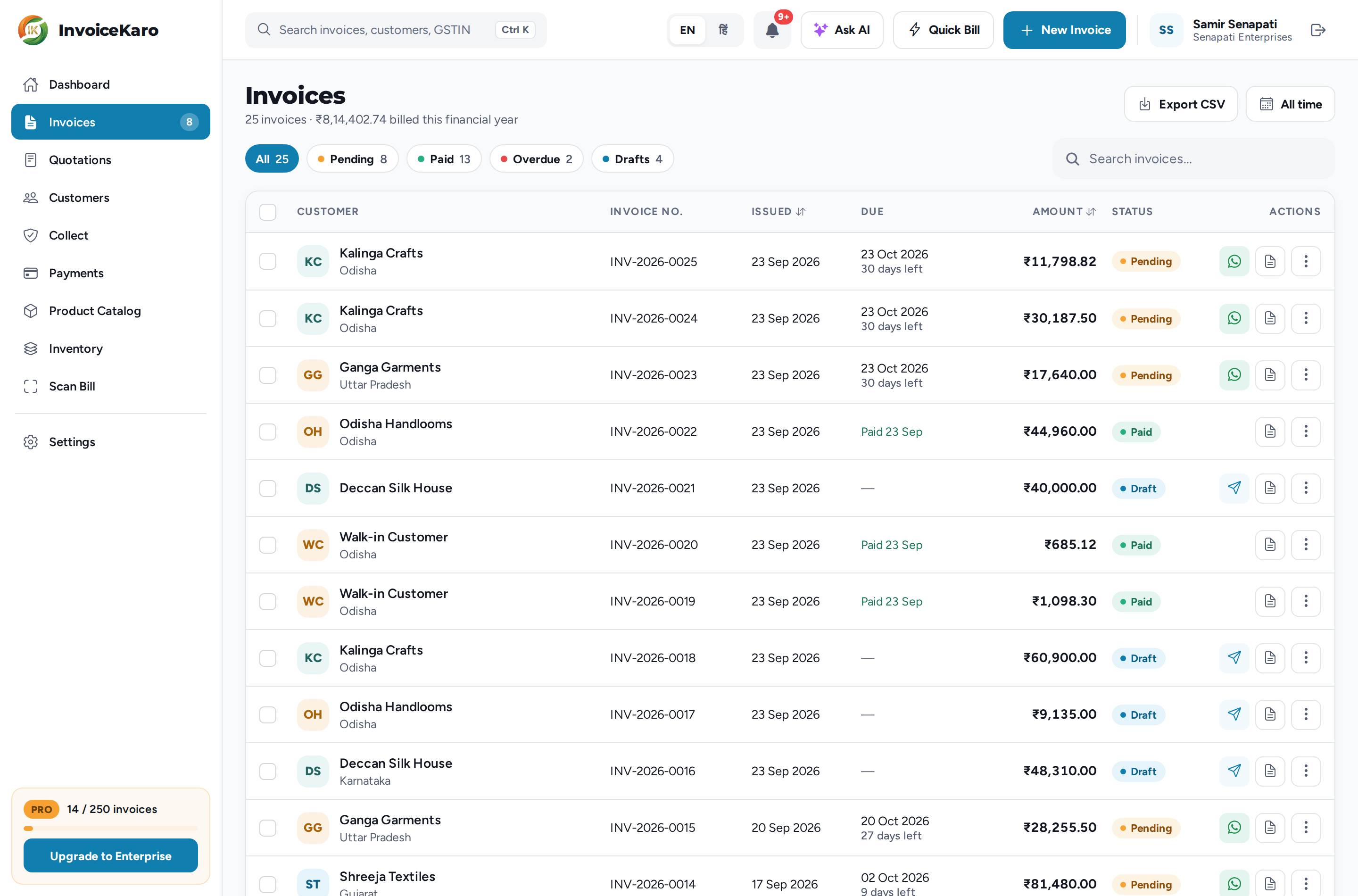
- On a computer, Business type chooses which tools appear first. Use the left menu or More for other permitted tools. Dashboard, Invoices, Customers, Payments and Settings remain easy to reach. The top bar holds search, language, notifications and your available actions; Services puts Quick Bill in More.
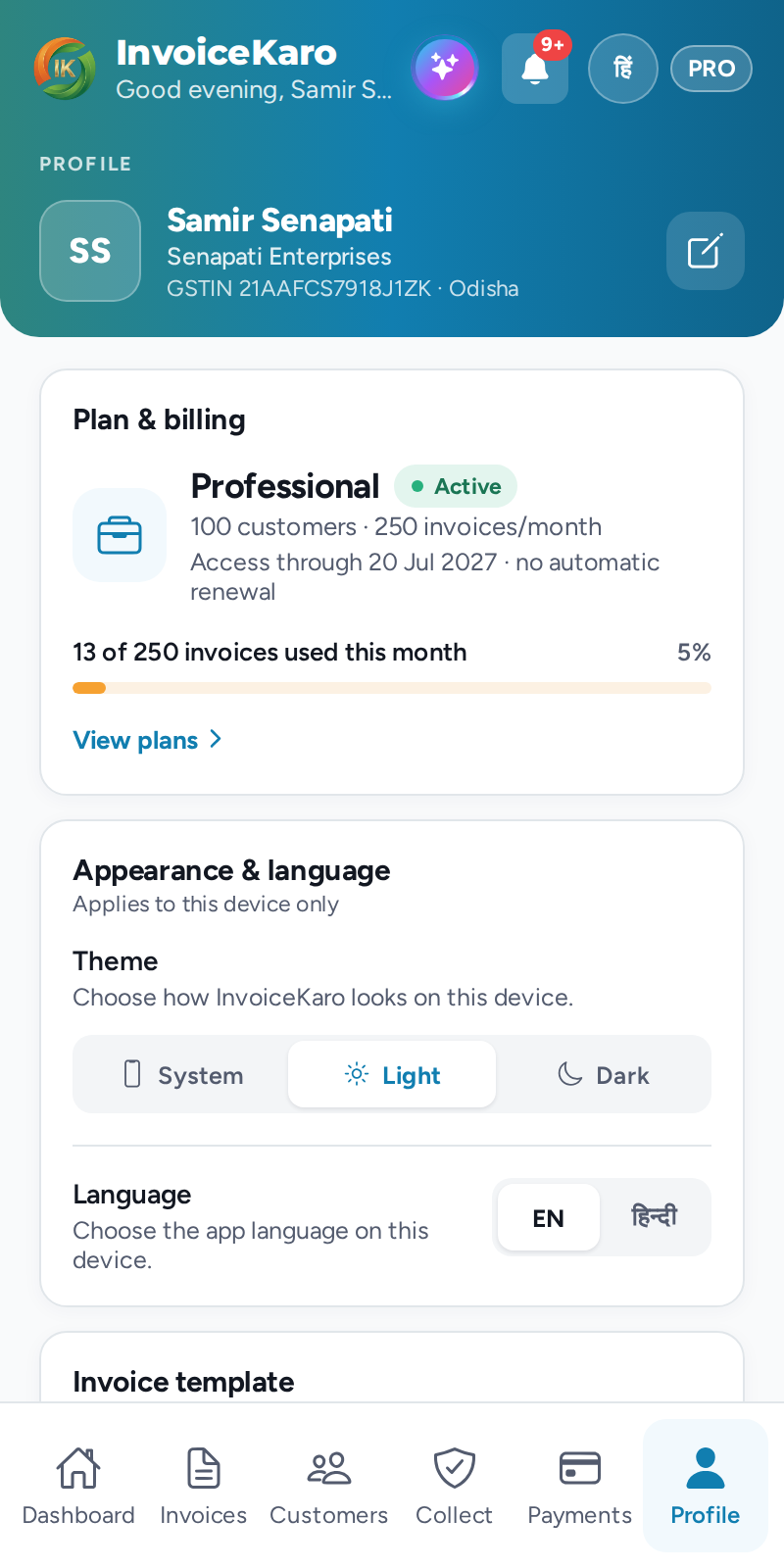
- On a phone, the tabs are Home, Invoices, Customers, More, whether or not a type is selected. Your role controls which areas you can open. Open More for Payments, Projects and Settings. Services shows a New Invoice shortcut; Retail, Both and workspaces without a selected type show Quick Bill | Invoice.
- Settings on a computer and More → Settings on a phone are the same place.
For a full tour, see Find your way around.
Where to find things
| Looking for | On a computer | On a phone |
|---|---|---|
| Your settings | Settings, at the bottom of the left menu | More → Settings |
| Business details, logo and state | Settings → Business profile | More → Settings → Business profile |
| Offline setup, saved bills and device storage | Settings → Offline billing | More → Settings → Offline billing |
| Your UPI ID and bank account | Settings → Payments & UPI | More → Settings → Payments & UPI |
| Your plan and invoices used this month | The plan card at the bottom of the left menu, or Settings → Plan & billing | More → Settings → Plan & billing (the Plan & billing card) |
| Language | EN / हिं in the top bar, or Settings → Appearance & language | The हिं button in the header, or More → Settings → Appearance & language |
| Dark mode | Settings → Appearance & language → Theme | More → Settings → Appearance & language → Theme |
| Quotations, Product Catalog, Inventory | The left menu or More | More |
| Scan Bill | More → Scan Bill, or the direct item when available | More → Scan Bill |
| Quick Bill | More → Quick Bill, or its top-bar shortcut when available | More → Quick Bill, or its floating shortcut when available |
| A new invoice | New Invoice in the top bar | Invoice or New Invoice on the floating button |
| Ask AI | Ask AI in the top bar | The sparkle button in the header |
| Team management and API keys | Settings → Account | More → Settings → the Account card |
| Help & support, terms, delete account | Settings → Account → Support & legal | More → Settings → Support & legal |
| Log out | The log-out icon at the right end of the top bar, or Log out in the Settings menu | Log out at the bottom of More → Settings |
What's new
Business types and More
The owner can choose Shop / Retail, Services / Projects or Both in Settings → Business type. Existing workspaces keep the previous layout until a choice is saved. Other tools remain in More, with the same role permissions. Choose your business type.
Offline billing and device storage
Use Settings → Offline billing → Enable offline billing (on a phone, More → Settings → Offline billing) while online to prepare each browser. During an outage, save invoice drafts and Quick Bill cash sales, then let them sync when the app is open and connected again. The Device storage card shows this site's estimated usage and an optional Protect saved data request. Existing saved bills move to the updated browser storage automatically. See the complete Offline billing guide.
Dashboard
- A period switch: This month, This quarter or the financial year (such as FY 2026-27). Outstanding, Pending and Overdue always show what's open today, whatever period you pick.
- On a computer the dashboard also shows your Recent invoices and GST this month, beside AI Insights and Quick Actions. See Dashboard & KPIs.
Invoices
- Invoices as a table, with the filter chips All, Pending, Paid, Overdue and Drafts, a period filter, search and Export CSV. Click an invoice to open it; every action is also in its ⋯ menu. See Managing invoices.
- Mark as sent issues an invoice you handed over yourself (printed, as a PDF or on your own WhatsApp) without sending anything to the customer.
- Consecutive invoice numbers: one series per financial year,
INV-2026-0001,INV-2026-0002and so on. See Invoice statuses & numbering. - A new invoice form: a line-item table with HSN/SAC on every line, a Place of supply that decides CGST + SGST or IGST, a live preview (Tax invoice or Thermal), + New customer without leaving the form, and Save draft or Save & share. See Creating a GST invoice.
Customers and payments
- Customers as a table with a details pane: what they owe, their invoice history, New invoice, Remind and their portal link. See Customers.
- Payments with your UPI collection ID, a Reminder queue, Receivables ageing, Accepted methods and Reports. See The Payments page.
- Quotations numbered
QT-2026-0001onwards, moving from draft to sent to accepted, then converted into an invoice. Share them as a PDF, on WhatsApp or by email. See Quotations.
Shop, stock and bills
- Quick Bill for walk-in sales: tap items, Show UPI QR with the amount filled in, then Save & print a receipt. The bill clears, ready for the next sale. See Quick Bill for counter sales.
- Product Catalog grouped by category, with each item's price, GST rate and HSN/SAC. See Product Catalog.
- Inventory with Stock, Purchases, Expenses and Reports. See Stock, cost and profit.
- Scan Bill: drop in a photo of a bill, check what the AI read, and save it as a Purchase bill, an Expense or a Sales invoice. See Scan Bill.
Settings, plan and AI
- Settings has its own menu: Business profile, Invoice template, Payments & UPI, Appearance & language, Offline billing, Account and Plan & billing. Your business state is now picked from a list. See Settings.
- The plan card at the bottom of the left menu shows your plan and the invoices you've used this month, for example
27 / 50 invoices. See Plans, trial & upgrading. - Ask AI opens as a panel on the right, beside the page you're asking about. See The AI assistant.
- Dark mode and Hindi for the whole app. See Appearance.
Ctrl K (⌘K on a Mac) on a computer to search for an invoice, a customer or a command, or ask Ask AI. The FAQ and Troubleshooting pages cover the most common questions.