
InvoiceKaro changes its layout to fit your screen. On a computer you get a full-height menu on the left and a top bar. On a phone you get bottom tabs and billing shortcuts. Your chosen Business type puts everyday tools first; other permitted tools stay in More. This page explains both the chosen layouts and the existing layout.
On a computer
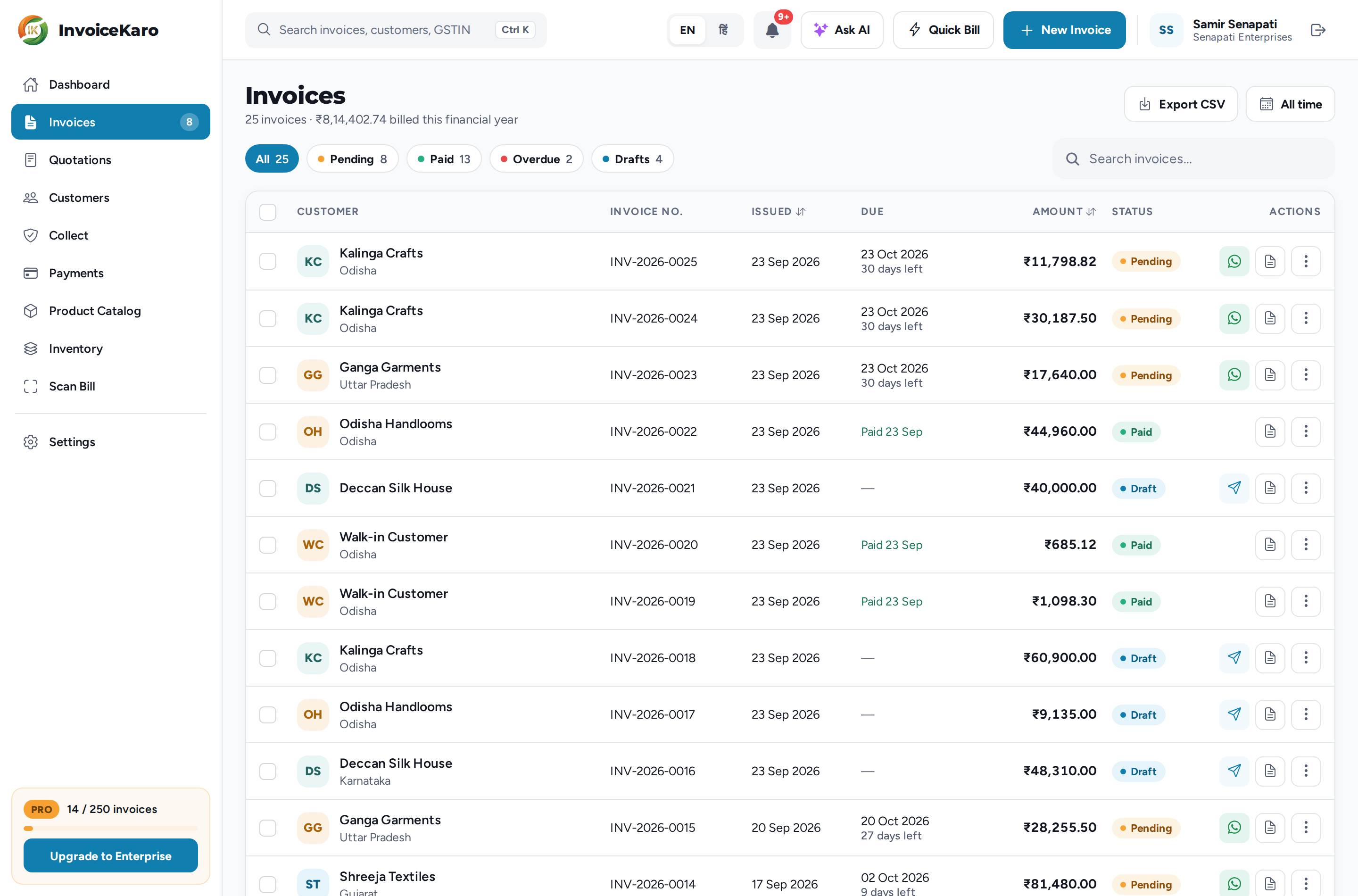
The menu on the left changes with your business type. Retail puts Quick Bill and stock tools first; Services puts quotations and Projects first; Both includes product and project tools. If a tool below is not in your chosen menu, open More. Without a chosen type, the existing menu stays in place:
| Menu item | What it's for |
|---|---|
| Dashboard | Your business at a glance: outstanding, collected, pending and overdue amounts, recent invoices, GST this month and AI insights. |
| Invoices | Every invoice in one table, with the filters All, Pending, Paid, Overdue and Drafts, a period filter and Export CSV. The badge counts the invoices waiting to be paid. |
| Quotations | Quotes numbered QT-2026-0001 onwards. A quote moves from draft to sent to accepted, and then you convert it into an invoice. |
| Customers | Your customers with their GSTIN, outstanding balance and invoice history. |
| Projects | Milestone projects with proof of delivery and client approval. |
| Payments | Payments received, a reminder queue, your UPI ID, receivables ageing and Record payment. |
| Product Catalog | The items and services you bill often, with price, GST rate and HSN/SAC. |
| Inventory | Stock, Purchases, Expenses and Reports (profit, stock value and margins). |
| Scan Bill | Upload or drop in a photo of a bill. The AI reads its lines, and you save it as a purchase bill, an expense or a sales invoice. |
| Reports | Receivables, exports and account activity, plus a link to stock and profit reports when your role allows them. |
| More | Other permitted tools, including Quick Bill, Quotations, Projects, Product Catalog, Inventory, Scan Bill, Reports and Settings. |
| Settings | Business profile, business type, invoice template, Payments & UPI, Offline billing, appearance and language, account and your plan. |
At the bottom of the menu, the plan card shows your plan, the invoices you've used this month (for example 27 / 50 invoices) and, on the free trial, the days left. If you're the account owner, it also has an Upgrade to … button.
The top bar
- Search (press
Ctrl K, or⌘Kon a Mac): open an invoice by its number, find a customer, or run a command such as Create invoice. - EN / हिं: switch the whole app between English and Hindi.
- The bell: your notifications, such as trial reminders.
- Ask AI: opens the assistant as a panel on the right. It uses what's on your screen and suggests questions to start with.
- Quick Bill: a walk-in sale at the counter, with no customer needed. In Services / Projects, open it from More.
- New Invoice: the full GST invoice form.
- Your name and business, with the log-out button at the far right.
On a phone
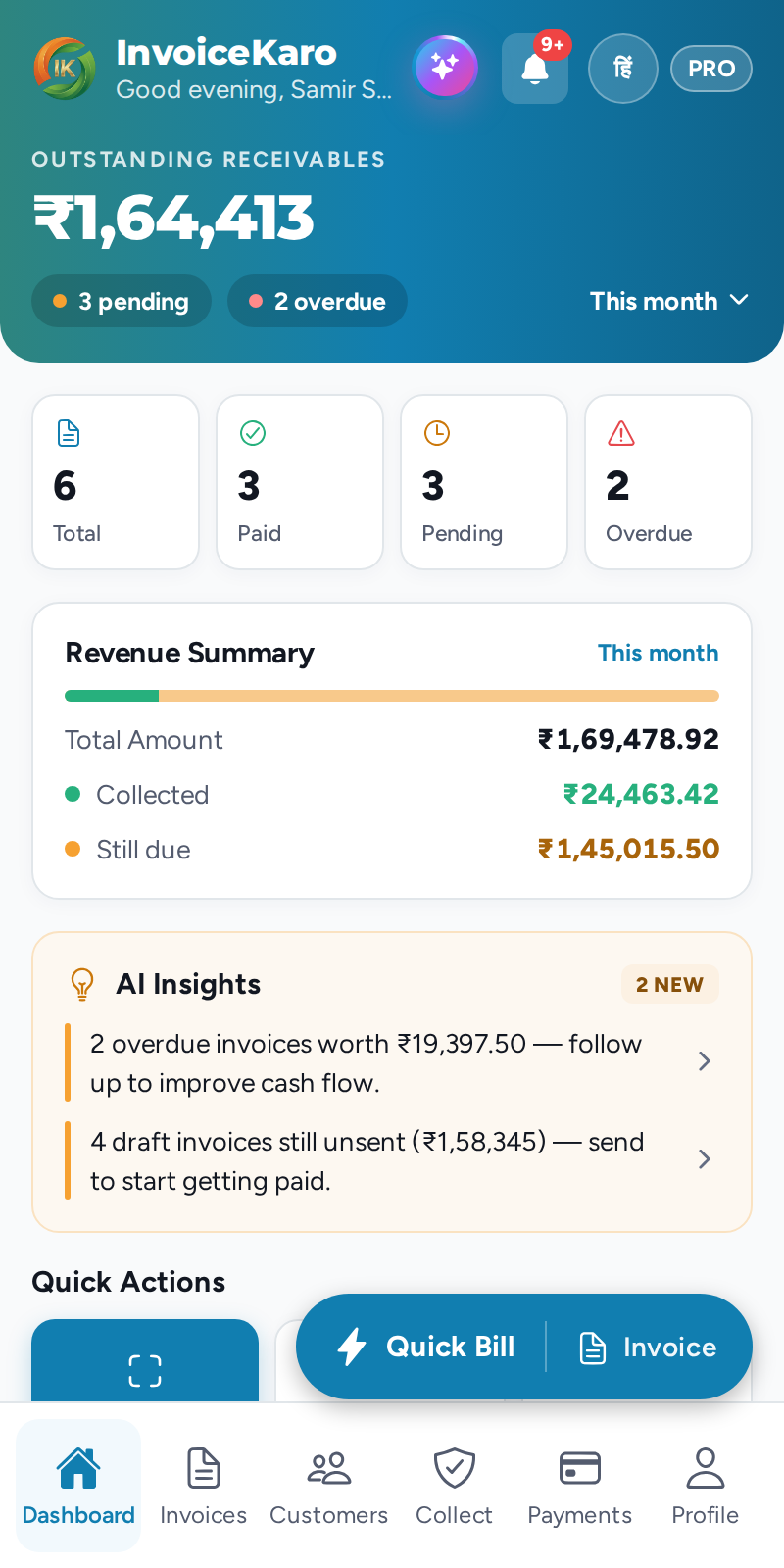
- Bottom tabs: Home, Invoices, Customers, More for every business type, including no selection. Tabs still depend on your role. Open More → Payments or the Payments shortcut on Home to record and review payments.
- Billing shortcut: Retail and Both show Quick Bill | Invoice; Services shows New Invoice. Quick Bill is still available in More. The shortcut hides while you are in Settings or another open form.
- The header: Ask AI (the sparkle), the bell, the language switch and your plan badge.
- More → Settings holds Business type, Plan & billing, Appearance & language, Invoice template, Business profile, Payments & UPI, Offline billing, account controls and Log out. Payments, Projects, Product Catalog, Quotations and Inventory are directly in More, including before you choose a business type.
- Scan Bill is in More when your role allows it. A workspace without a chosen type also keeps the Scan Bill tile in the dashboard Quick Actions.
Offline billing
Open Settings → Offline billing on a computer, or the Offline billing card in More → Settings on a phone. This section shows readiness and saved bills, with Enable offline billing, Refresh saved data, Sync now, local printing and Device storage. A notice appears outside Settings while offline and briefly after reconnecting; it is hidden during normal online use. Offline billing is shown to roles that can create invoices. See Offline billing.
The dashboard
The dashboard opens first. Use the period switch at the top (This month, This quarter or the financial year, such as FY 2026-27) to choose the period it reports on. Outstanding and Overdue always show what's open right now, whatever period you pick. Below them you'll find a chart of what you invoiced against what was paid, your recent invoices, AI Insights, Quick Actions, GST this month and a cash-flow forecast. More in Dashboard & KPIs.