
The Product Catalog is the list of things you sell. Save an item once and its price, unit, GST rate and HSN/SAC code fill in whenever you add it to an invoice or a quotation. Quick Bill shows your catalogue as tiles you tap to bill, and stock tracking, price tiers and serial numbers are all switched on here.
Open it
- On a computer: Product Catalog in the left menu or More → Product Catalog.
- On a phone: the More → Product Catalog.
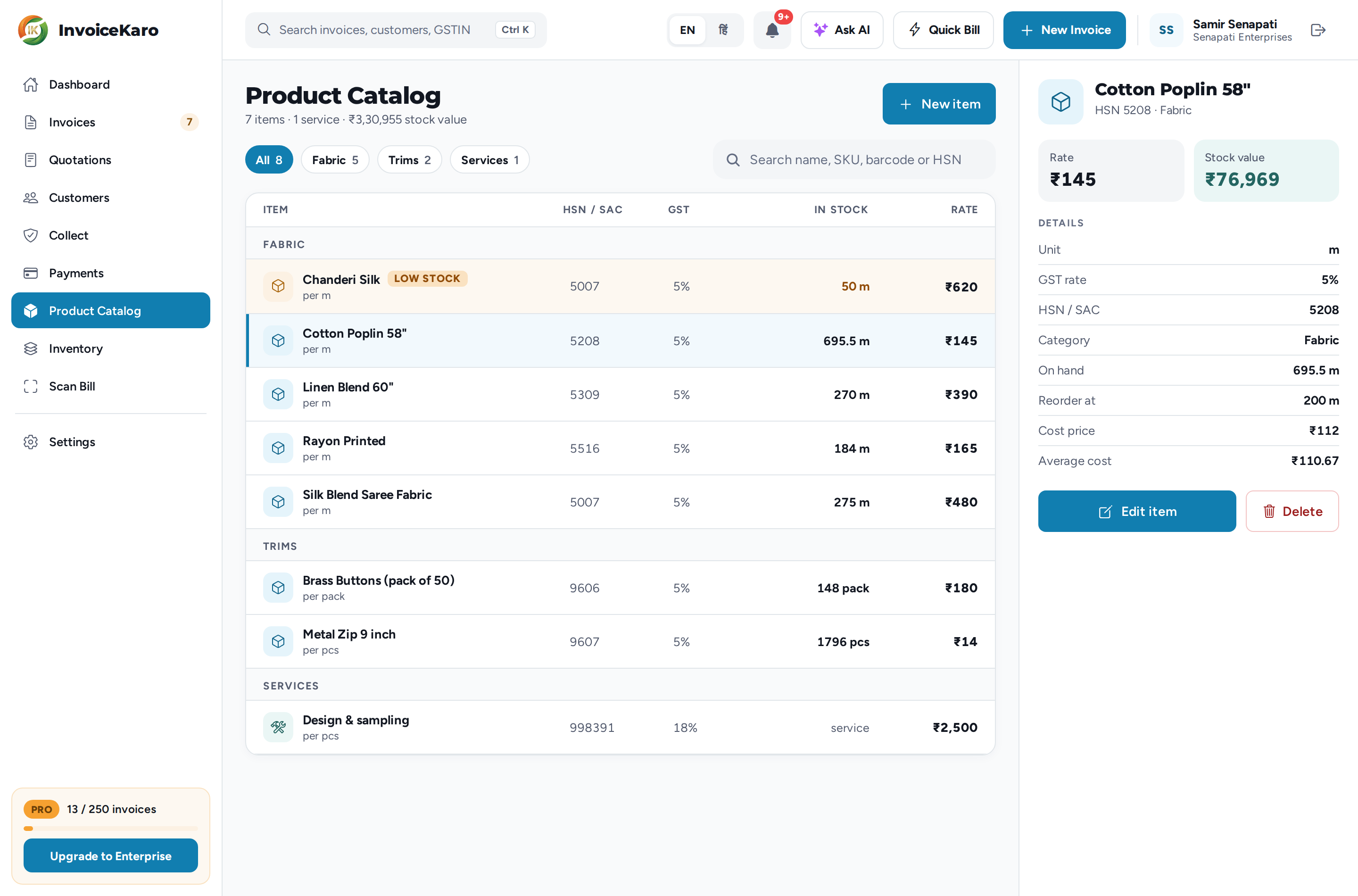
Items are grouped under their category, with the columns Item, HSN / SAC, GST, In stock and Rate. Use the chips at the top (All and one per category) to narrow the list, or search by name, SKU, barcode or HSN. Click an item to see its details beside the list: rate, stock value, unit, GST rate, HSN/SAC, category, stock on hand and reorder level. On a phone, tap the item.
Add an item
- 1Click New item.
- 2Enter the Product name and Price (₹), and a Unit such as pcs, kg or m.
- 3Pick the GST %. The common rates are shown first: 0, 5, 12, 18, 28 and 40. Click More rates for the special ones (0.1, 0.25, 1, 1.5, 3, 6 and 7.5).
- 4Enter the HSN / SAC code: HSN for goods, SAC for services. It must be 4, 6 or 8 digits.
- 5Optionally add a SKU, a Barcode (scan it or type it), a Category (pick one or type a new one) and a Description.
- 6Under Stock, fill in the stock settings if you count this item. See Tracking stock.
- 7Under Price tiers (optional), add wholesale, retail or shop prices if you use them. See Price tiers.
- 8Click Add item.
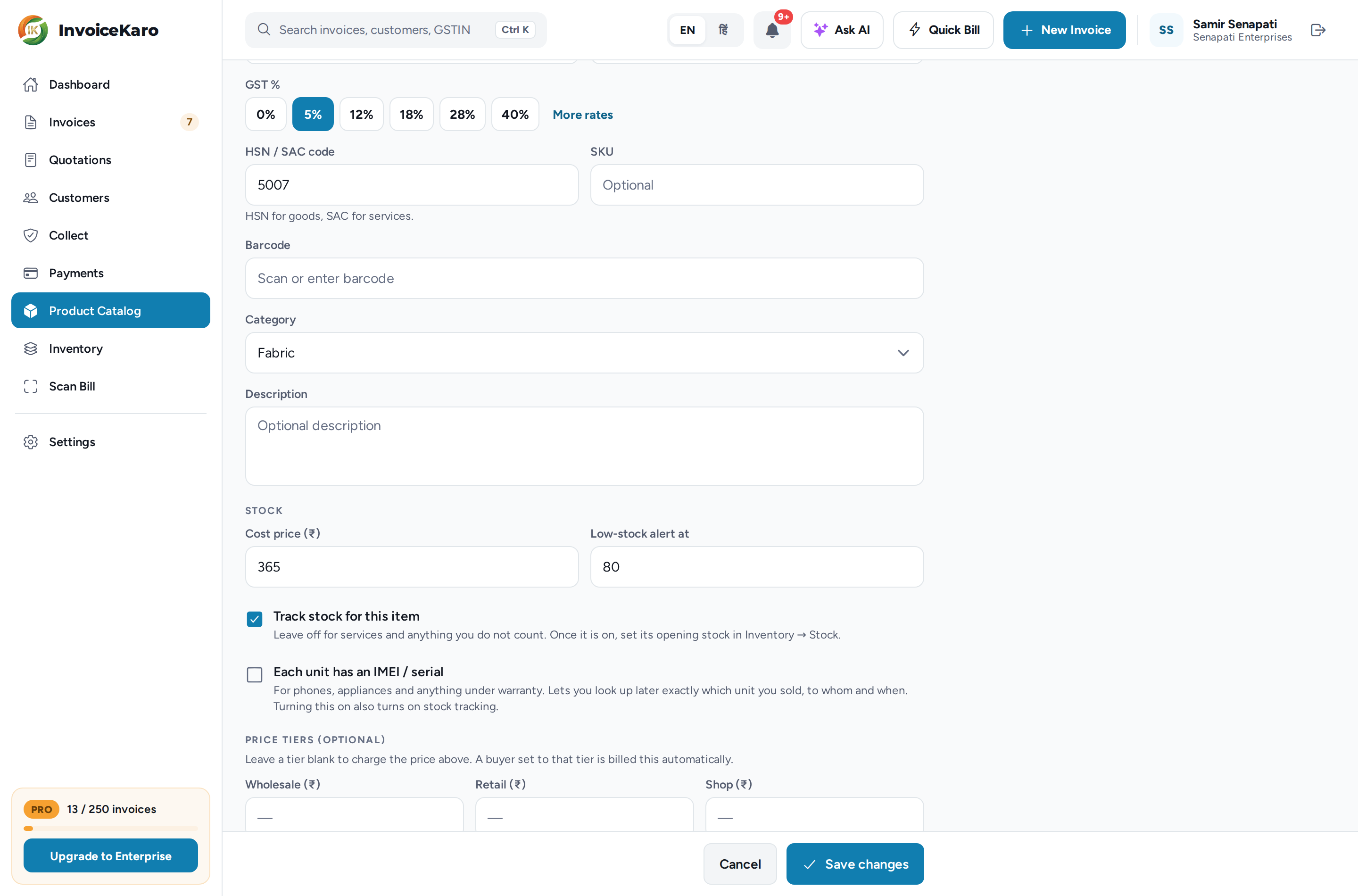
The Stock section
| Field | What it does |
|---|---|
| Cost price (₹) | What one unit costs you. Owner-only: other roles don't see this field. |
| Low-stock alert at | Your reorder level. The item is flagged when its count falls to this figure or below. |
| Track stock for this item | Counts this item in and out. Leave it off for services and anything you don't count. |
| Each unit has an IMEI / serial | Tracks each unit separately, for phones, appliances and anything under warranty. It turns on stock tracking too. |
| Warranty (months) | Appears with serial tracking. Counted from the date you sell the unit. Use 0 for none. |
Services
An item in the Services category, or with a SAC code starting with 99, is treated as a service. It's grouped under Services and shows service instead of a stock count.
Edit or delete an item
Select the item and click Edit item, change what you need, then Save changes. Clear an optional SKU, barcode, category, description, HSN/SAC or tier price to remove that saved value. Existing invoice lines keep their saved descriptions and prices.
After changing catalogue prices or details, refresh the saved data on each device used for offline billing. An offline device continues to use its last saved catalogue until refreshed.